This document describes the full functionality of W-FORTEX: how to define the protected object and the protection envelope, how volume, masses, logistics and cost are calculated, how revisions, the cloud and client links work, how to run and read threat simulations (UAV, missile, fire/seismic), how to use the W-FORTEX component library and the built-in library of real IBIPC products — from the catalogue and the 3D card to placing products in the scene and accounting for them in the simulator.
1. Purpose and general logic
W-FORTEX is a TRIUMPH Alliance web tool for preliminary design of spatial protection of facilities (substations, tanks, critical infrastructure). One application and one 3D scene combine:
- Configurator — a parametric protection envelope around the object: corner towers, WEB cable mesh (roof and sides), lower protective belt, panels, fire suppression, NOVERA coating, window protection, local shields, alerting.
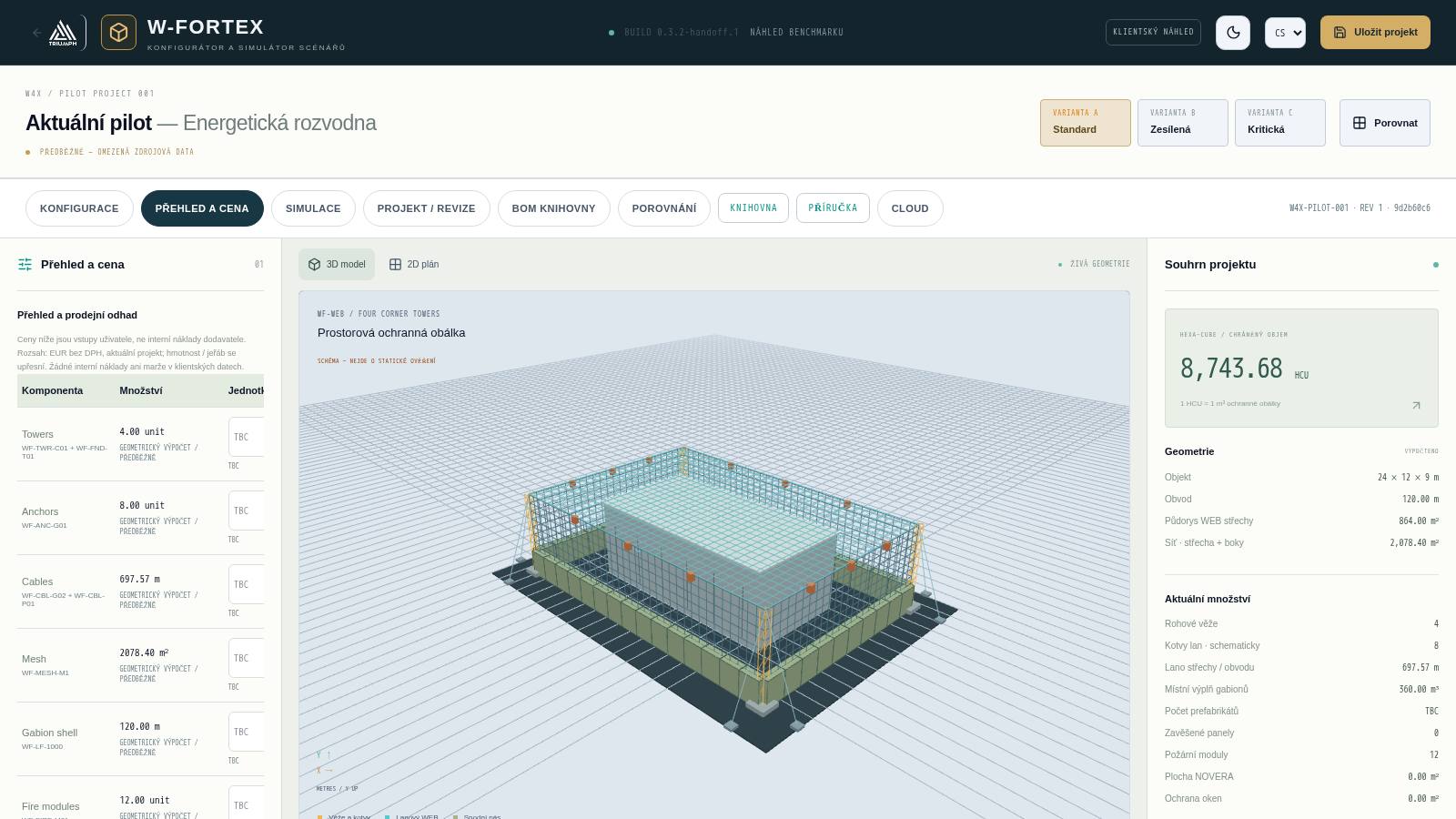
- Review & cost — quantities, masses, logistics, the HEXA-CUBE (HCU) commercial benchmark and an estimate based on component prices.
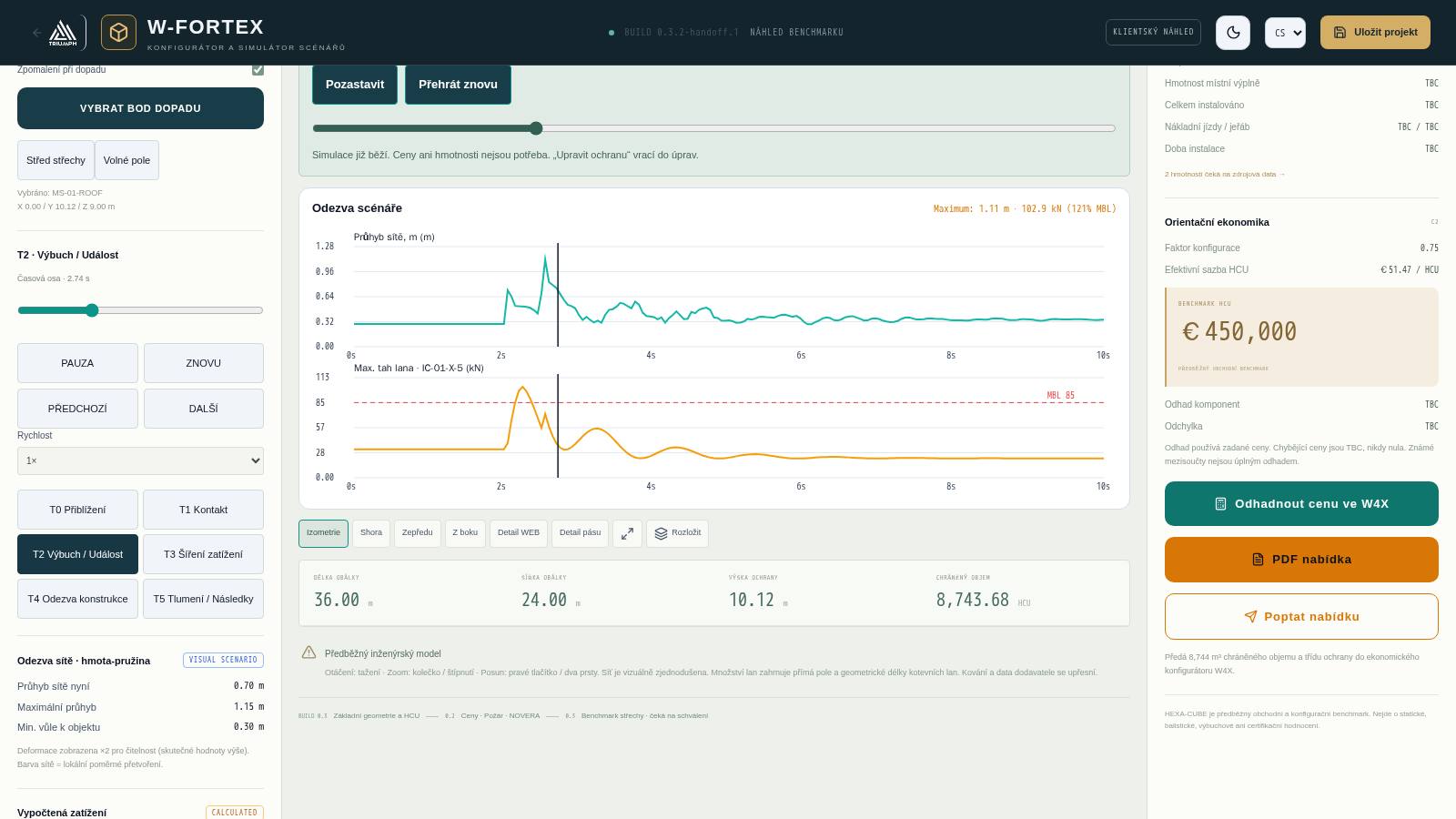
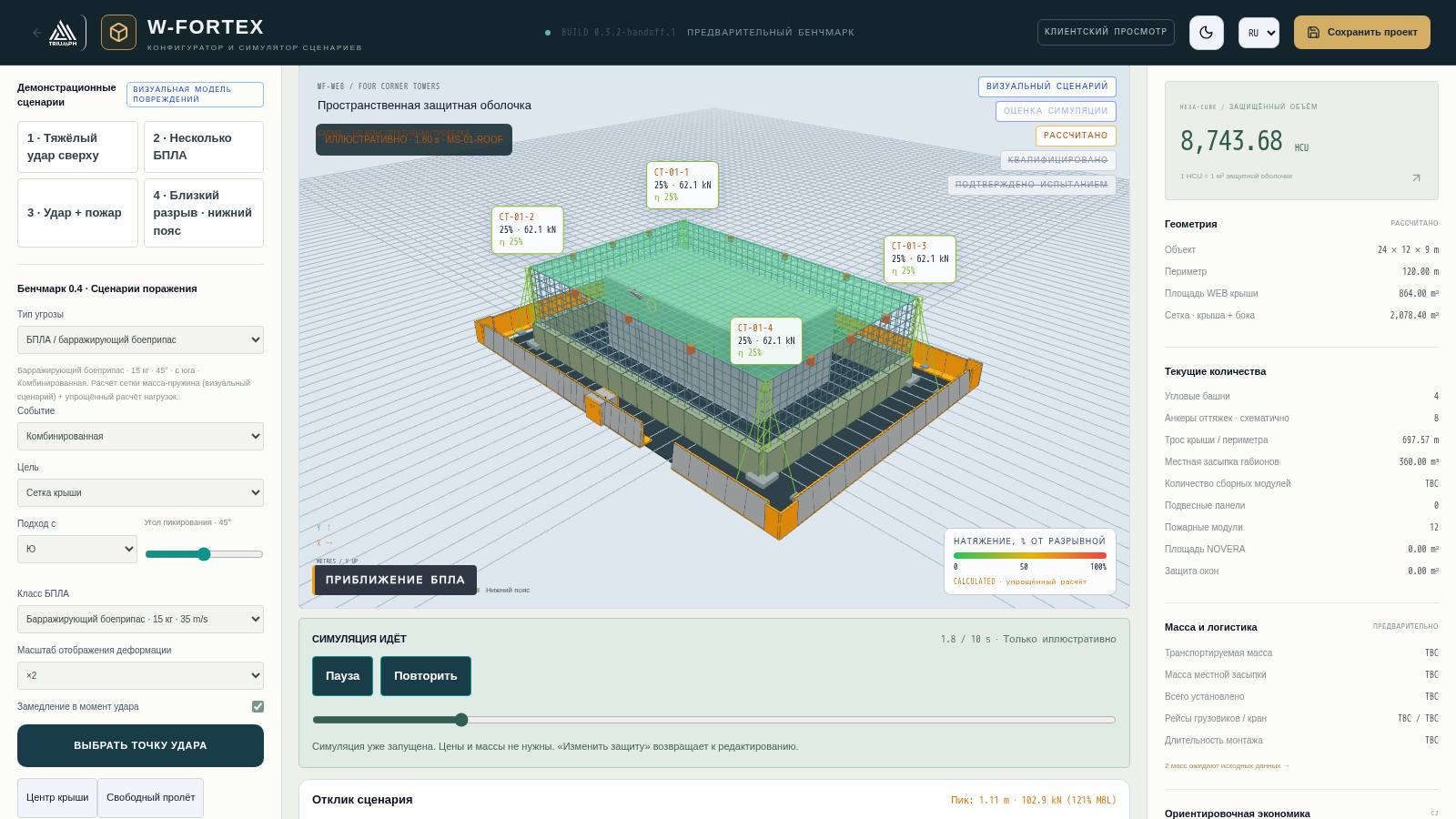
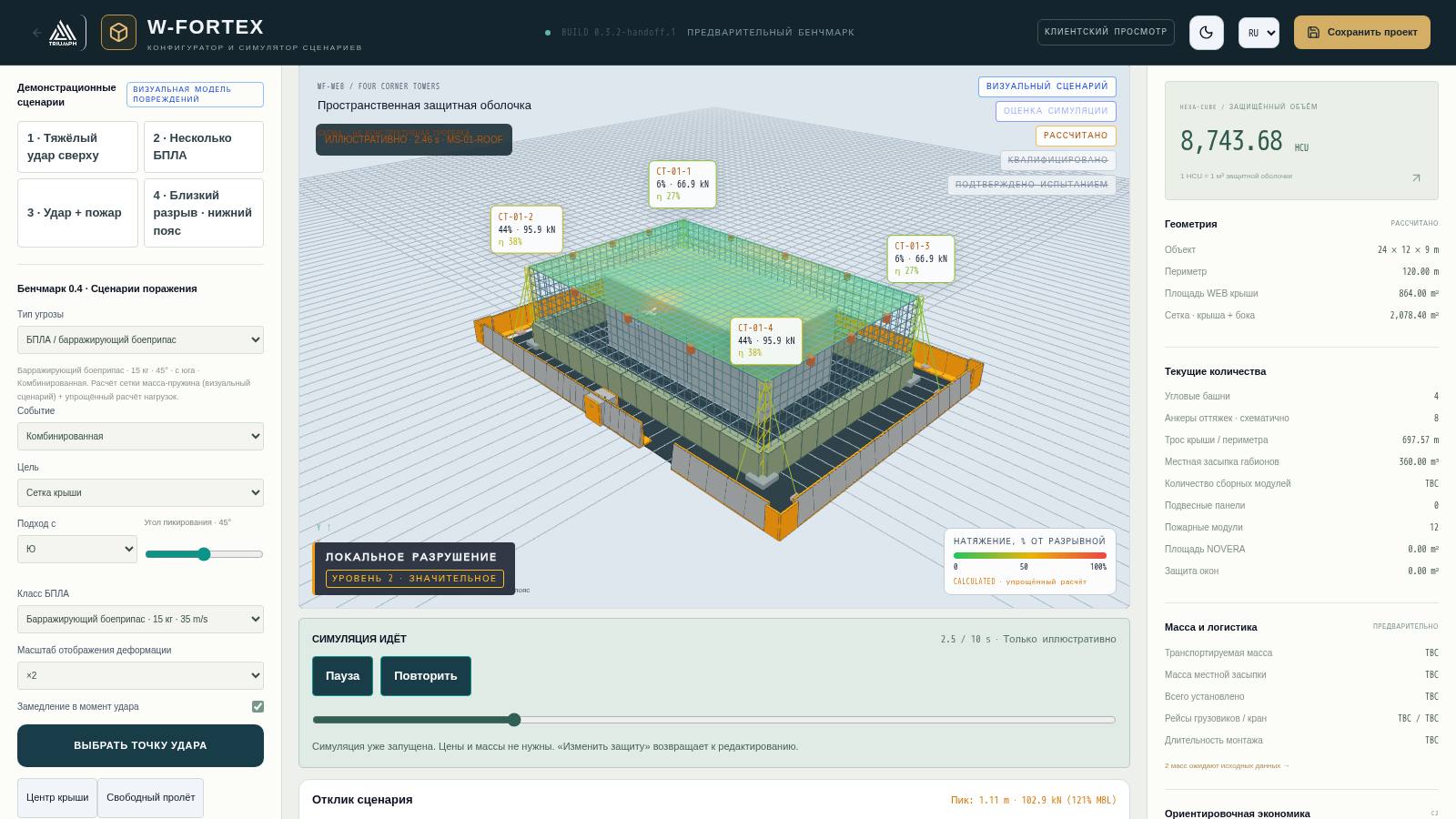
- Simulator — visual and simplified calculated damage scenarios: UAV strike, drone swarm, ballistic missile (direct hit / near miss), fire and seismic signal.
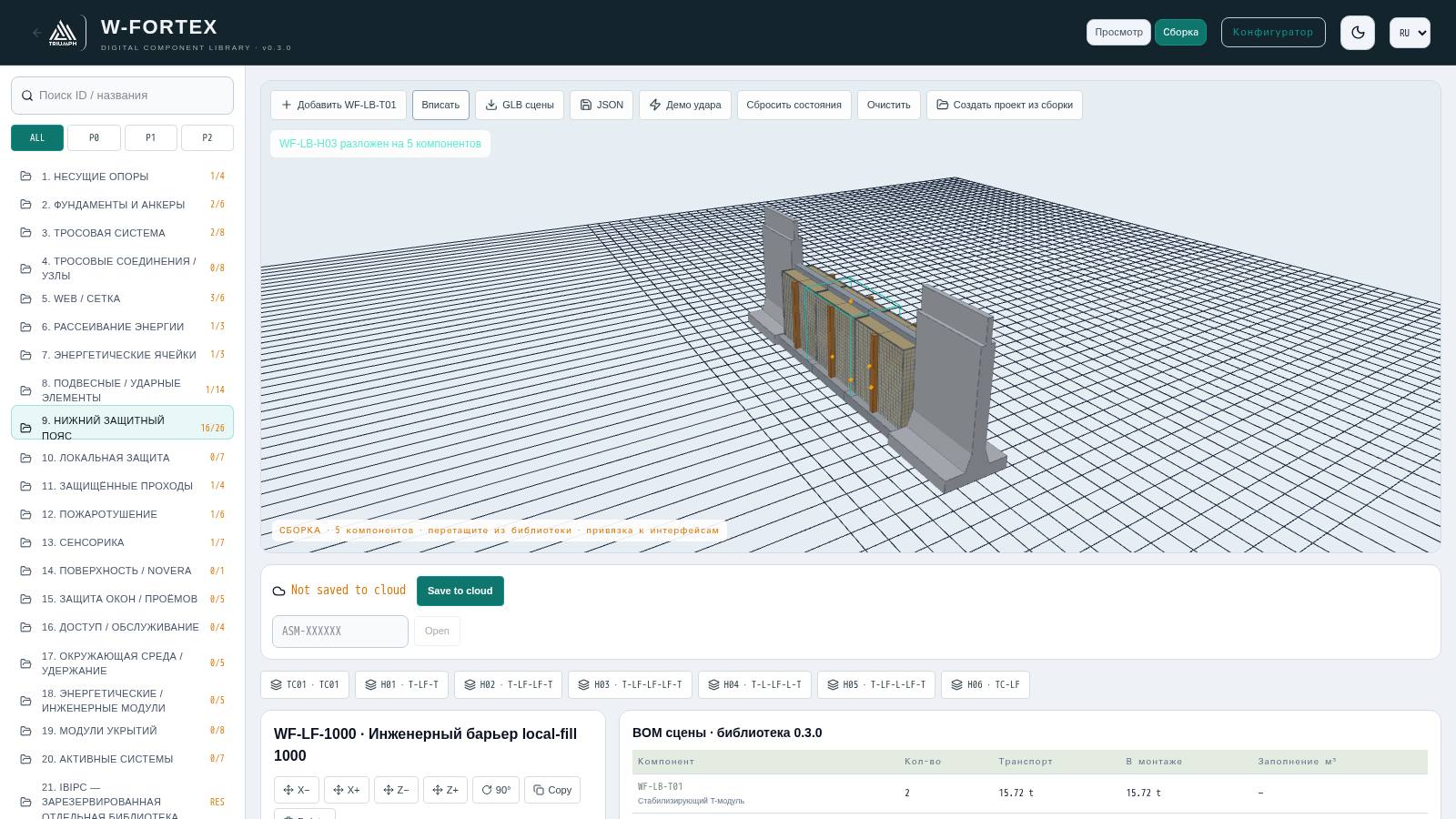
- W-FORTEX component library — 21 families and 109 component records with parametric 3D models, snap points and assembly mode.
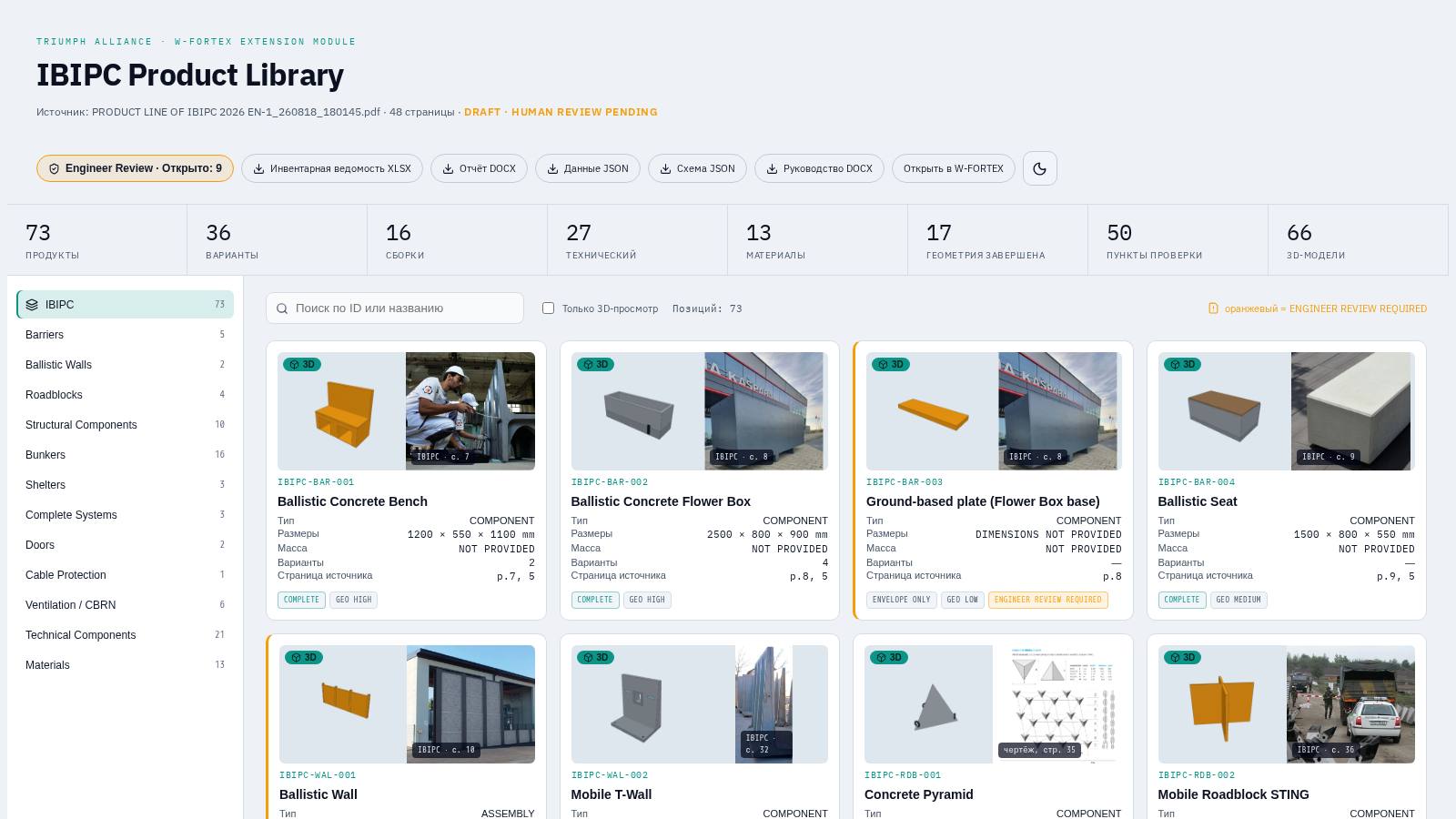
- IBIPC library — 73 real products from the official IBIPC catalogue (48 pp.) with 3D, photos and engineering review; products are placed in the scene and accounted for in the simulator.
- Project, revisions and cloud — local storage, revision chain, cloud project code, links for viewing/editing/client, PDF proposal, quote request, handover to the W4X economic configurator.
Cross-cutting principle: every value has an origin status. User input, geometric calculation, simplified engineering calculation and visual model are explicitly separated. Missing data are shown as TBC and are never replaced by zero.
| Status | Meaning in the interface |
|---|---|
| USER INPUT | Value entered by the user (object dimensions, prices, masses, logistics) |
| CALCULATED / GEOMETRIC CALCULATION | Derived from scene geometry or by formula (HCU, areas, cable lengths) |
| PRELIMINARY / TBC | Data are missing or incomplete — clarification required; not included in totals as zero |
| VISUAL SCENARIO | Visual physics (mass-spring, debris, damage model) — not engineering validation |
| QUALIFIED / TEST-VALIDATED | Levels requiring FEM/CAE import or a test report (not assigned in the current build) |
| ENGINEER REVIEW REQUIRED (IBIPC) | IBIPC catalogue data are ambiguous or missing — an engineer's decision is required |
2. Addresses and launch
| Section | Address (relative to the domain) |
|---|---|
| Configurator and simulator | /w-fortex/confi/app/ |
| W-FORTEX component library | /w-fortex/confi/app/?view=library |
| IBIPC catalogue inside W-FORTEX | /w-fortex/confi/app/?view=ibipc |
| IBIPC catalogue (standalone page) | /ibipc/ |
| Client view of a project | /w-fortex/confi/app/?code=WFX-XXXXXX&view=client |
| W4X economic configurator | /w4x/economic-configurator |
| W-FORTEX programme information page | /w-fortex/ |
| Start page with this manual | /w-fortex/confi/ |
| This manual (DOCX) | /w-fortex/confi/W-FORTEX_FUNCTIONAL_MANUAL_EN.docx |
The application works in a browser on a computer, tablet and phone (a simplified viewer is enabled on mobile devices). Interface language — EN / UA / CS / RU (switcher in the header), theme — light / dark.
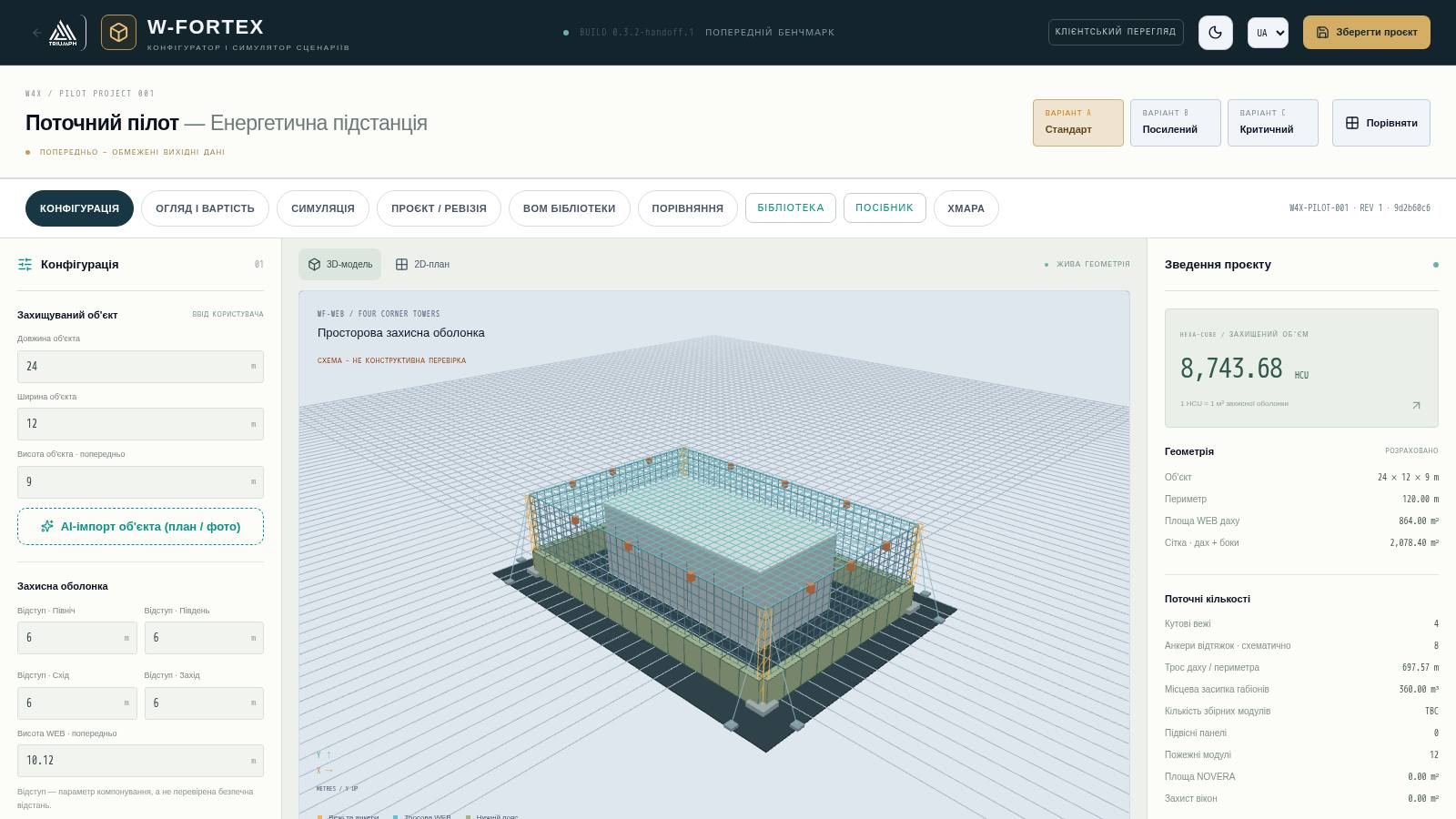
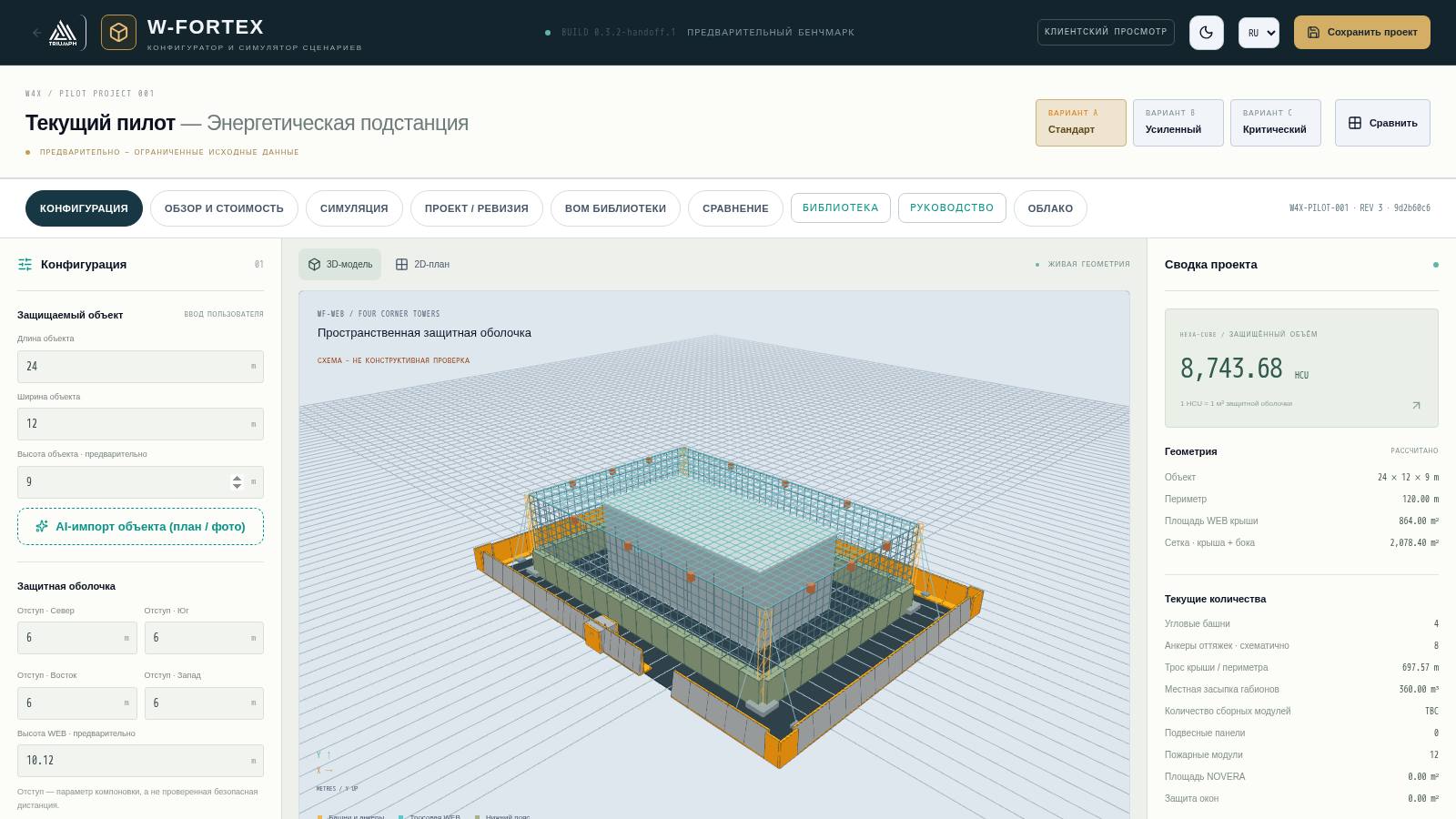
3. Interface: general screen structure
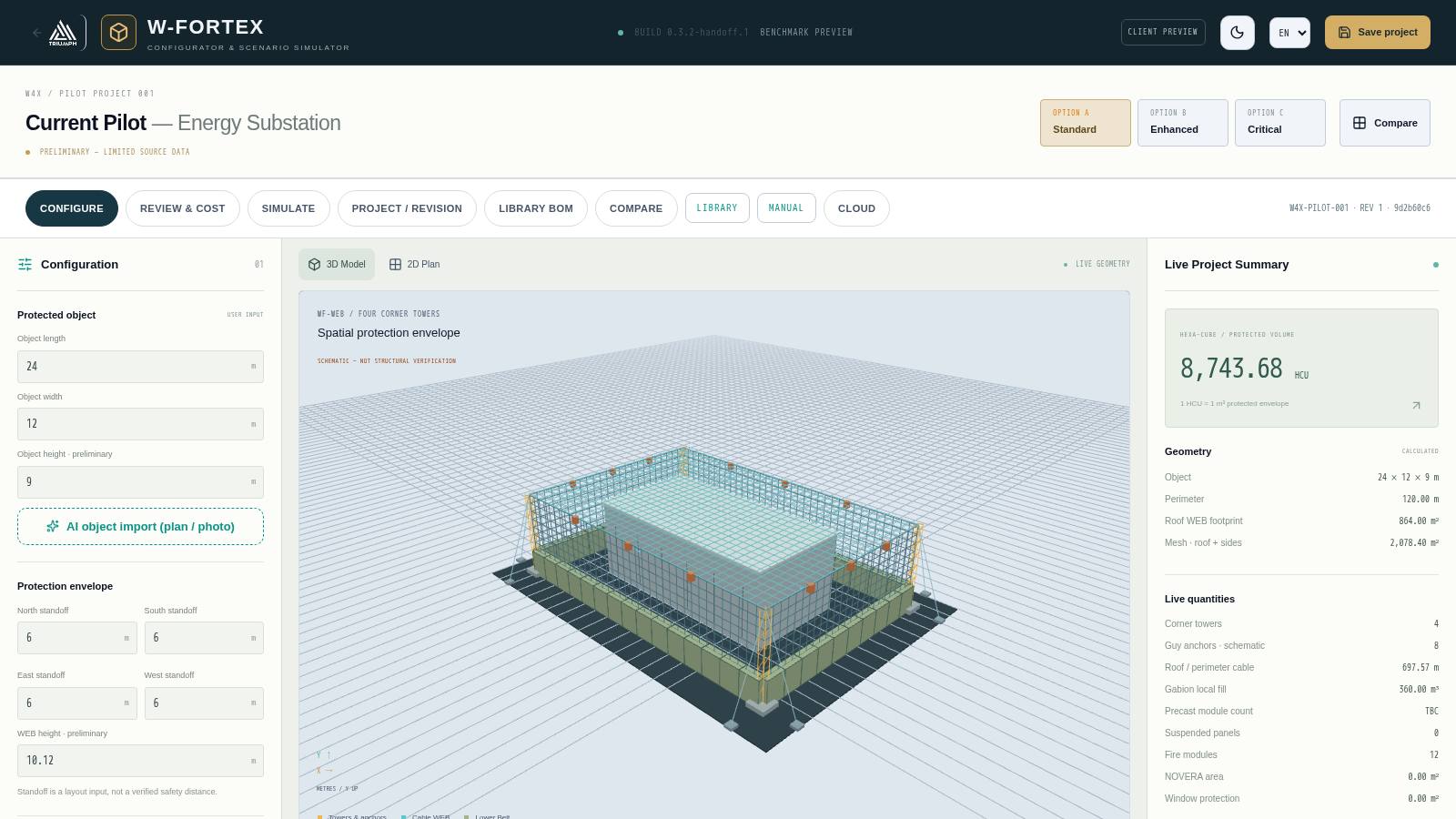
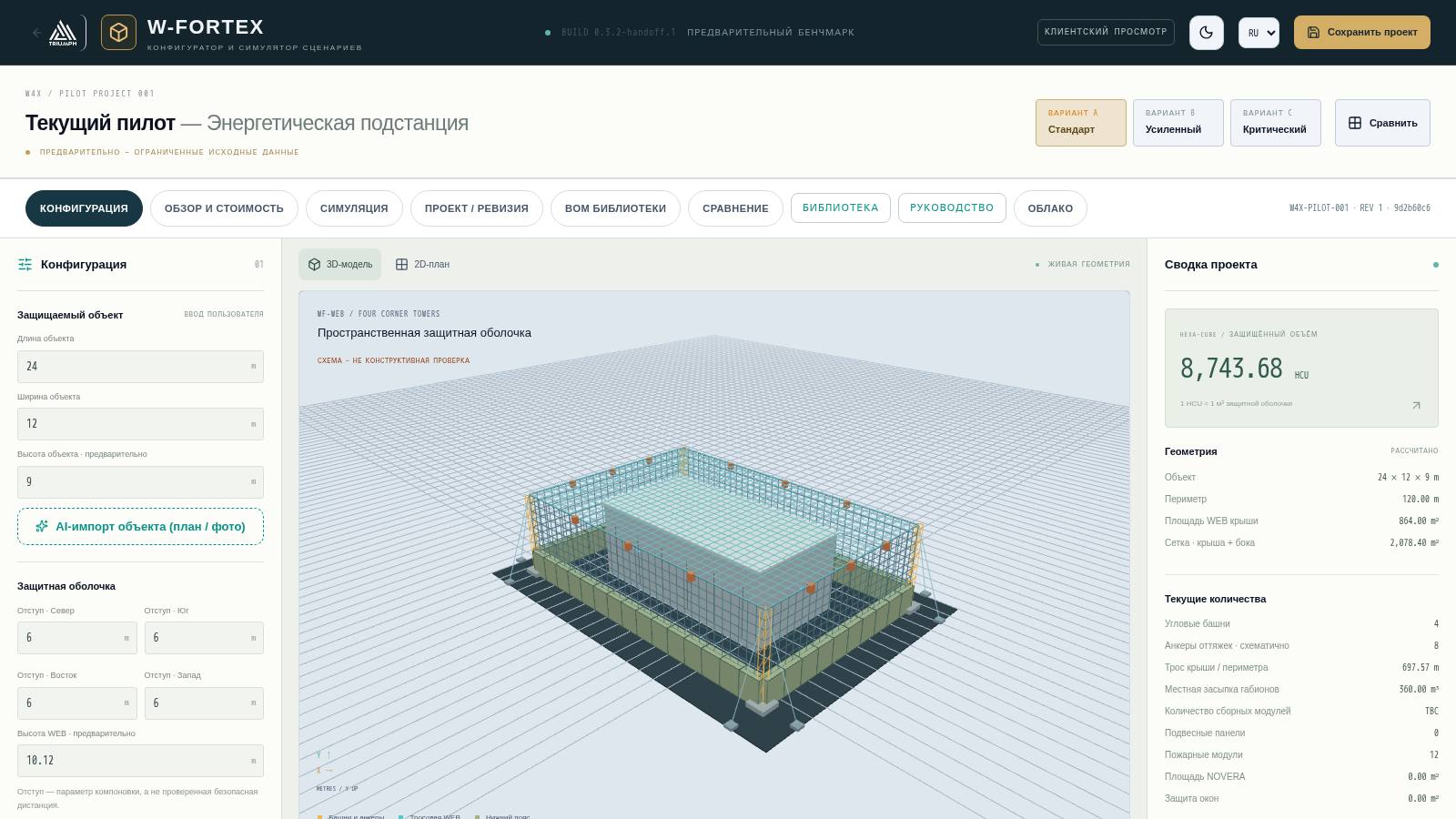
- Header — return to the TRIUMPH website, logo and build number, "Client view" button, theme switcher, language selection, "Save project".
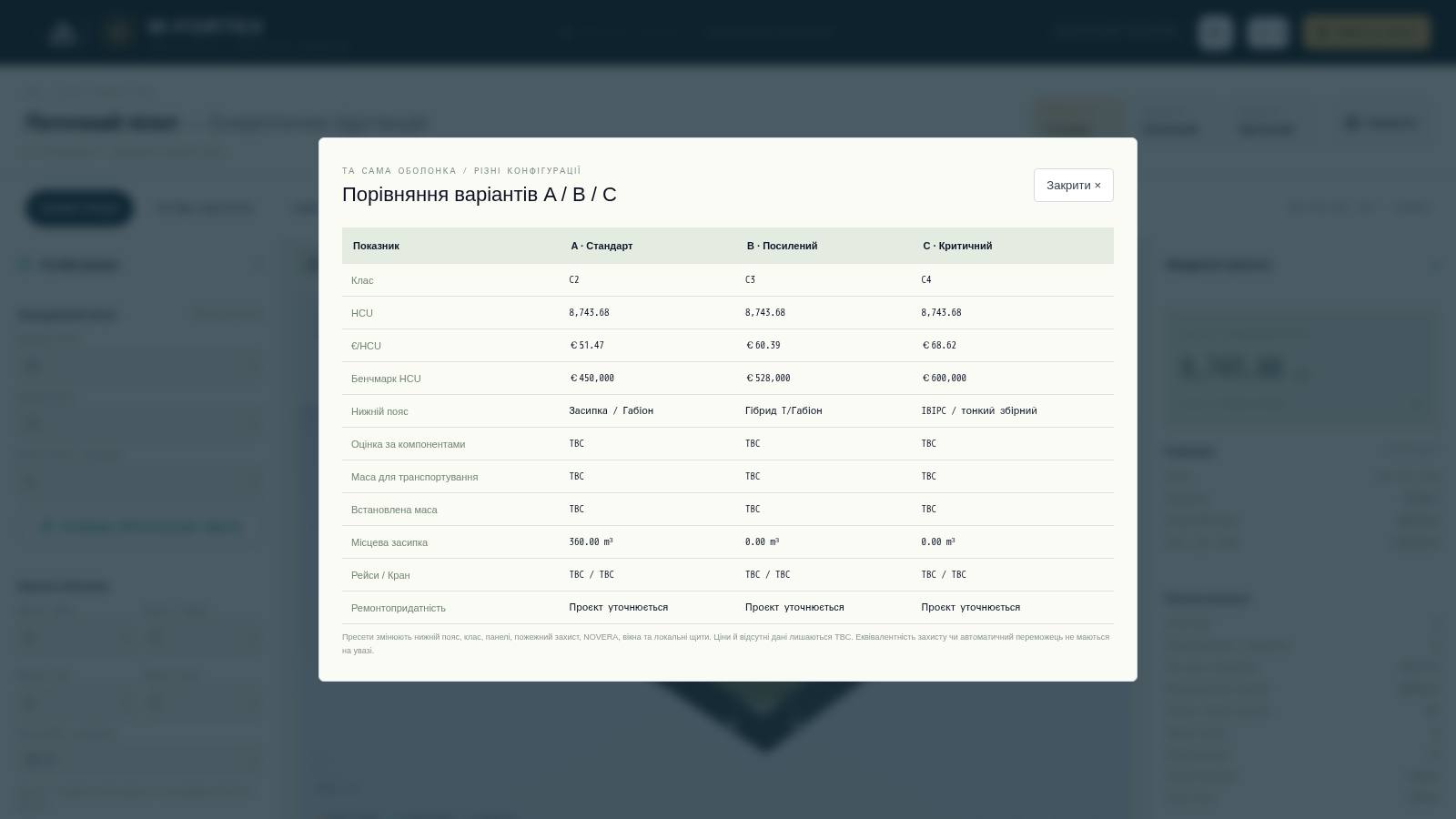
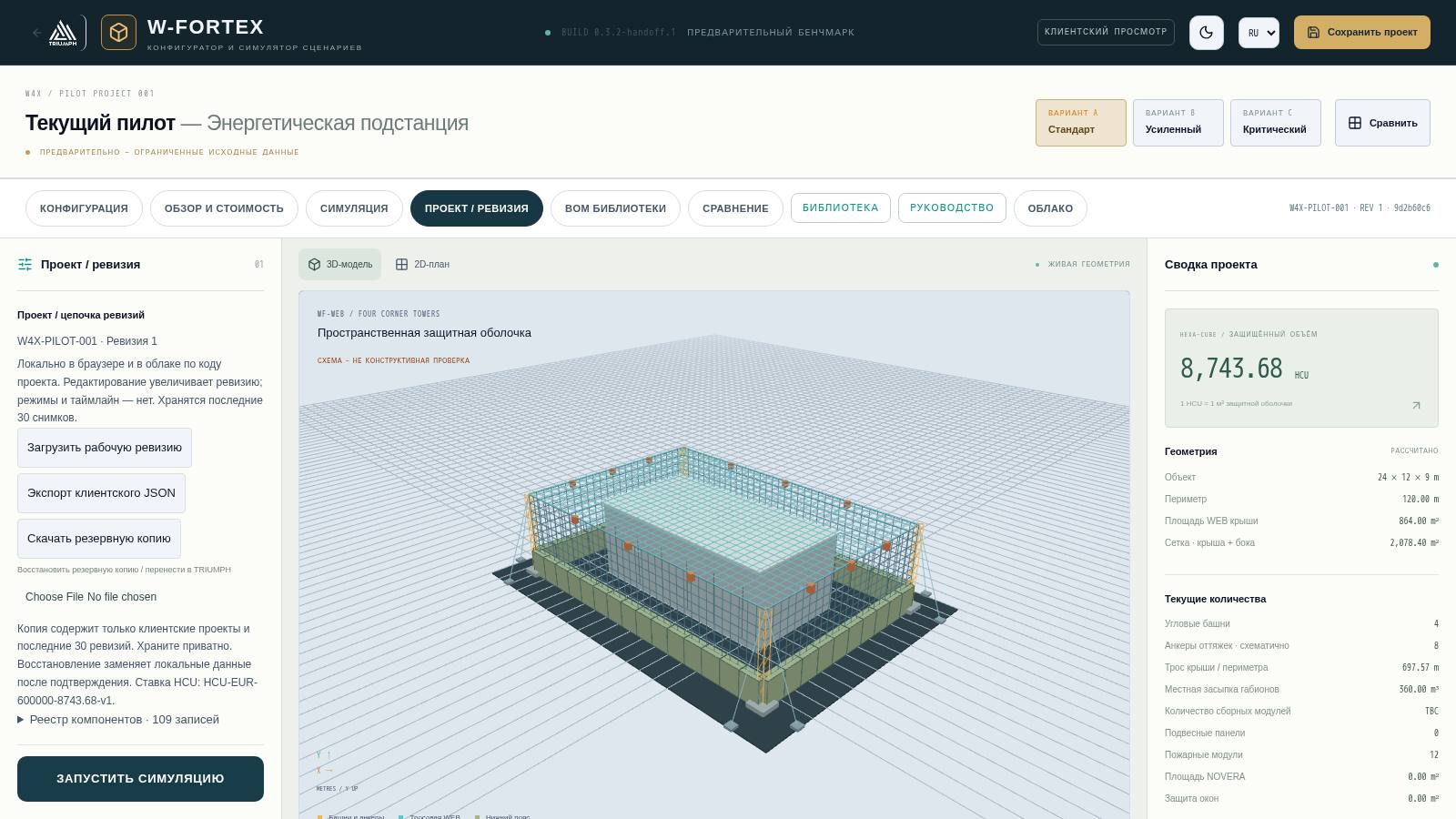
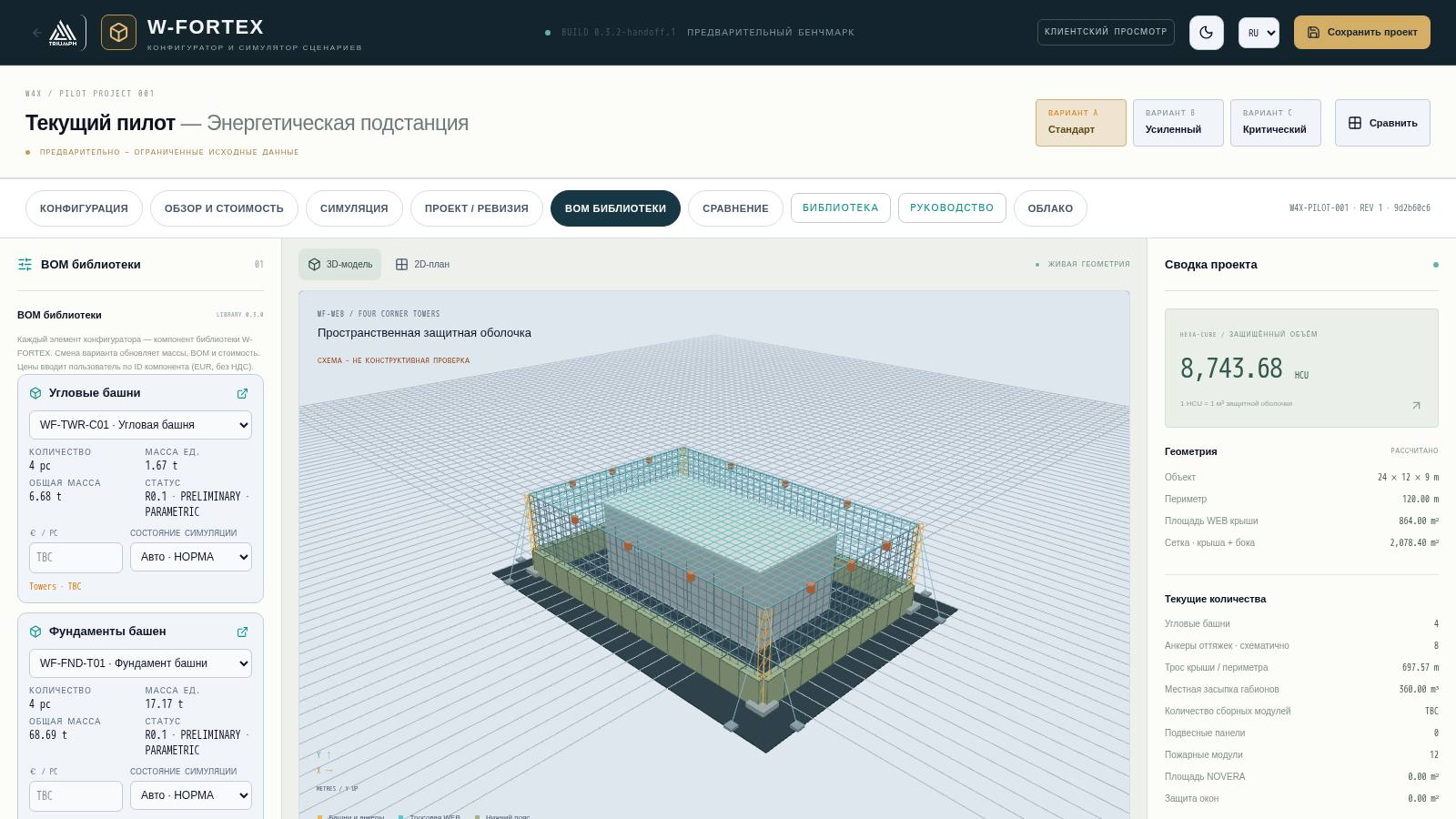
- Project title — name (by default "Current Pilot — Energy Substation"), data status, switcher of options A Standard / B Enhanced / C Critical and the "Compare" button.
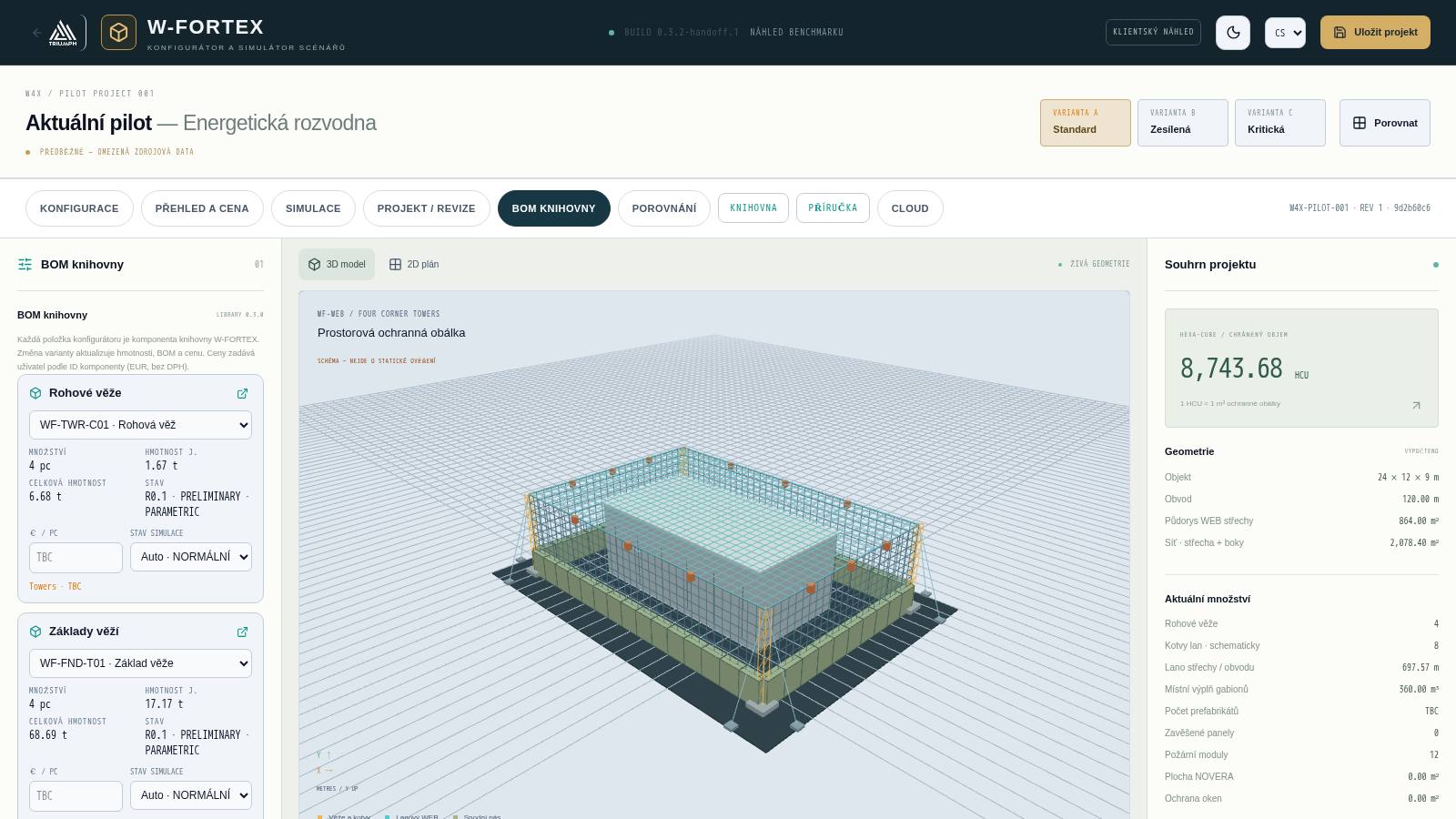
- Mode tabs — CONFIGURE, REVIEW & COST, SIMULATE, PROJECT / REVISION, LIBRARY BOM, COMPARE, LIBRARY (switch to the library), MANUAL (this start page in the current language), CLOUD. On the right — project ID, revision number and geometry hash.
- Left panel — parameters of the current mode.
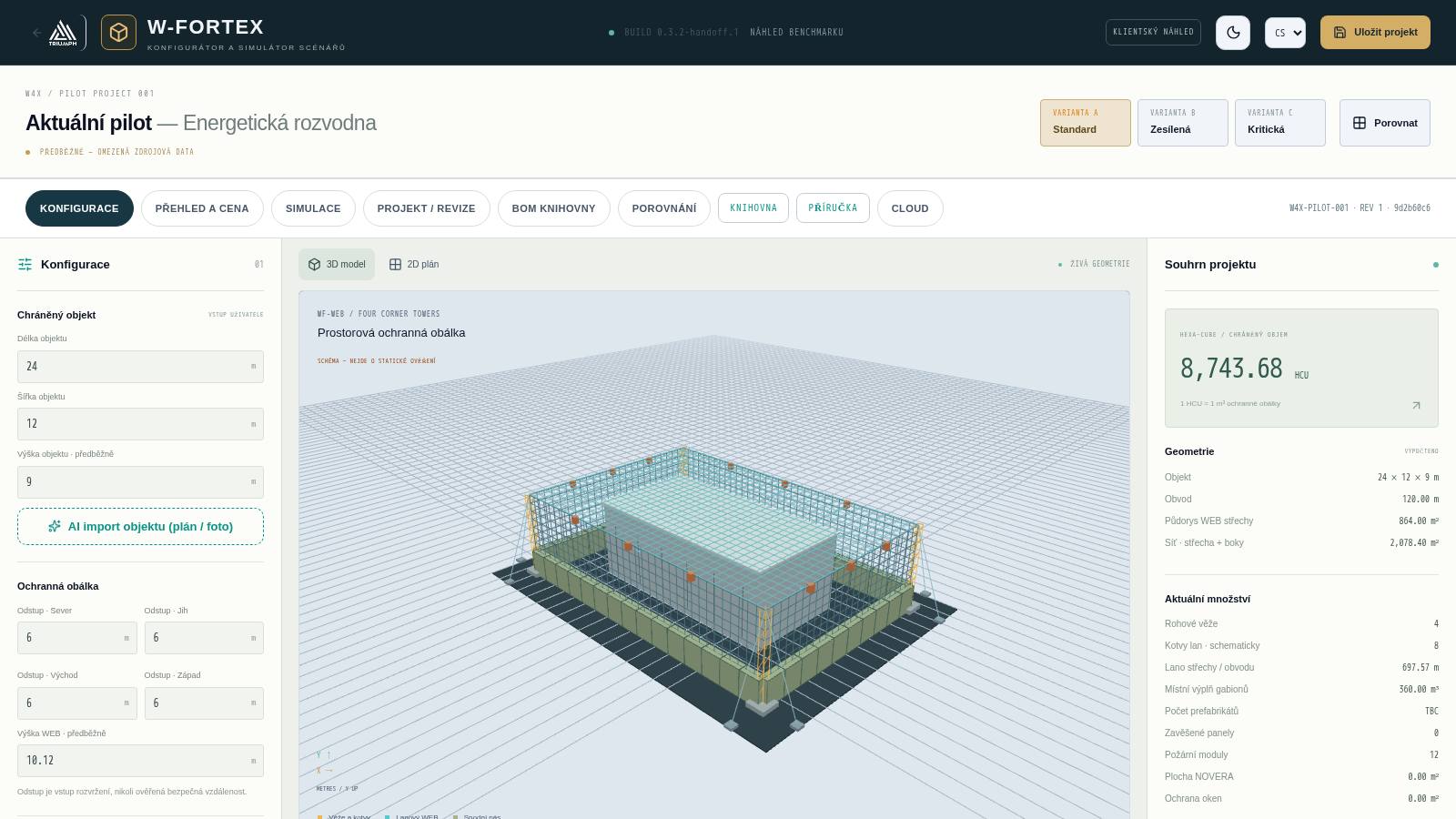
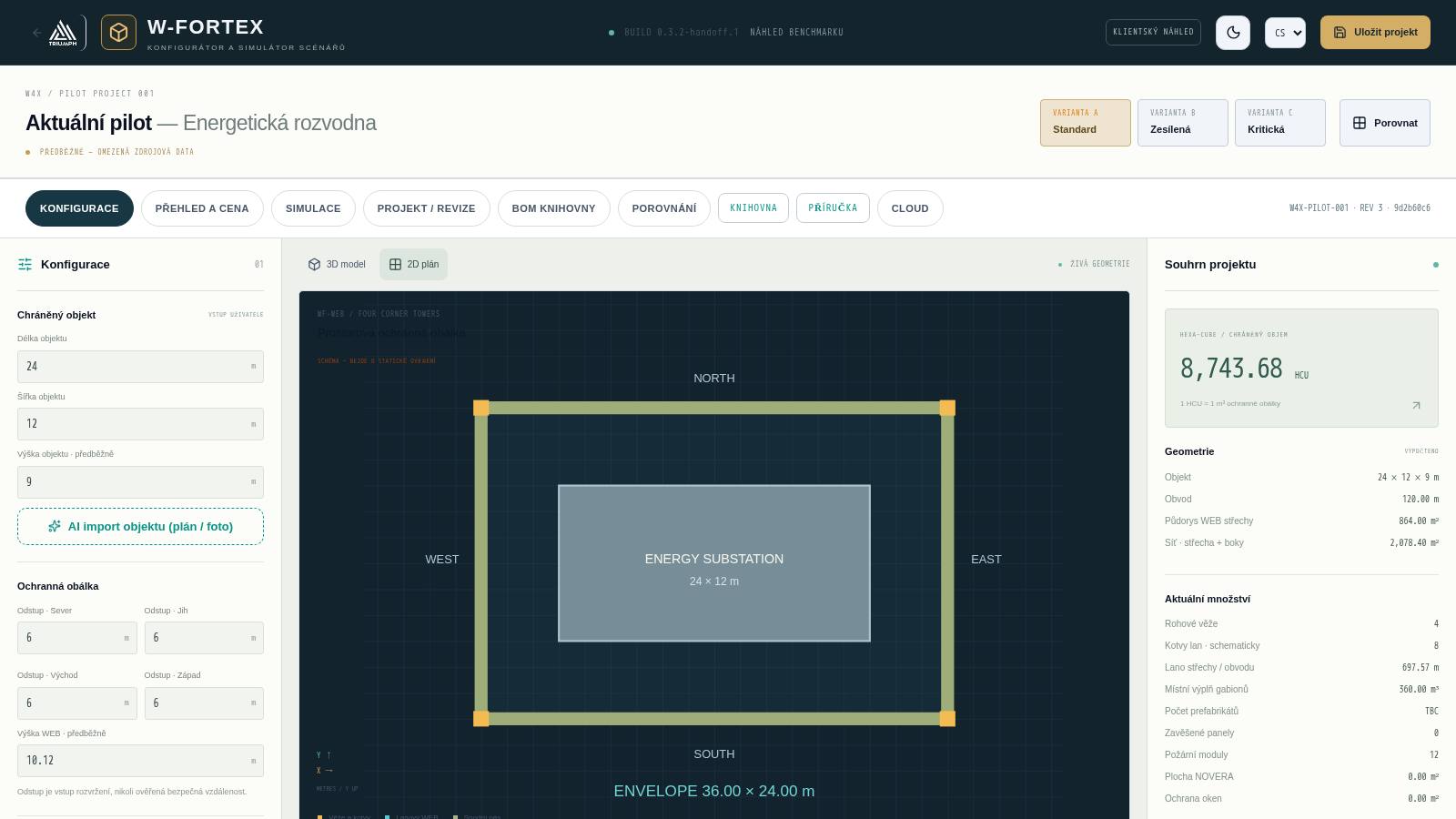
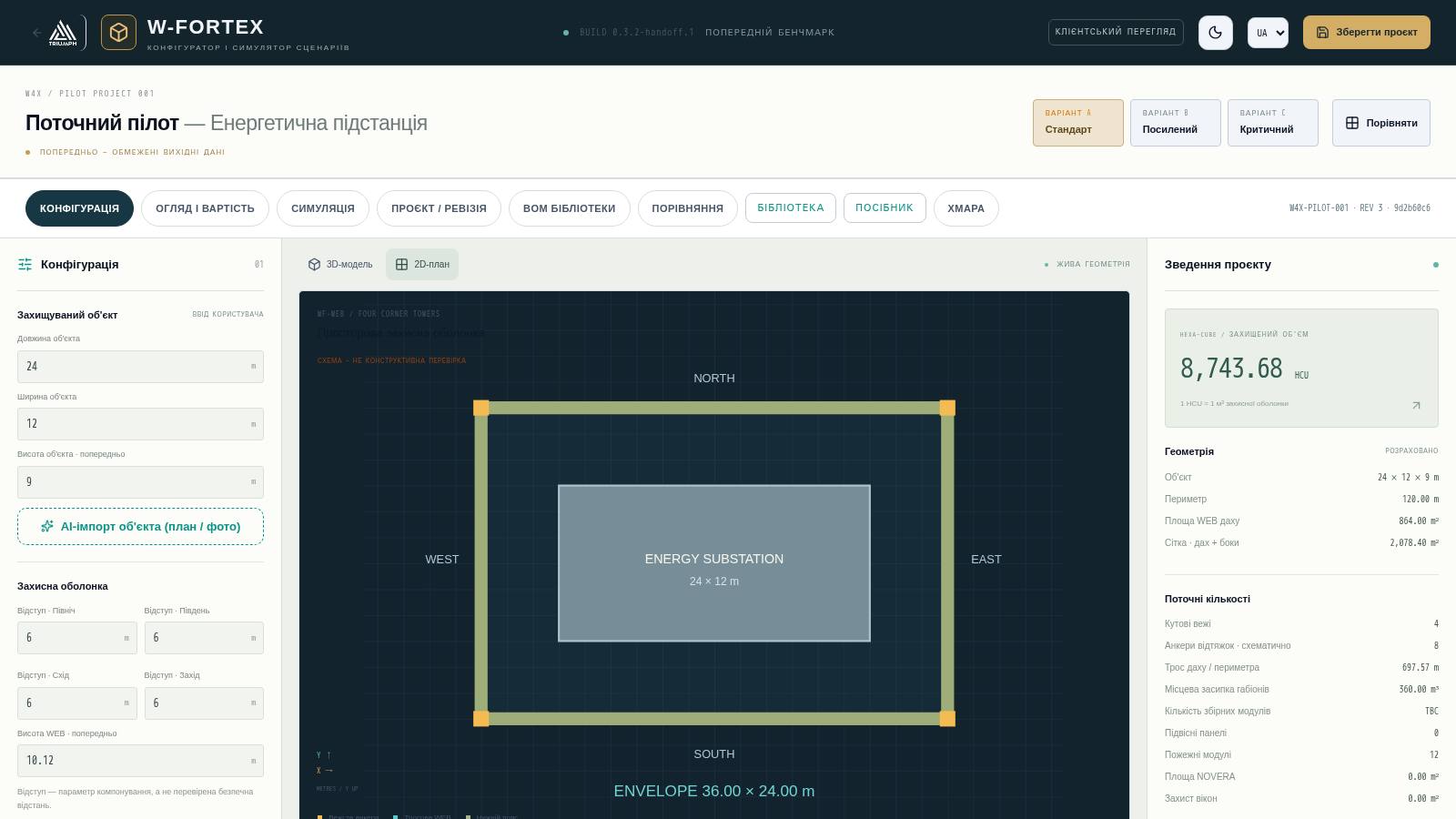
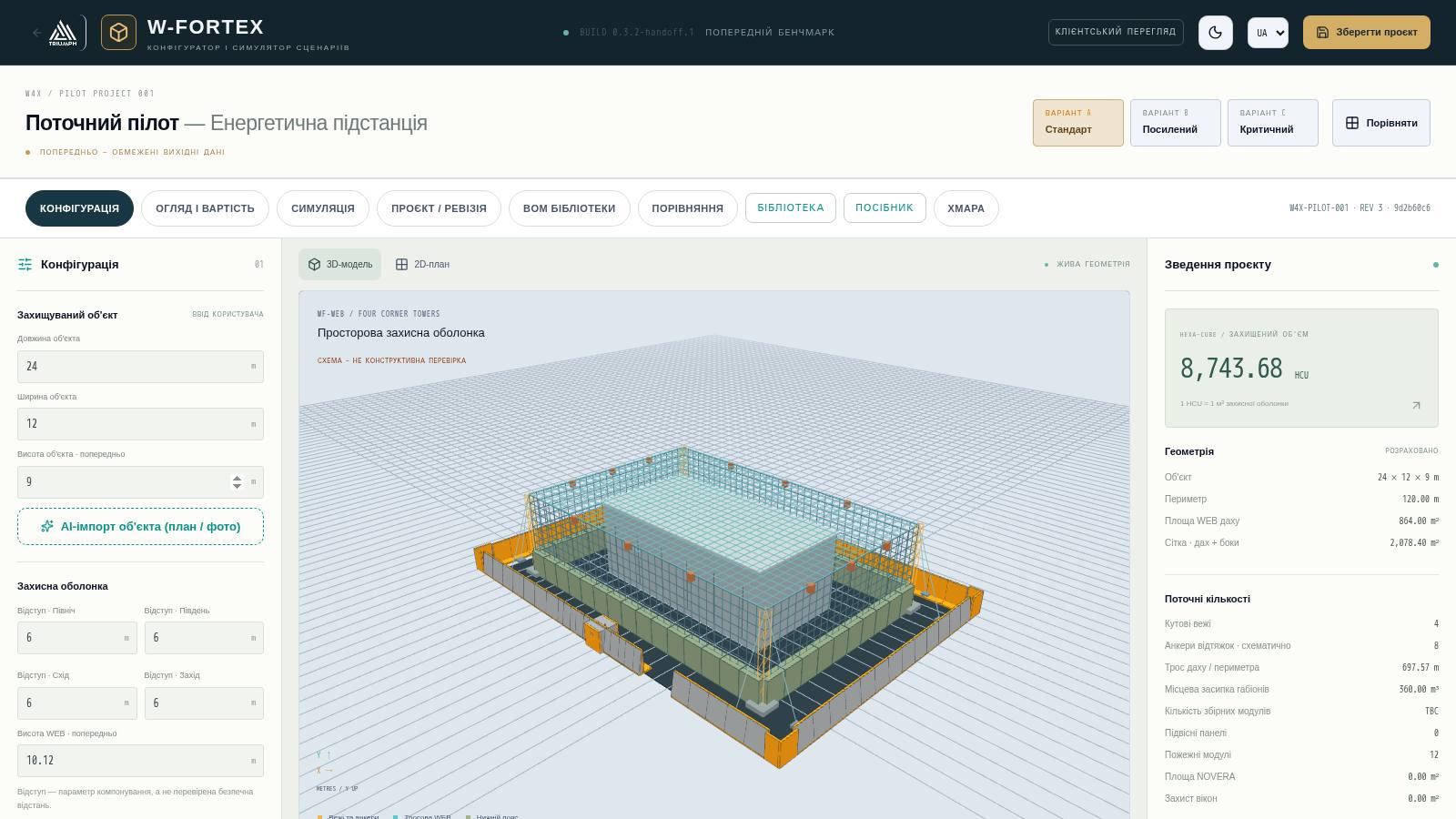
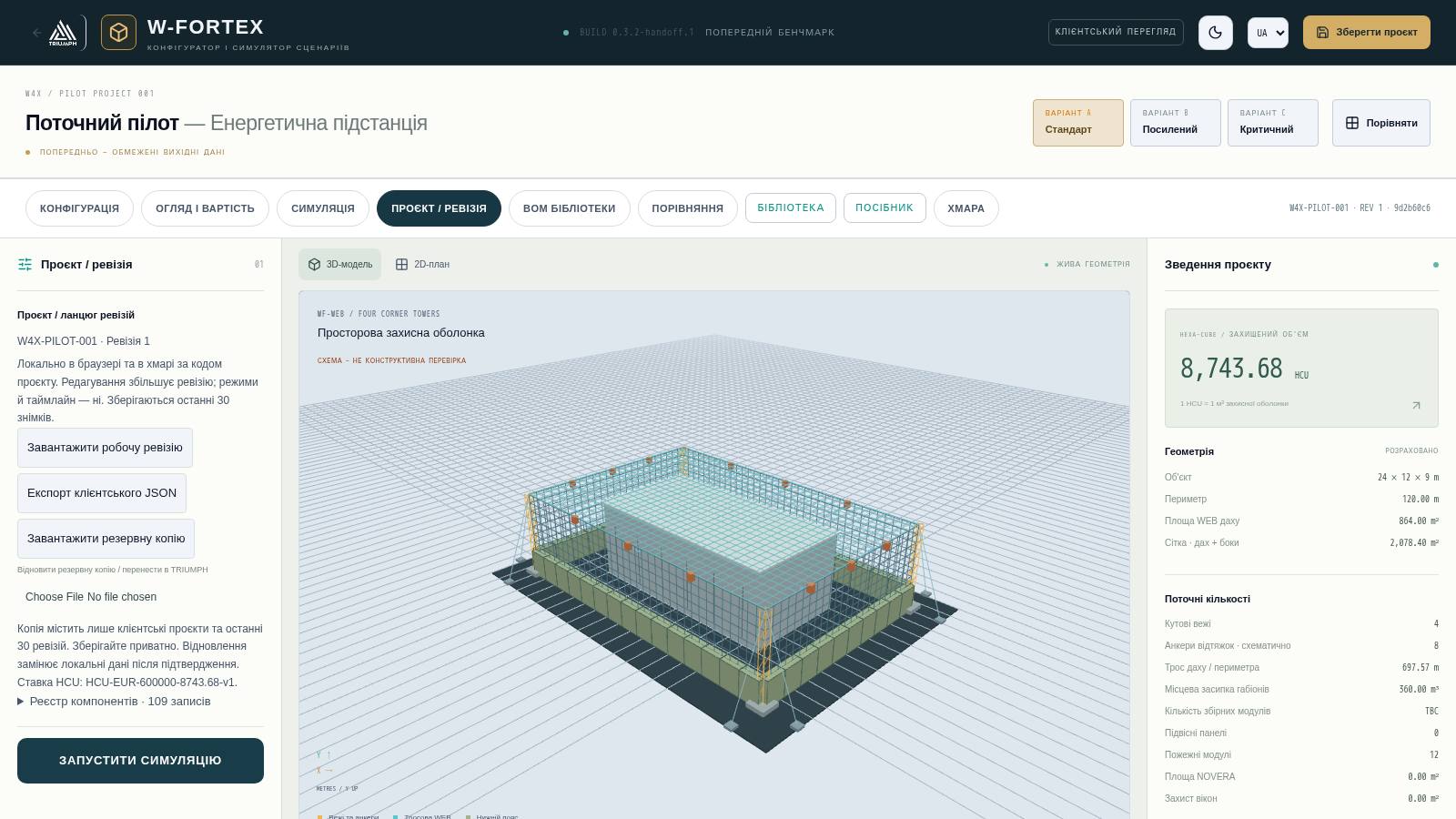
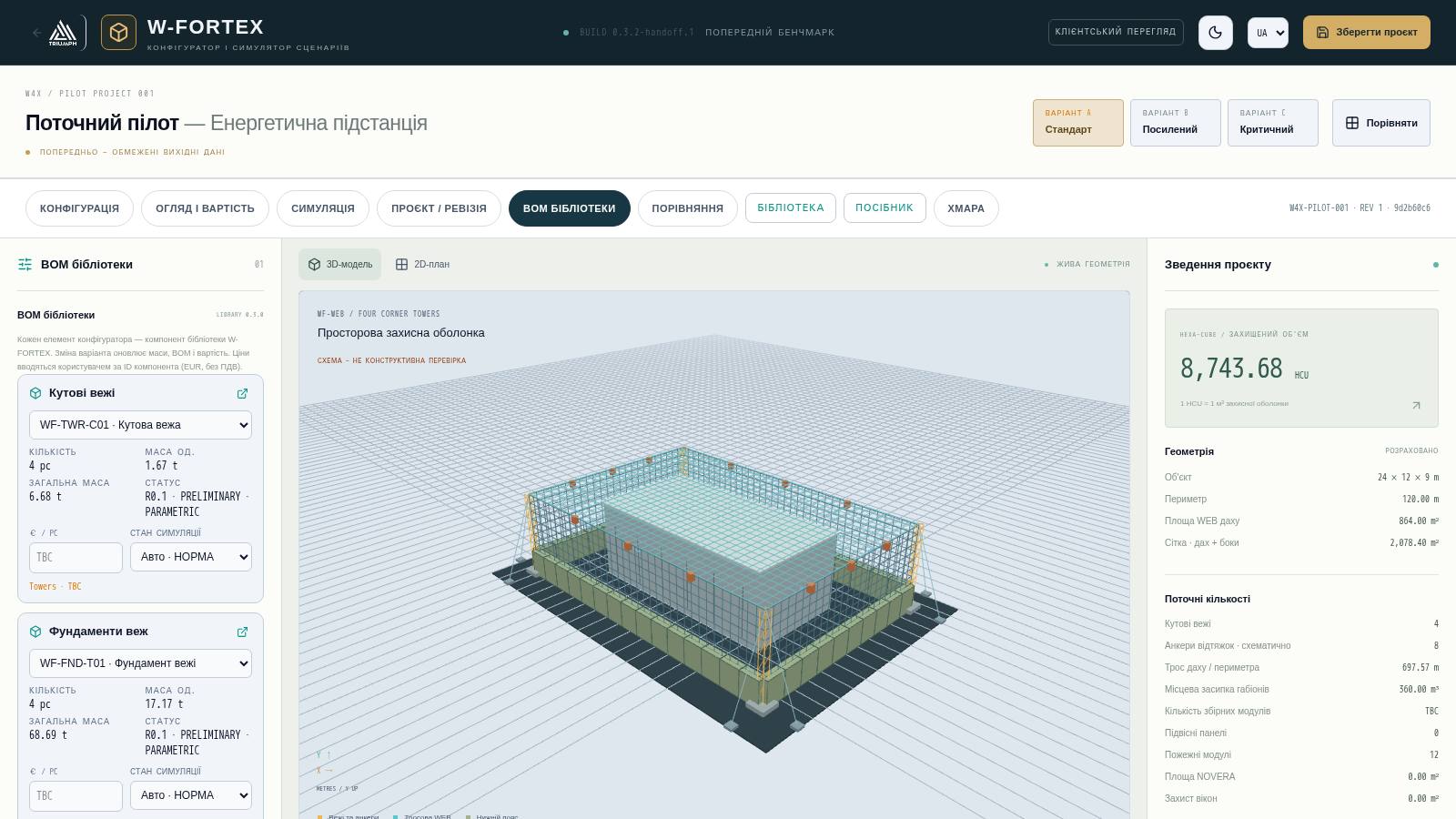
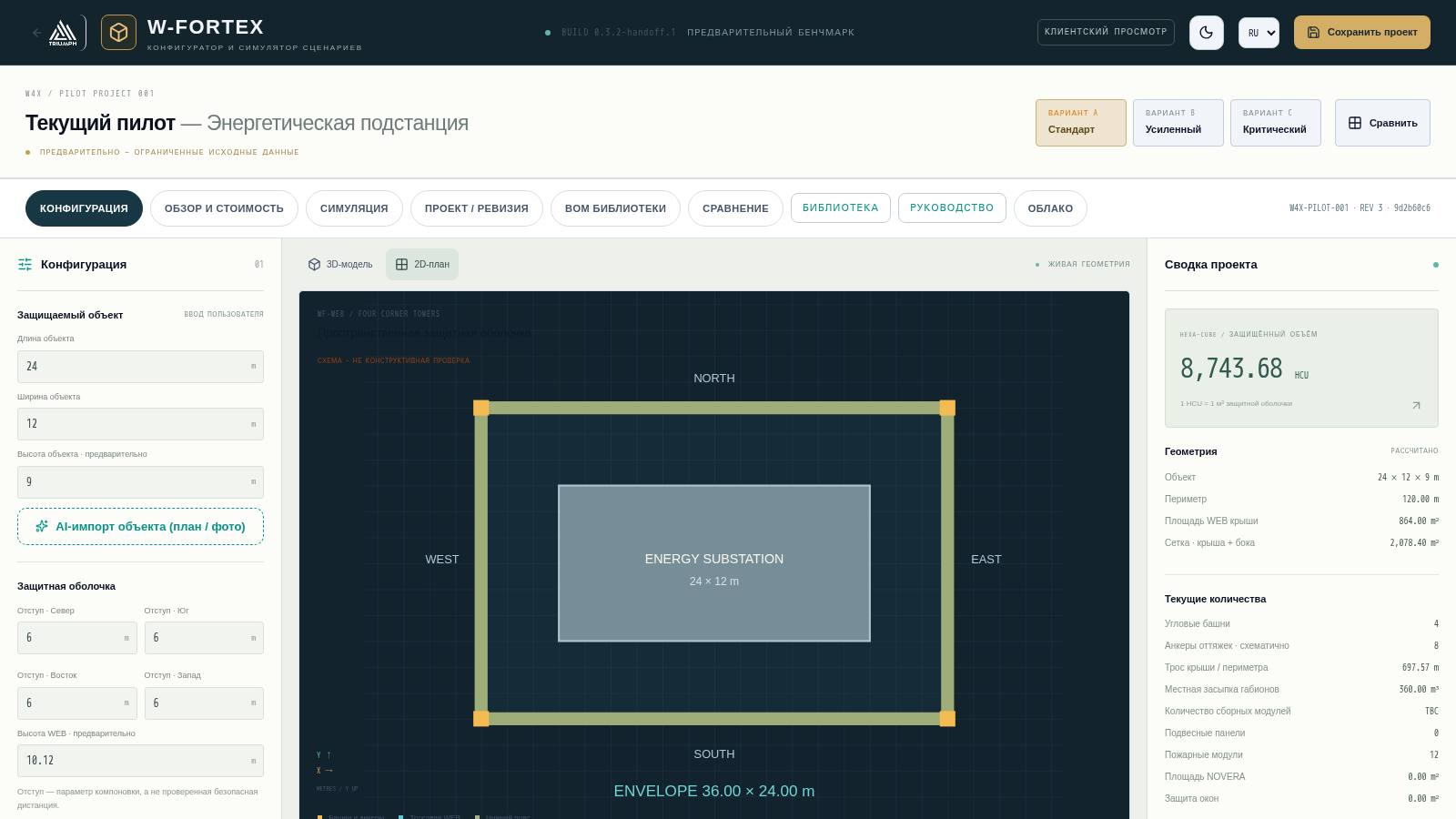
- Centre — 3D Model or 2D Plan labelled "LIVE GEOMETRY"; below the scene — simulation player, charts, camera views and envelope dimensions.
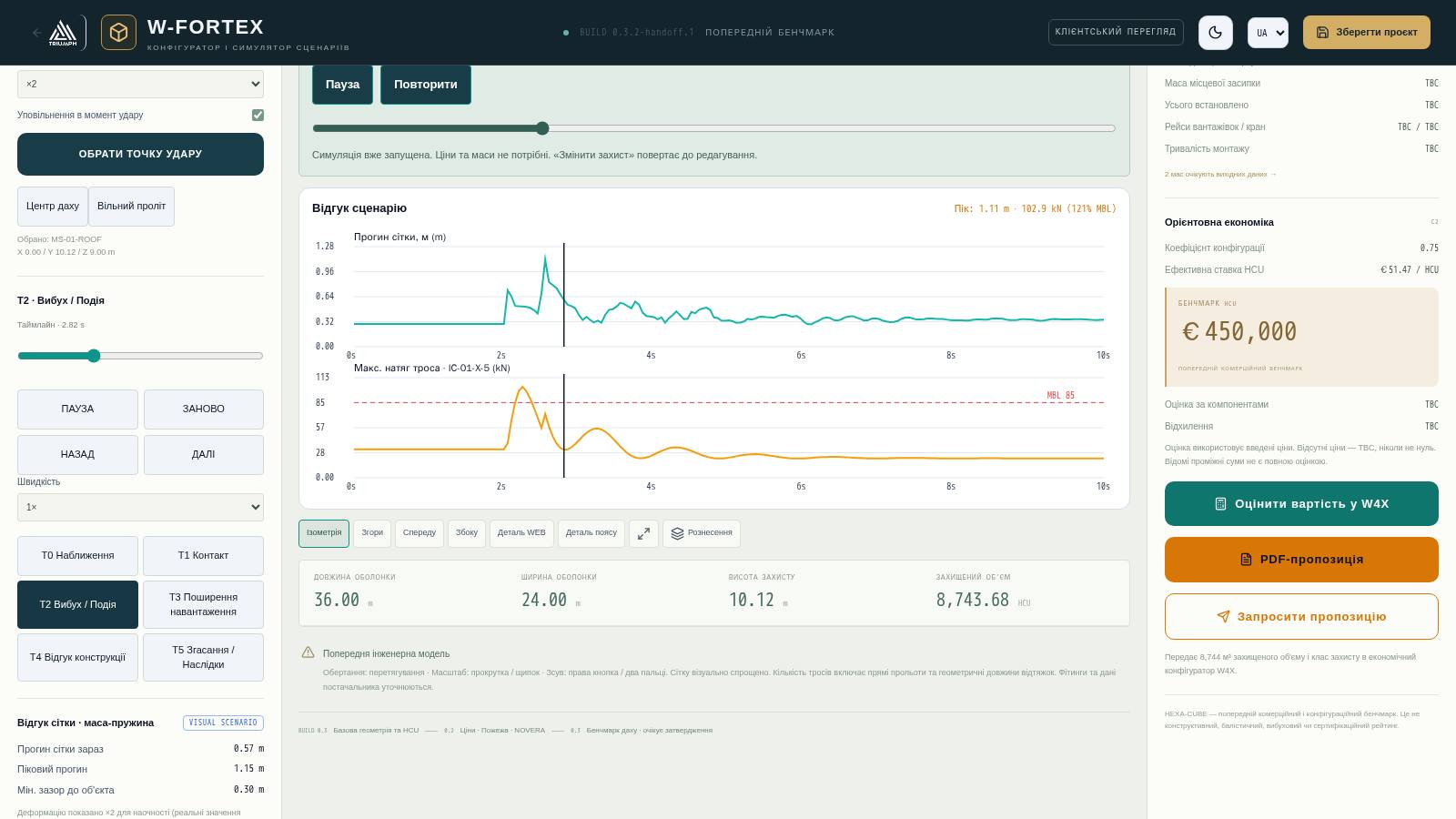
- Right panel "Live Project Summary" — HEXA-CUBE (protected volume), geometry, current quantities, mass and logistics, indicative economics and the buttons "Estimate cost in W4X", "PDF proposal", "Request a quote".
3D scene controls
| Action | Mouse / touch |
|---|---|
| Rotation | drag with the left button / one finger |
| Zoom | wheel / pinch |
| Pan | right button / two fingers |
| Camera views | Isometric, Top, Front, Side, WEB detail, Belt detail, "Fit / reset camera", full screen, "Exploded" |
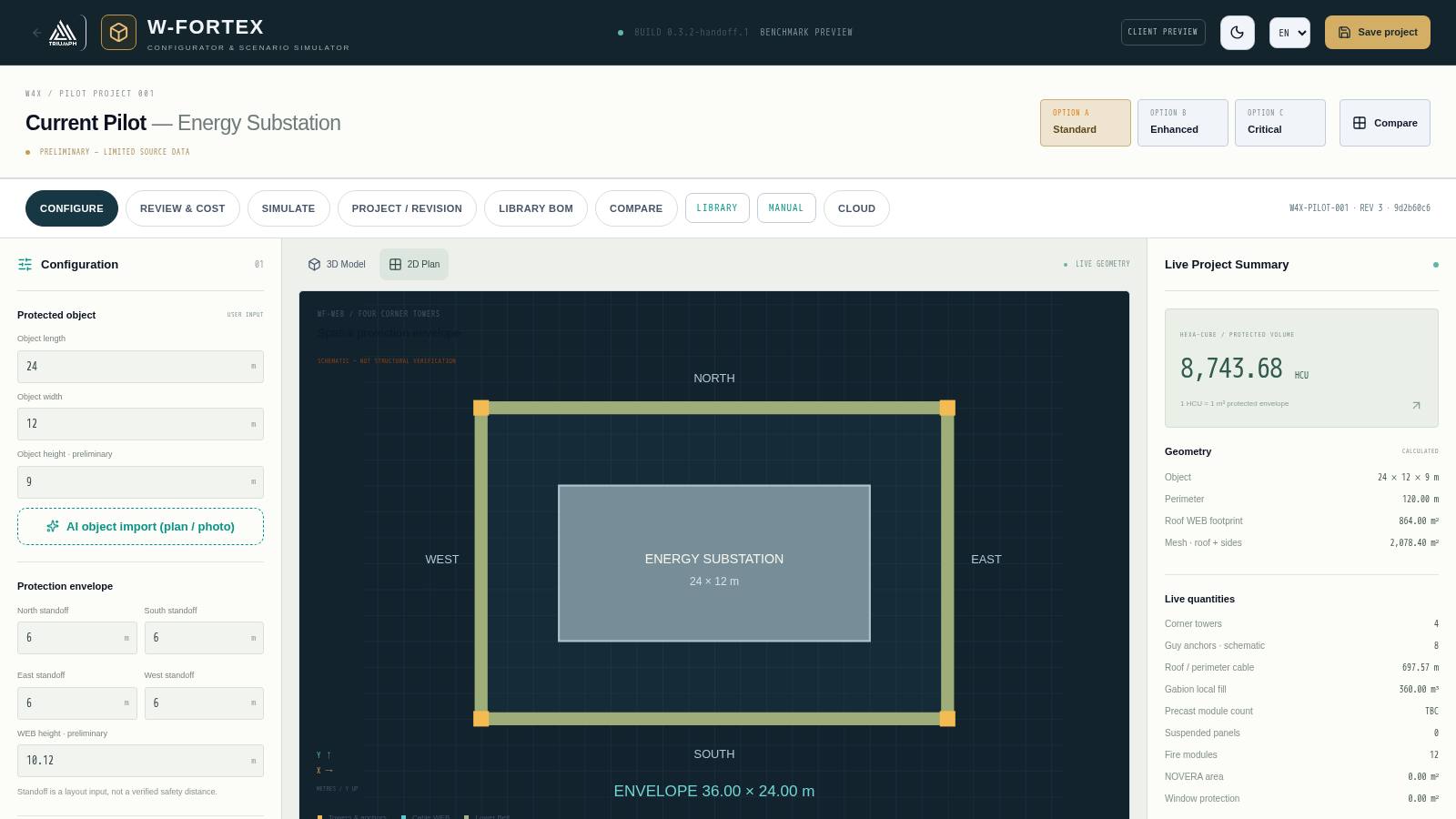
| 2D plan | "2D Plan" tab above the scene — top view with North/South/East/West orientation and envelope dimensions |
4. "Configuration" mode
4.1 Protected object
- Length, width, height of the object (m) — user input; height is marked as preliminary.
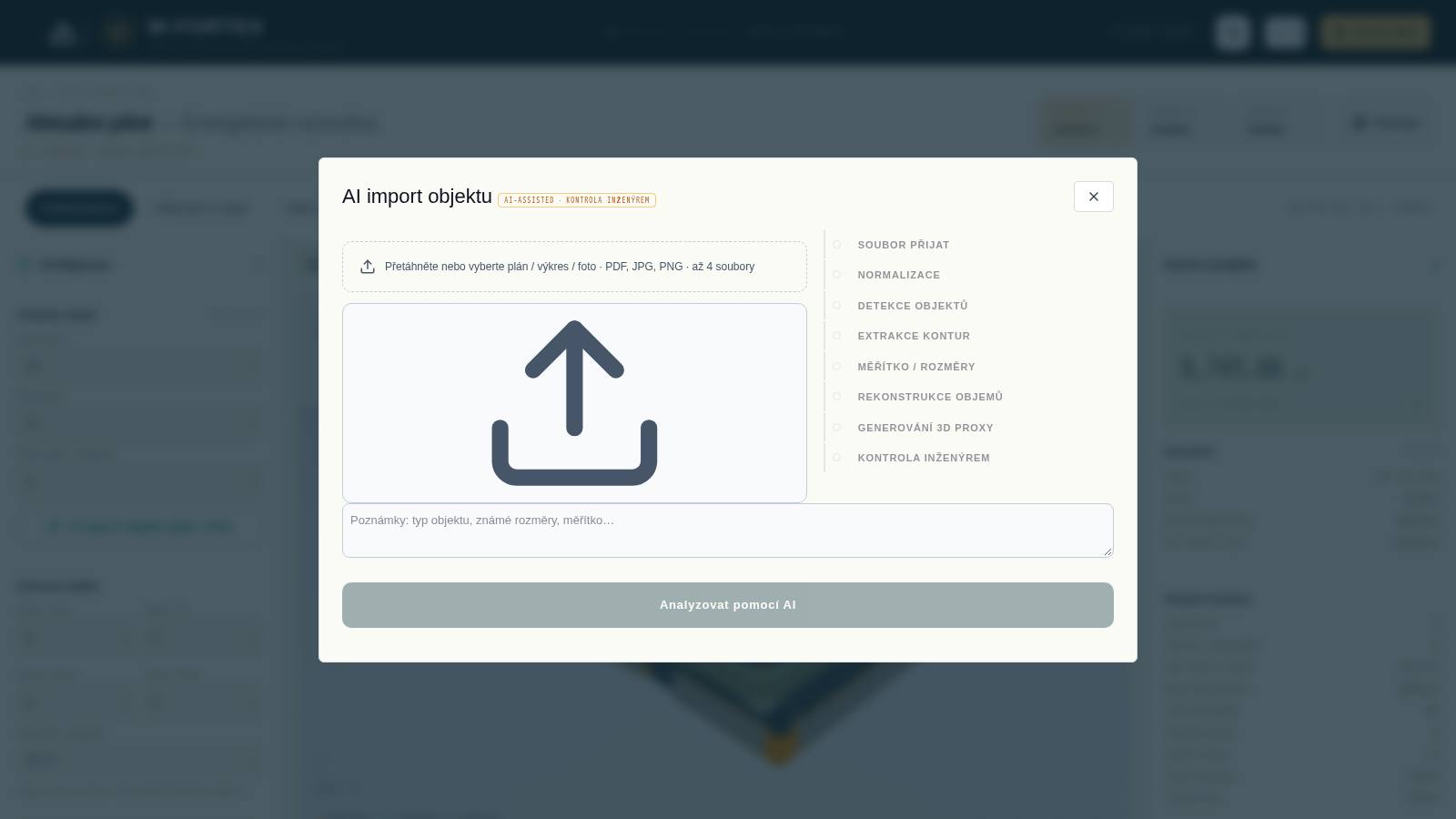
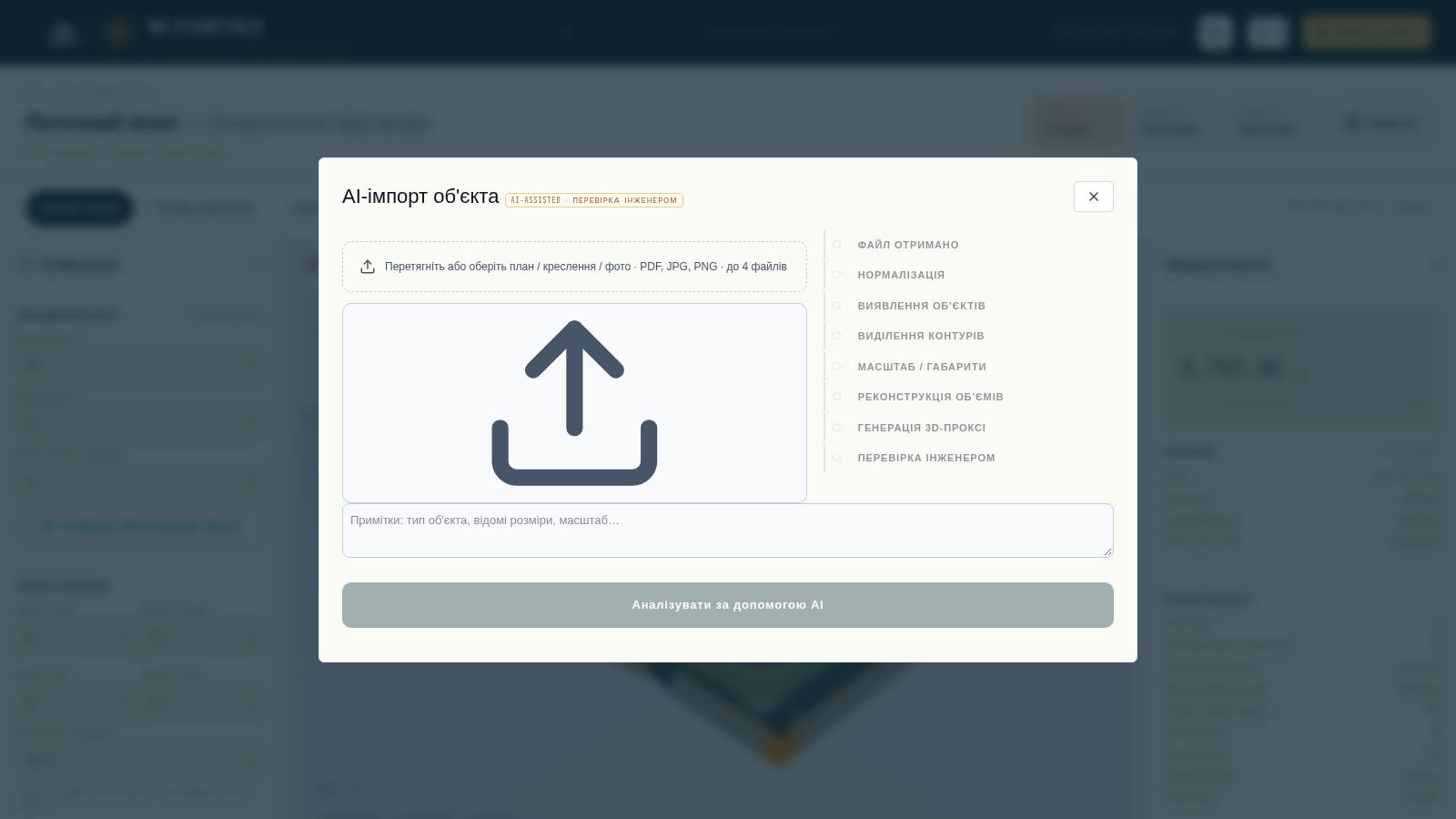
- AI object import (plan / photo) — see section 4.9.
4.2 Protection envelope
- Standoffs from the object on the North / South / East / West sides (m). Standoff is a layout input, not a verified safety distance.
- WEB height — height of the protective mesh (preliminary), automatically suggested as the maximum object height plus clearance.
- Result: envelope length and width, protection height, protected volume in HCU (1 HCU = 1 m³ protected envelope).
4.3 Lower Belt (by side)
For each side, the type of lower protective belt, its height and depth are selected (schematic):
| Belt type | Description |
|---|---|
| Fill / Gabion | Gabion modules with local fill; the fill volume goes into installed mass, not transported mass |
| IBIPC / thin precast | Thin precast concrete elements (IBIPC solution class) |
| Hybrid T/L | Precast T and L modules |
| Hybrid T/Gabion | T modules with gabion fill between them |
| Local Heavy RC | Heavy cast-in-place/precast reinforced concrete in separate areas |
| No belt | Side without a belt — shown in the simulator as "No belt on this side" |
4.4 WEB & economic class
- Independent WEB, roof mesh, side mesh, roof diagonal cables.
- 4 corner towers with guy lines and anchors; the anchor offset is set by a parameter. The foundation layout is preliminary.
- Configuration economic class C0…C4 and configuration factor — these are economic classes only, not certification.
4.5 Suspended panels SP-01
- Panel material, quantity, installation side, panel mass; default size 1200 × 1200 mm, panels are replaceable components.
4.6 W4X-FS · Fire suppression and NOVERA
- Fire system: modules per side, additional local modules, primary buried seismic/vibration sensor and backup sensor, module dry mass.
- Spraying downward/inward onto the object; activation by seismic sensor or heat detection; optionally — alarm to the control room.
- NOVERA coating — coating area and consumption.
4.7 W4X-WS · Windows, W4X-LP · Local protection, W4X-AL · Alert
- Window protection: quantity, total area, protection type (no ballistic rating is assigned).
- Local shields: quantity and shield mass.
- Alert & geolocation: link to the control room, local geolocation (3 seismic/acoustic sensors), communication channel Radio / Fiber / LTE-5G. The blast source is triangulated (azimuth, distance) and shown in the simulation timeline.
4.8 Input masses and TBC register
Tower masses, cable linear mass, mesh areal mass, local fill density, belt module masses — all of these are user input. There are no supplier-confirmed values; blank values produce TBC in logistics.
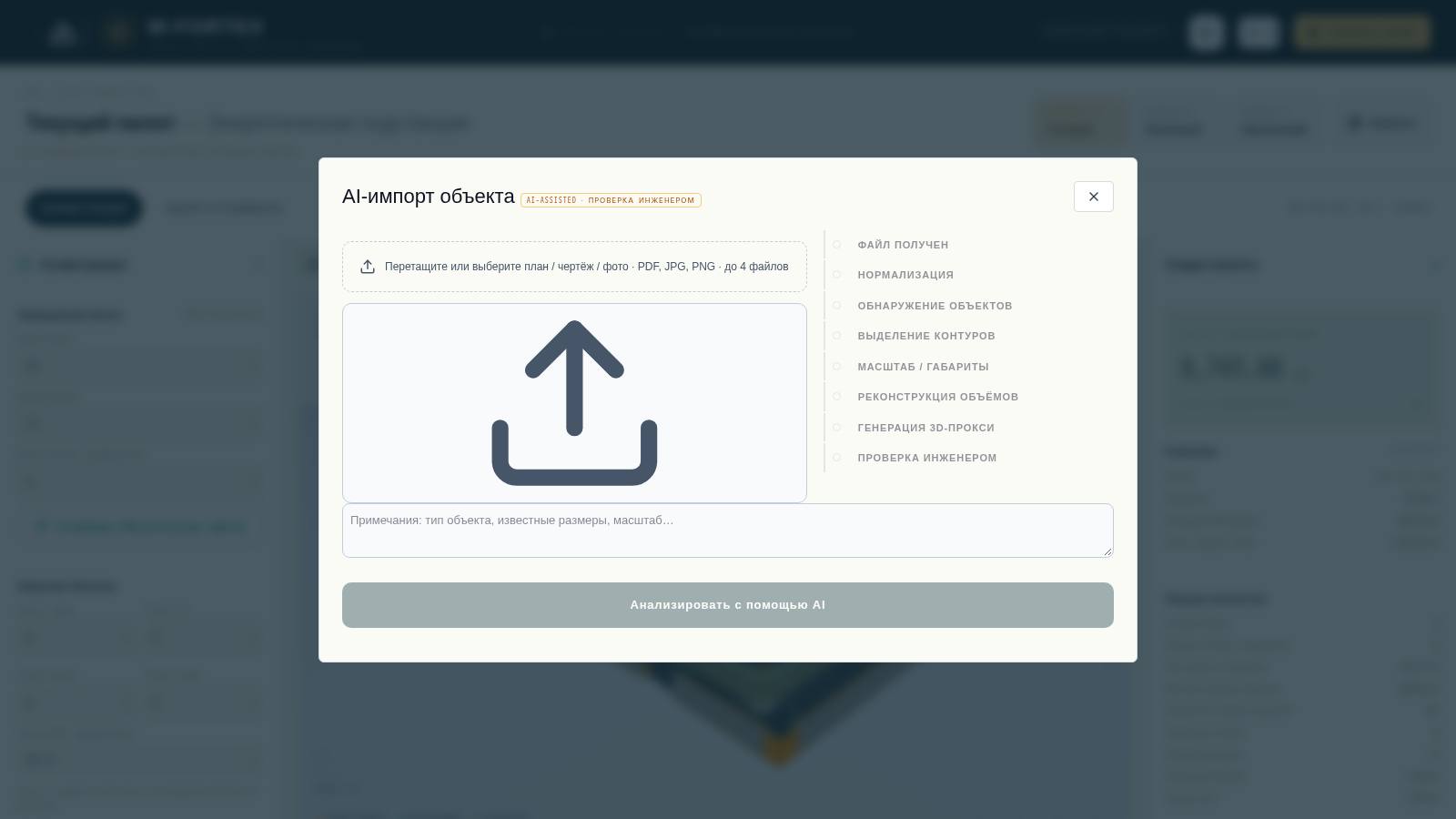
4.9 AI object import (plan / photo)
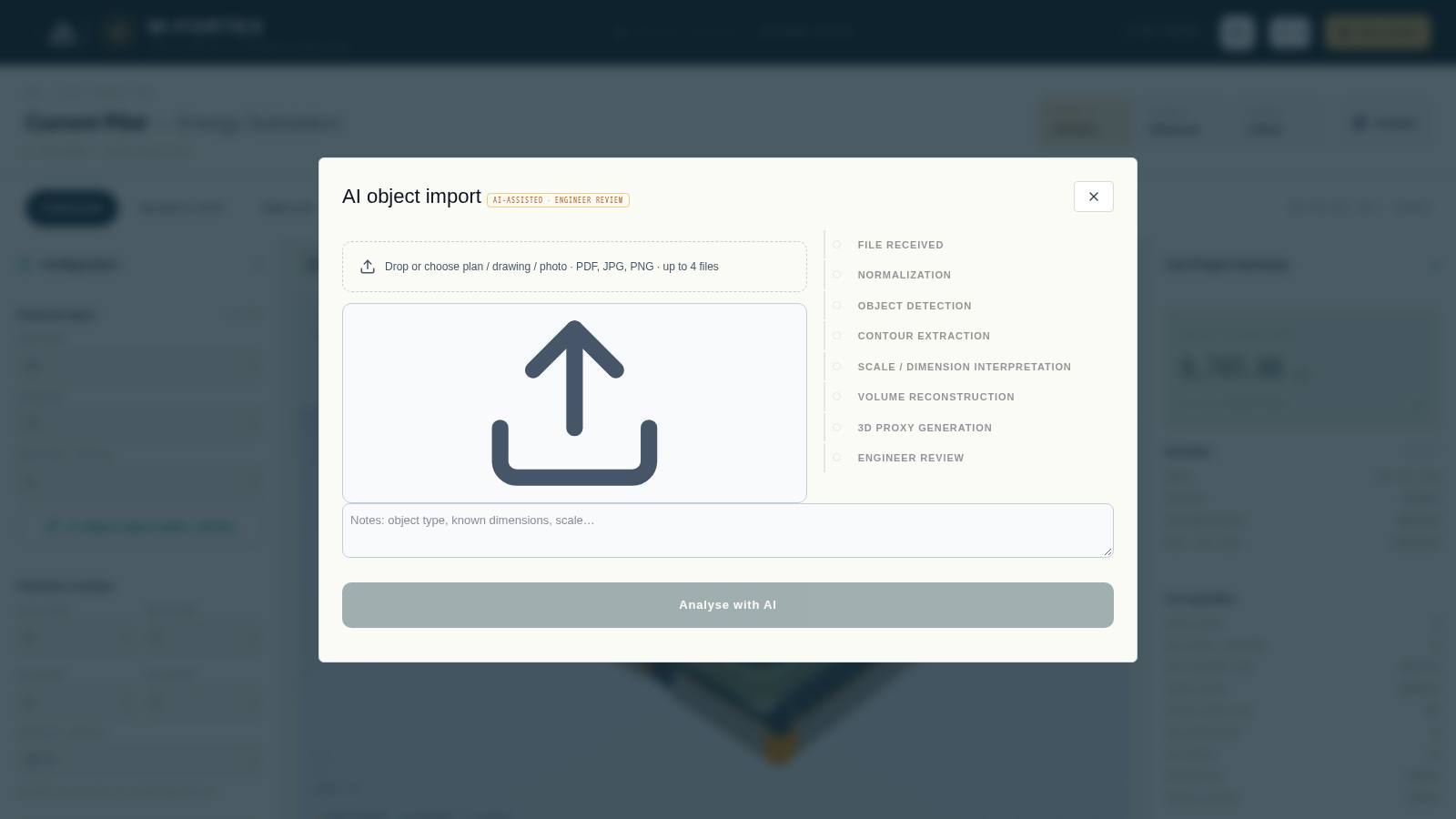
- Click "AI object import (plan / photo)" in the "Protected object" block.
- Upload up to 4 files (PDF, JPG, PNG, up to 20 MB each) and add notes: object type, known dimensions, scale.
- Click "Analyse with AI" (Gemini 3.1 Pro, up to 60 s). Pipeline: file received → normalisation → object detection → contour extraction → scale/dimensions → reconstruction of volumes → 3D proxy generation → engineer review.
- Check the volumes with statuses CONFIRMED / ESTIMATED / USER INPUT REQUIRED, add a missed volume if necessary, click "Confirm geometry".
- "Accept · open in 3D configurator" — the object and the WEB height (max H + clearance) are transferred to the project; the AI model can be reopened and edited again.
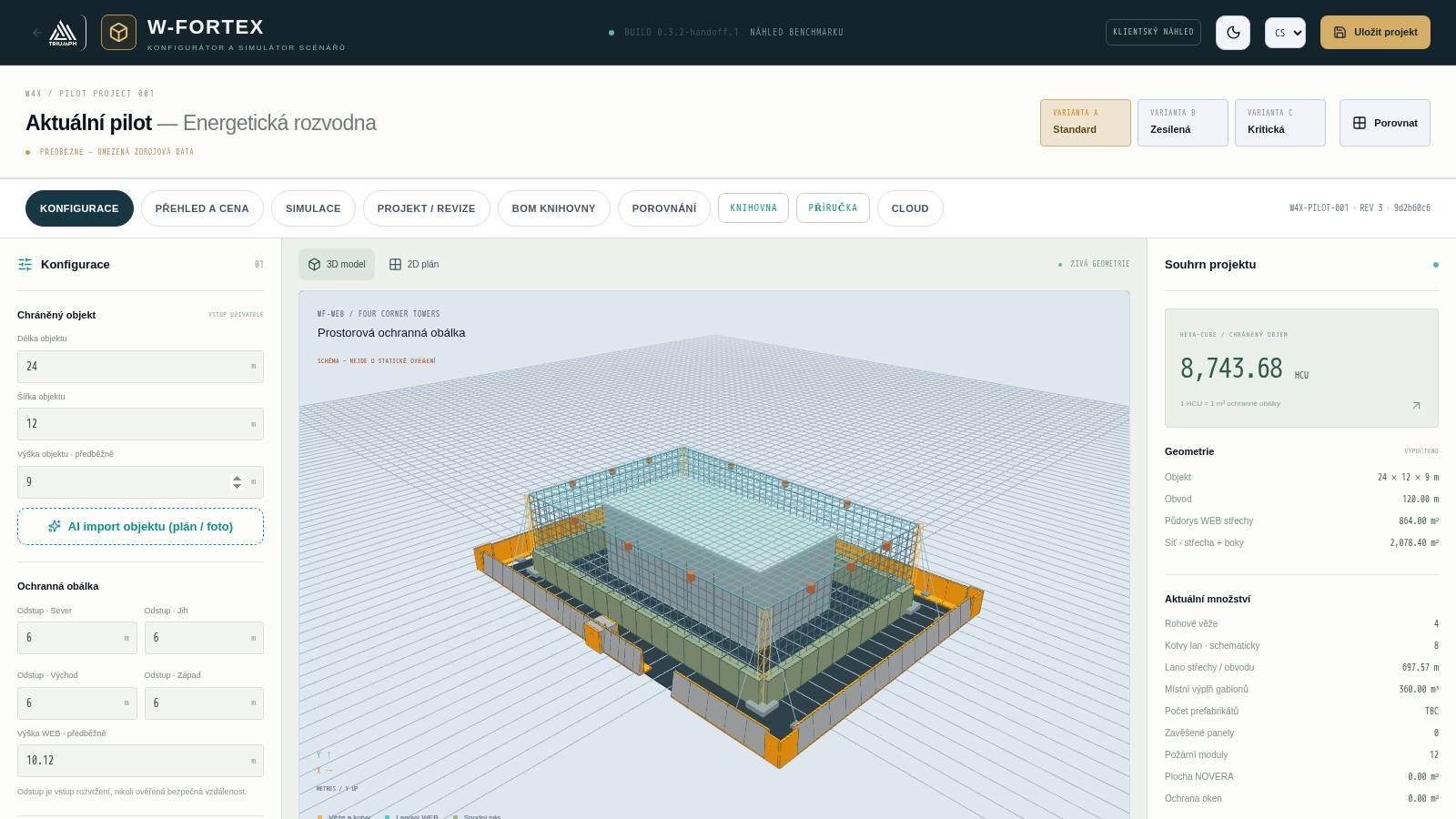
4.10 IBIPC objects in the scene
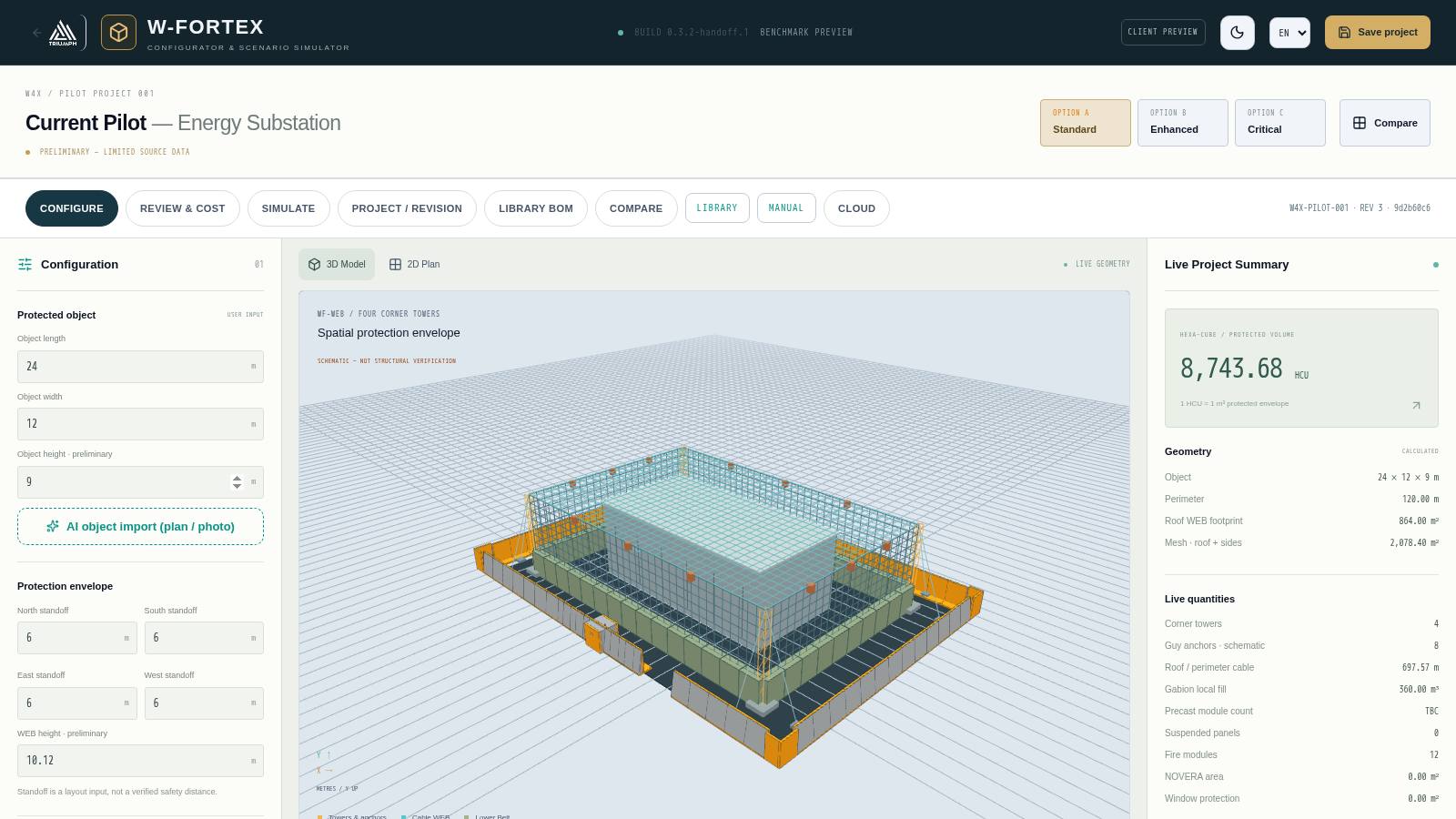
At the end of the left panel is the "IBIPC objects · Product Library" block. Details are in section 11.
- Product / Variant — selection of a product and variant from the IBIPC catalogue, "Add to scene" button.
- Dragging with the mouse over the ground; R — rotate 90°, Shift + wheel — 15°, Esc — cancel; when docking points come close (< 0.6 m) the object snaps into place.
- Ready-made layouts: "Checkpoint", "T-Wall perimeter", "Shelter"; "replace current" checkbox.
- Perimeter entrance: side (South/North/East/West), opening position (−50…+50 %) and width (1–4 × T-Wall = 2.25–9.00 m). Perimeter corners are closed with conditional NON-CATALOG L inserts (orange).
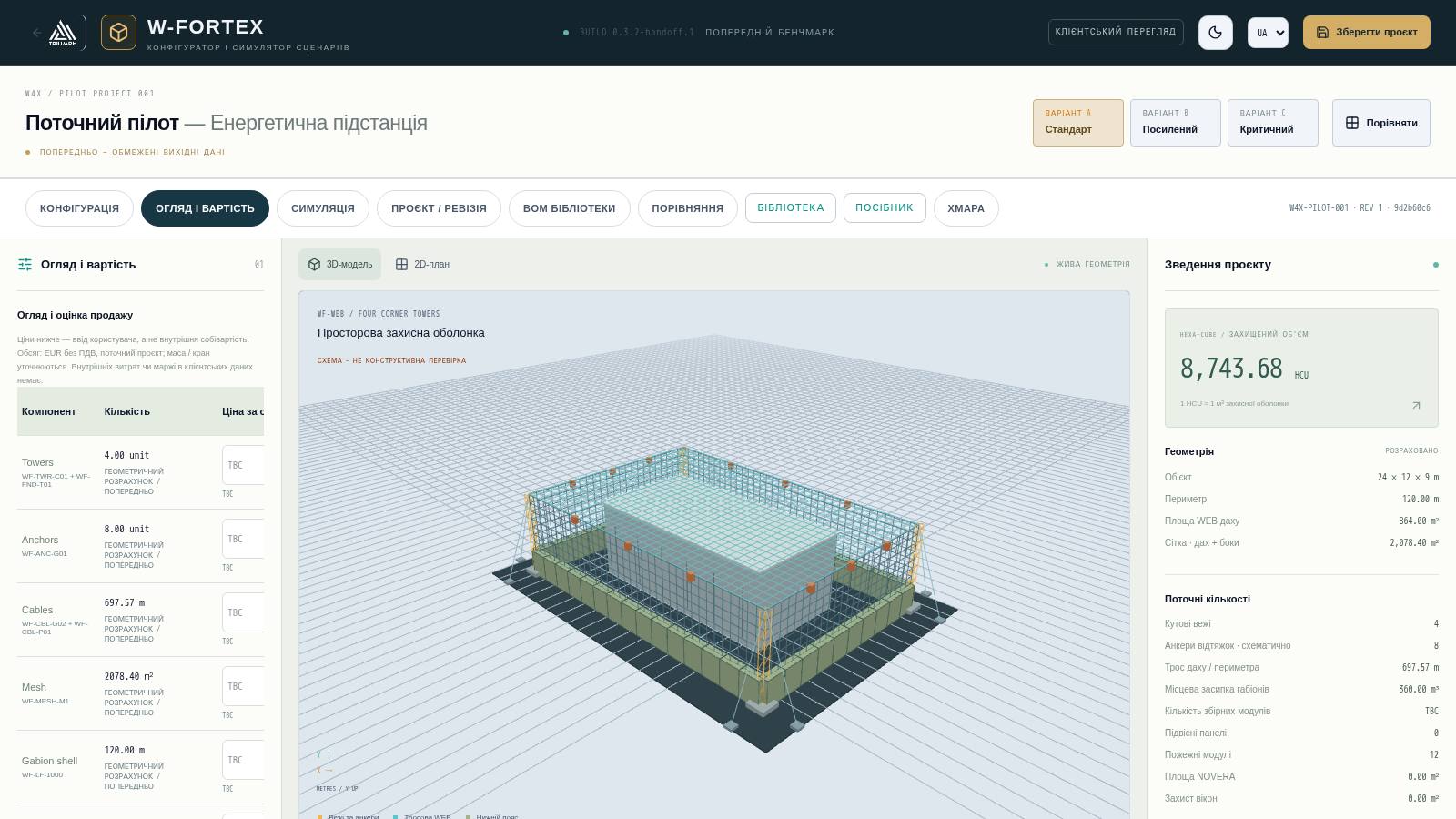
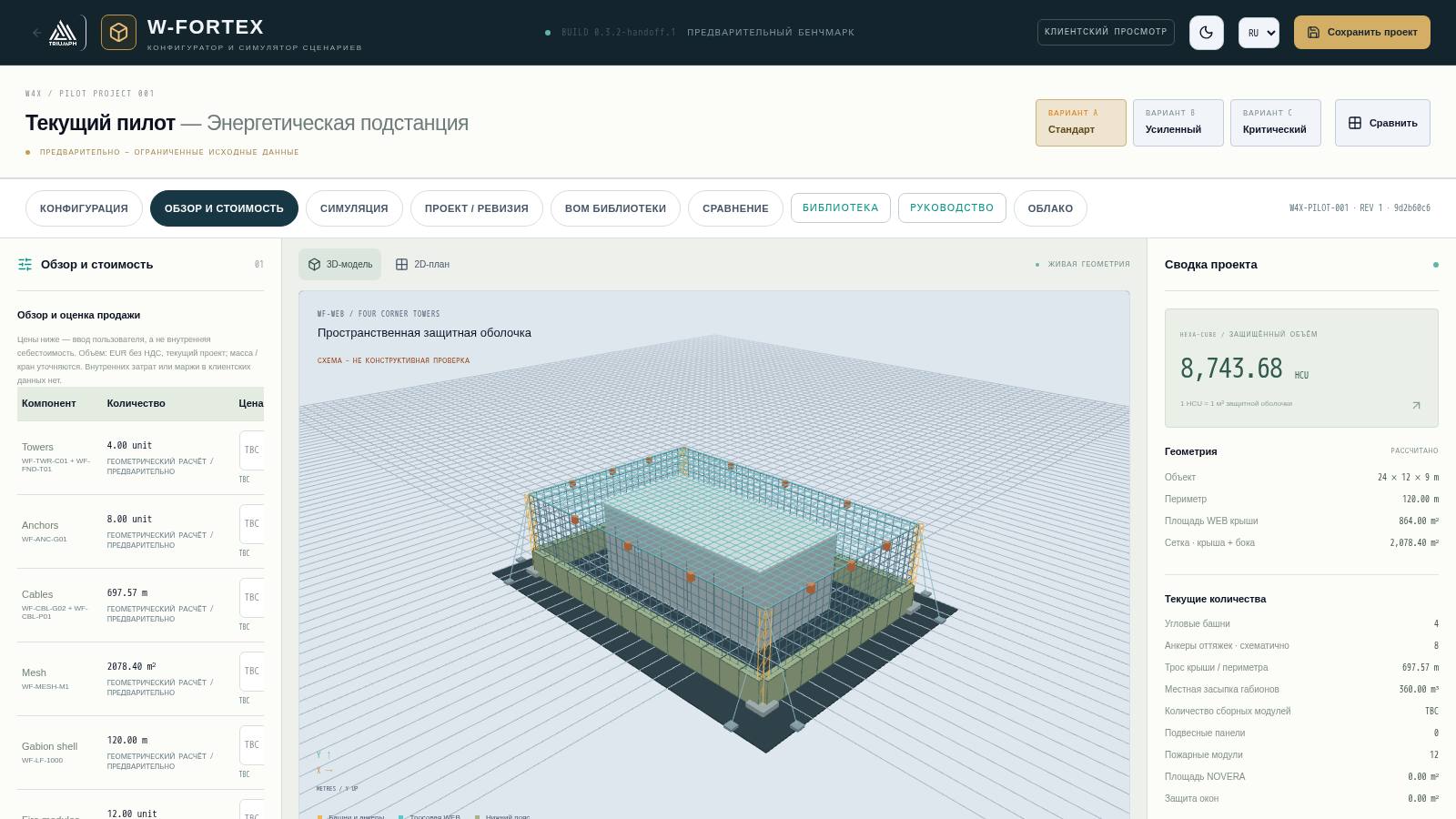
5. "Review & cost" mode
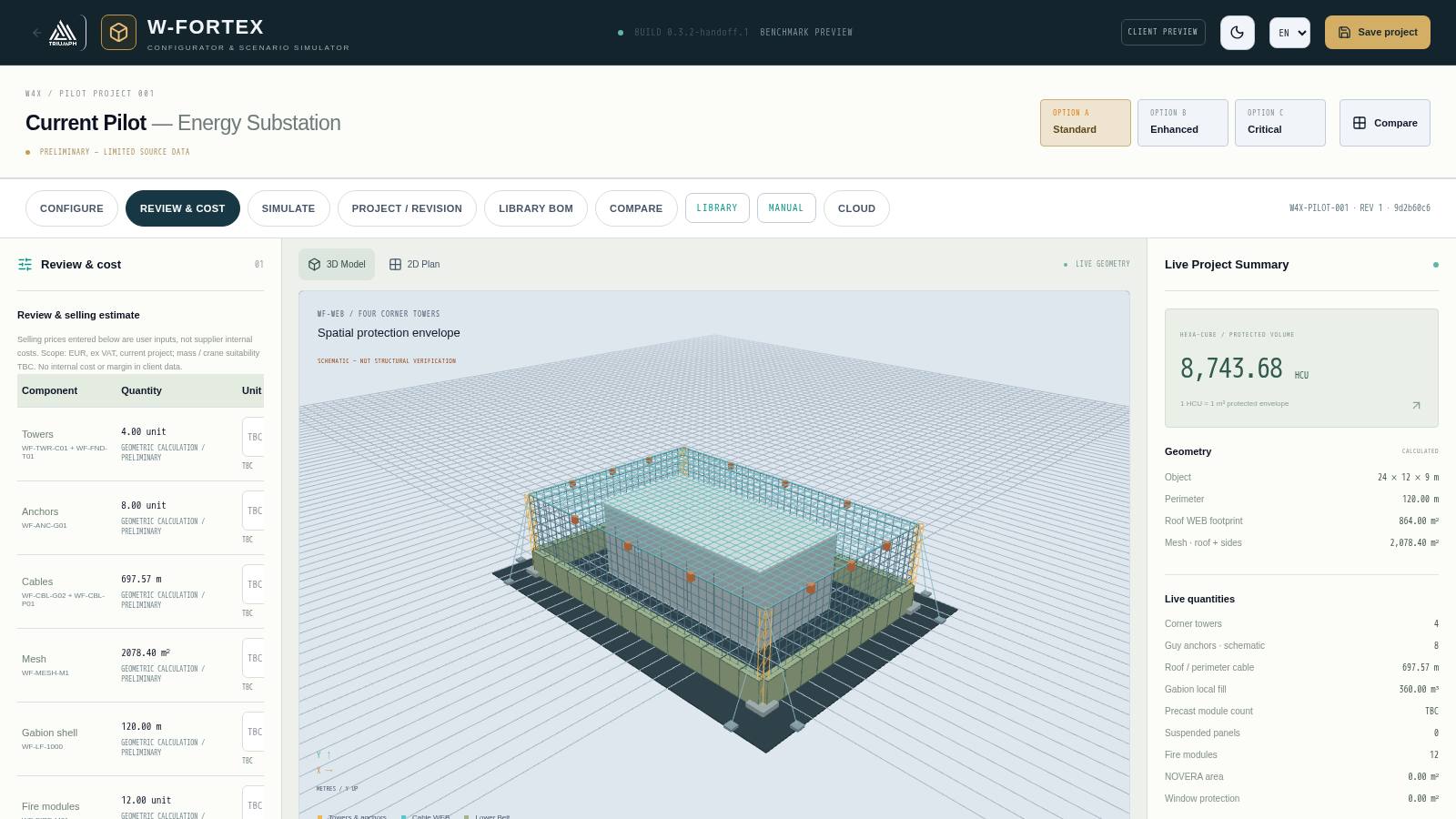
- Component table — towers, anchors, cables, mesh, gabion shell, fire modules, etc.: quantity, status "geometric calculation / preliminary", unit price (input, EUR excl. VAT).
- The sum of known lines is shown separately and is not considered a total while TBC lines exist (the missing ones are listed).
- Economic class coefficients C0…C4 — input.
- Logistics assumptions — payload capacity, usable body volume, packed cargo volume, installation man-hours, crew composition, crane requirement, working hours per day → trips and installation duration (lower bound).
- Auxiliary mass — anchors, fittings, sensors, extinguishing agent, window protection.
- Full price catalogue — all items; unused rates remain in the project.
HEXA-CUBE (HCU) — commercial benchmark
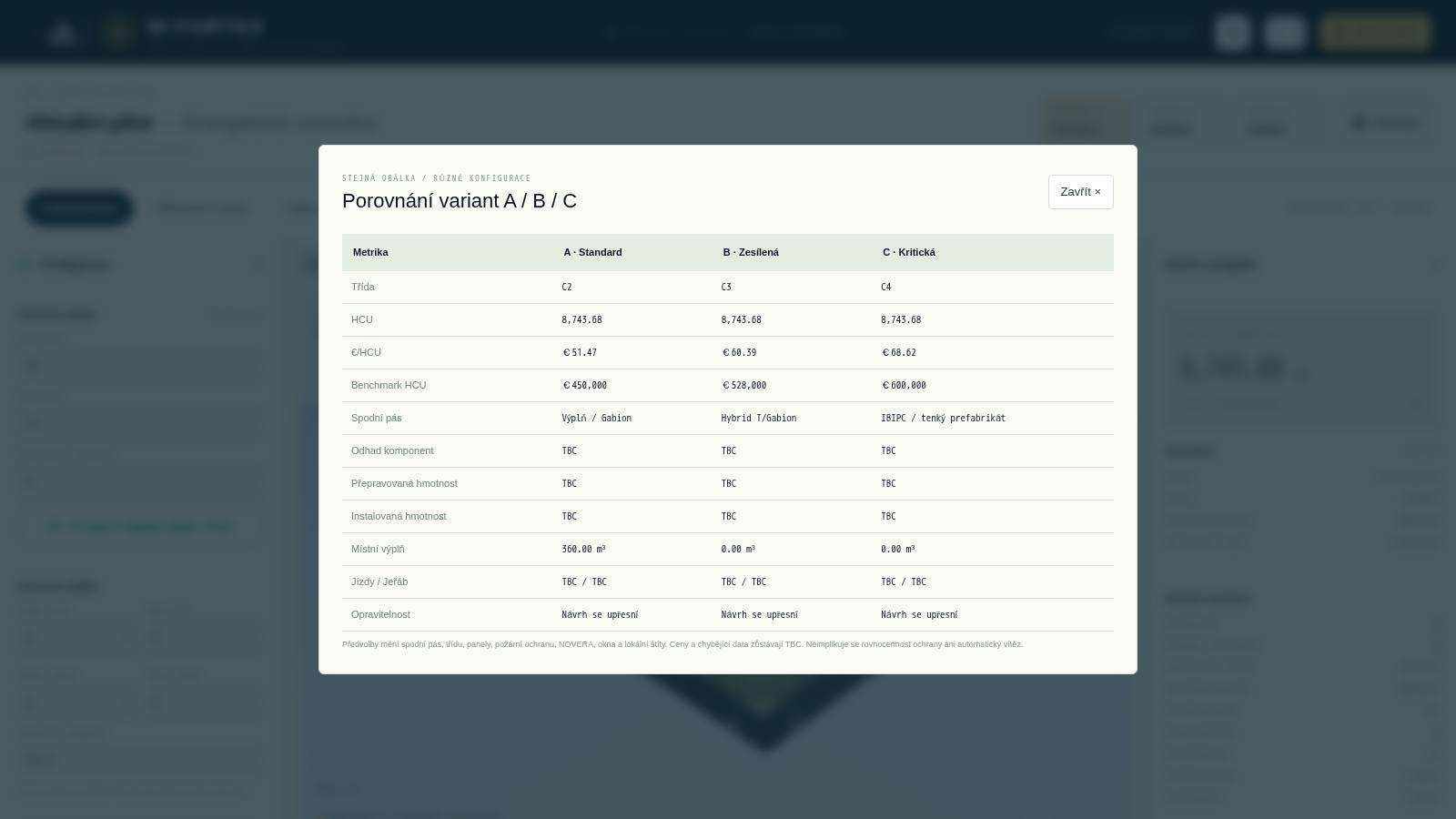
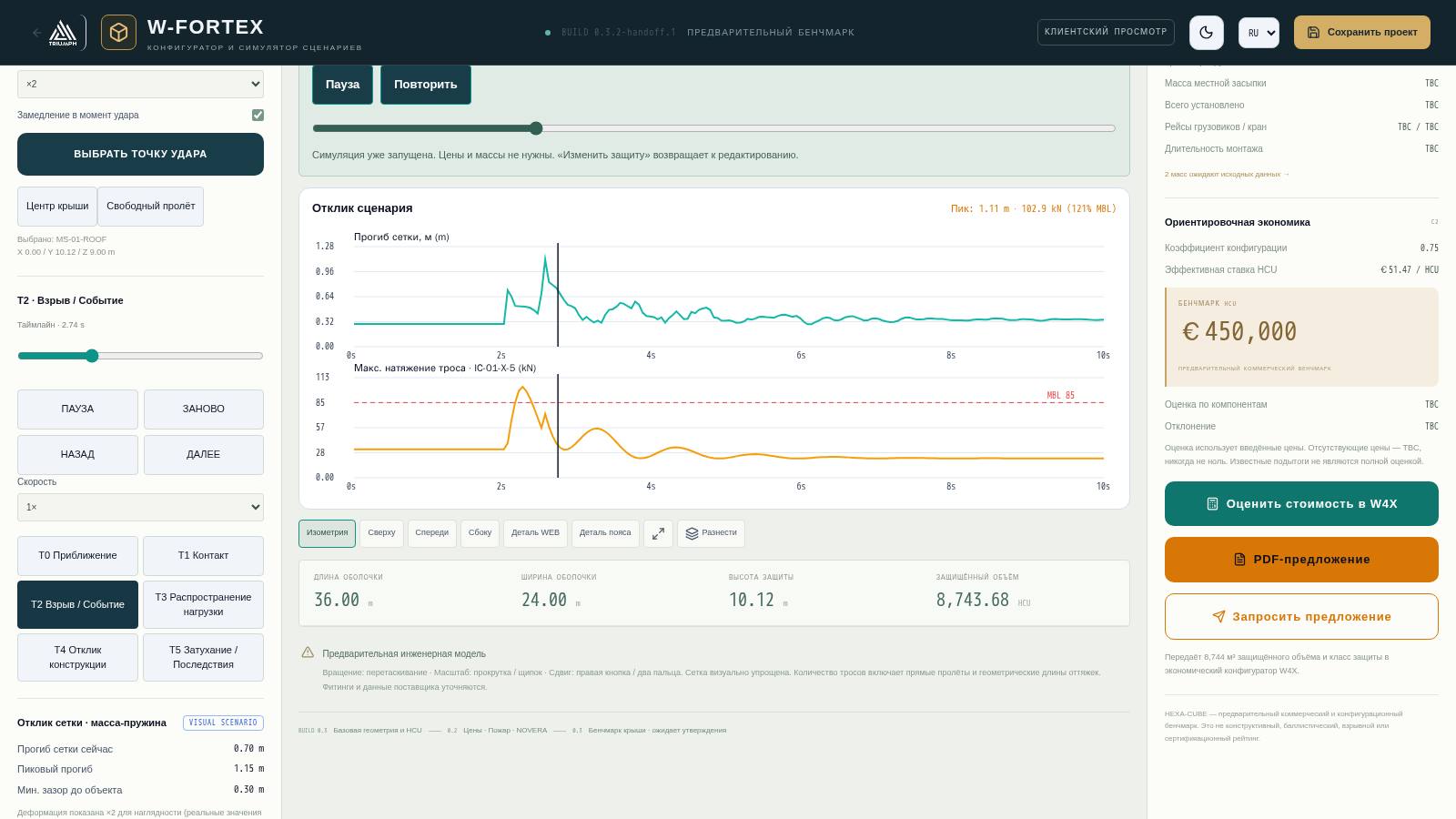
HCU = protected envelope volume in m³. Benchmark = HCU × effective HCU rate (depends on the class coefficient). Pilot example: 8,743.68 HCU, class C2, coefficient 0.75 → €51.47/HCU → benchmark €450,000. In parallel, the "Component estimate" is calculated from the entered prices, together with the "Deviation" between the two.
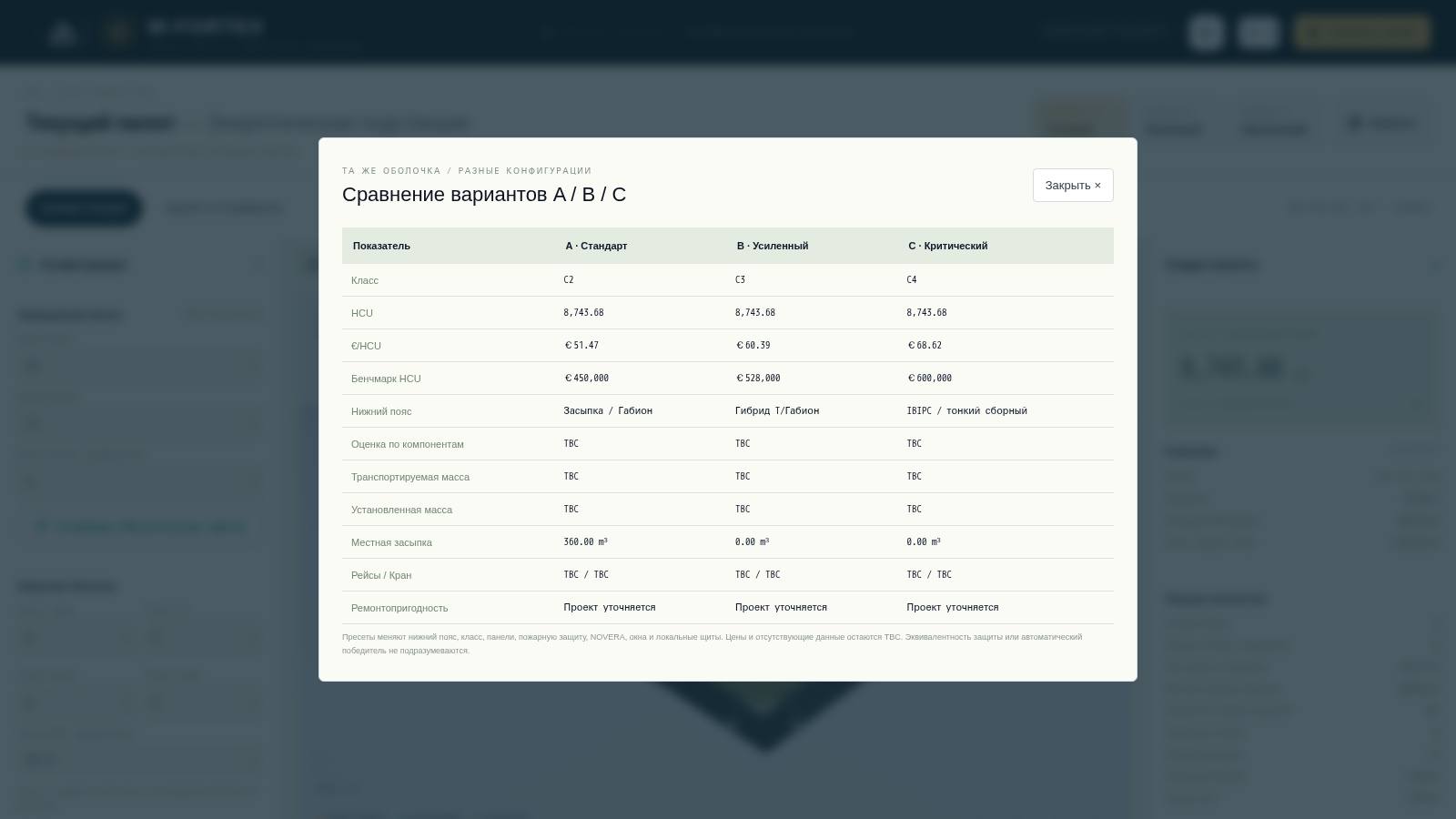
6. Options A / B / C and comparison
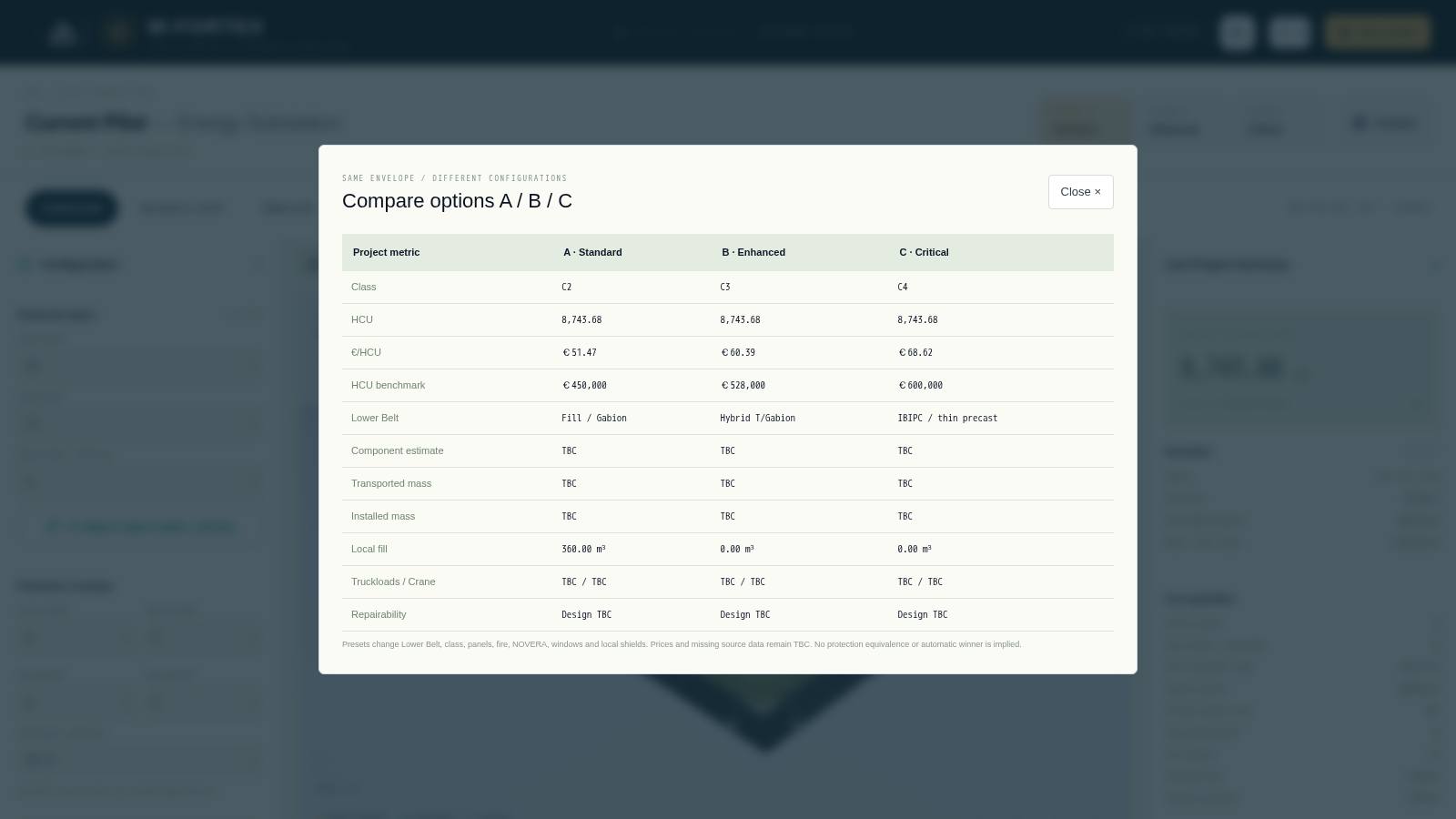
Option presets change the lower belt, class, panels, fire protection, NOVERA, windows and local shields while the envelope stays unchanged. The "Compare" window shows: class, HCU, €/HCU, benchmark, belt type, component estimate, transported and installed mass, local fill, trips/crane, repairability. An automatic "winner" and equivalence of protection are not implied.
7. "SIMULATE" mode
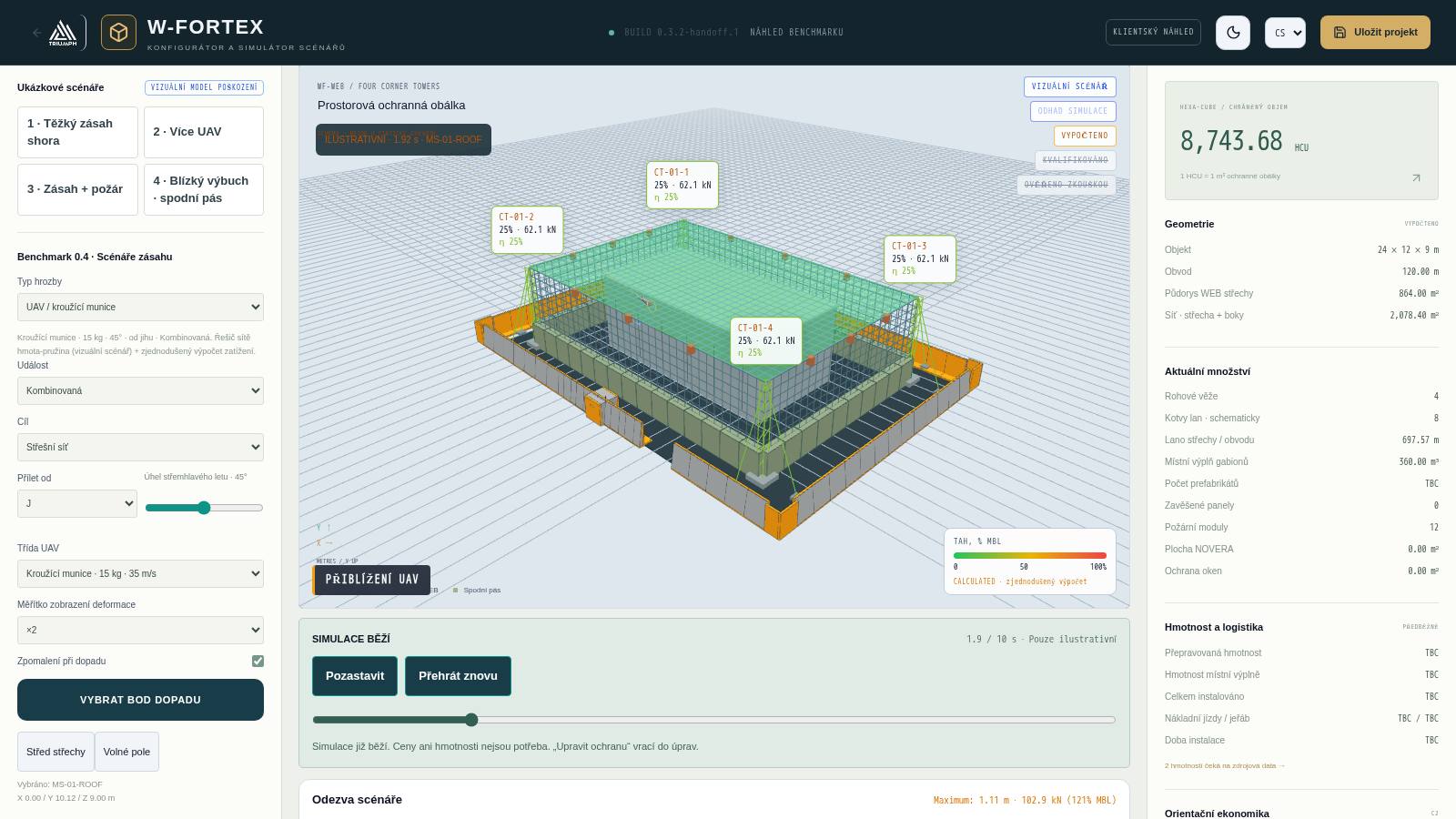
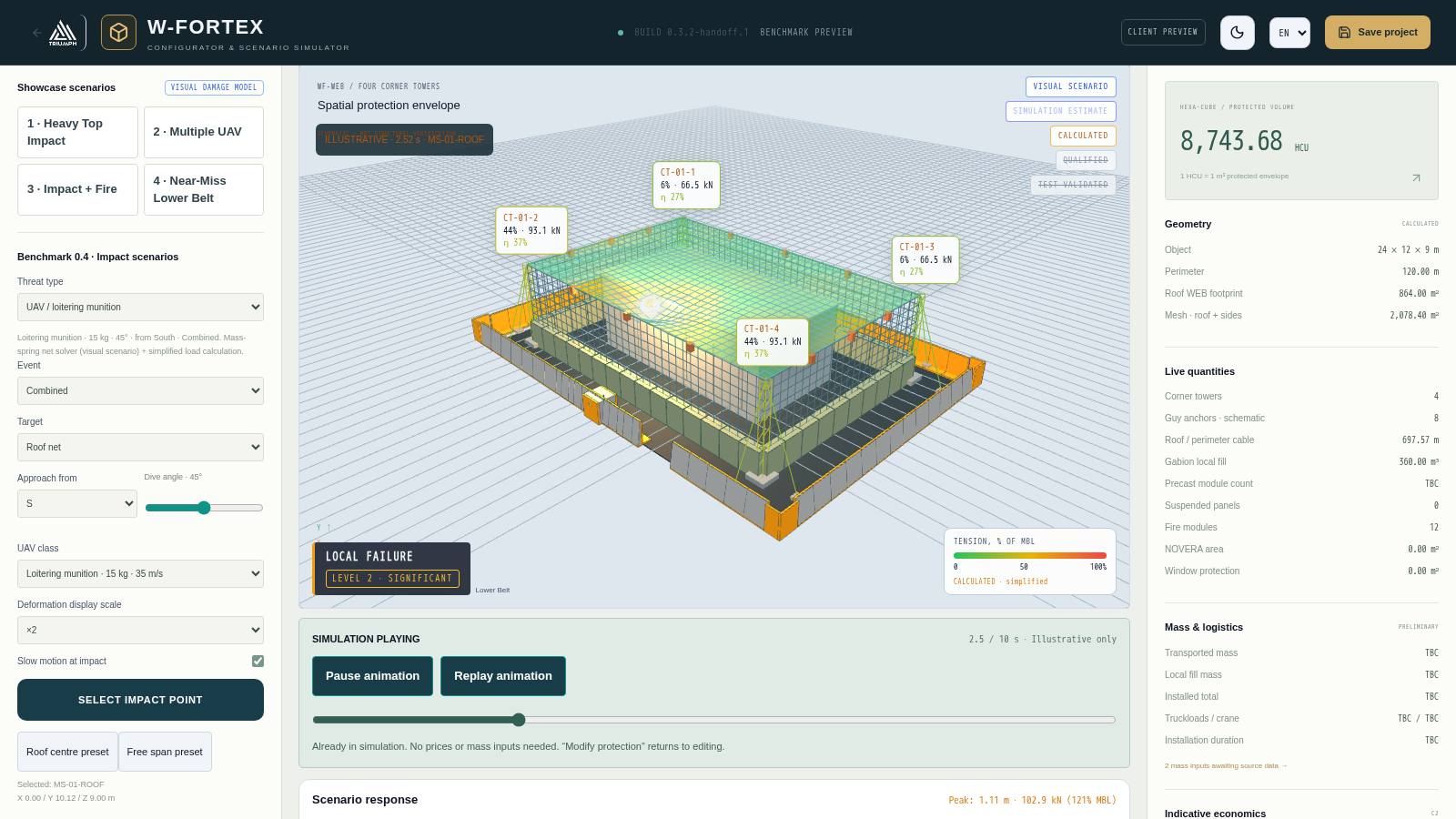
The "RUN SIMULATION" button (or the SIMULATE tab) switches the project to scenario mode. Prices and masses are not needed for the simulation. "MODIFY PROTECTION" returns to editing.
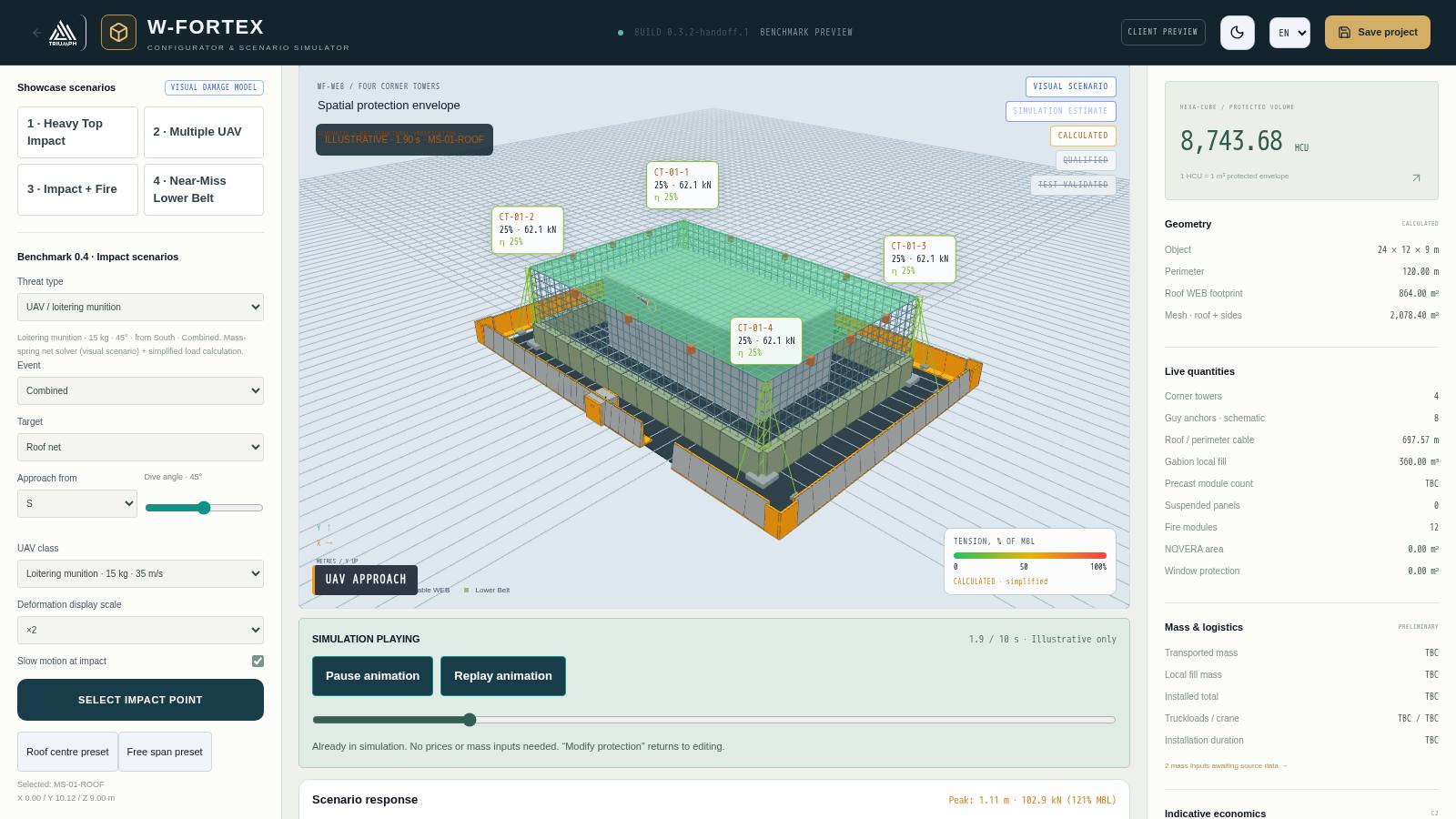
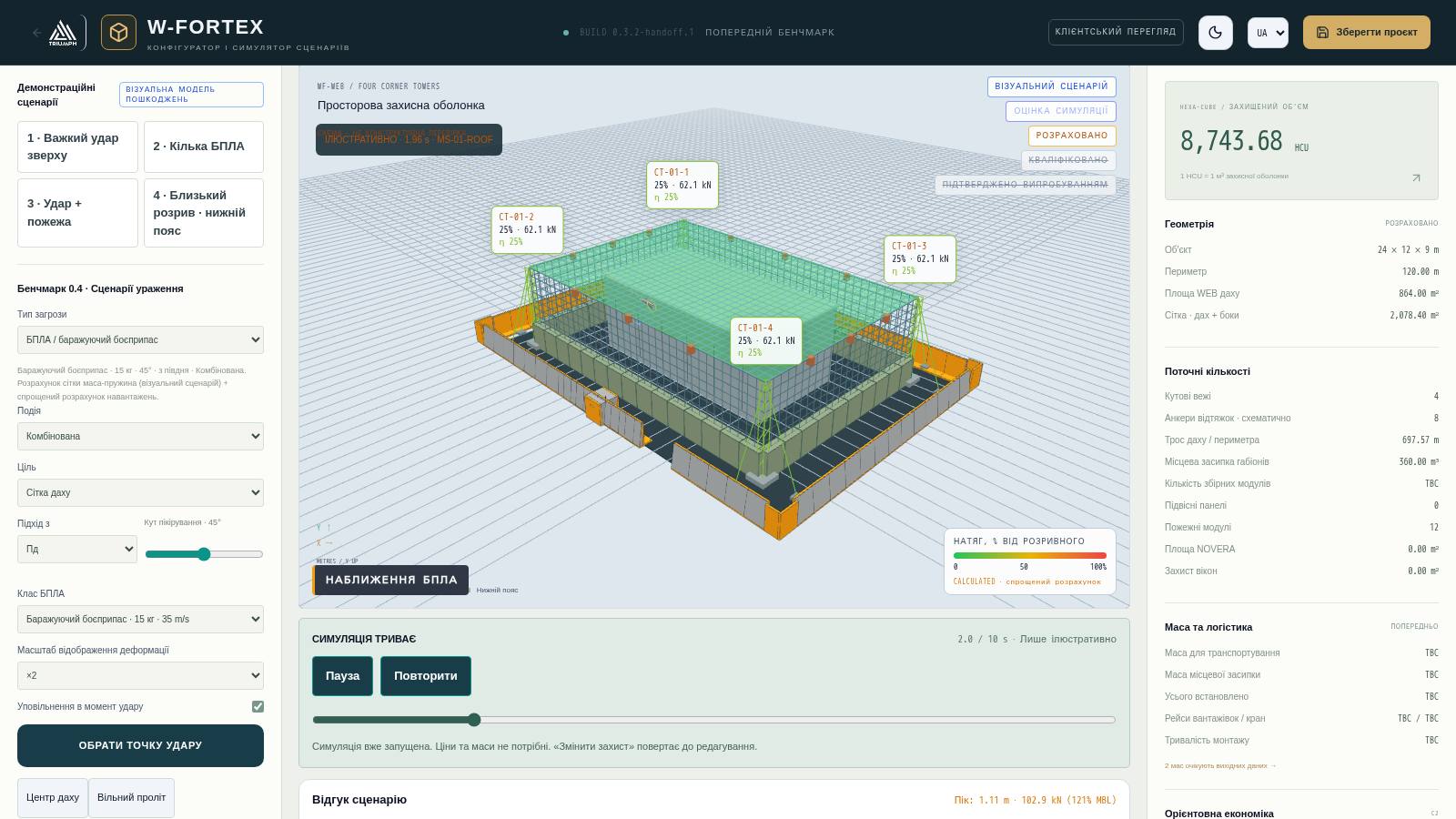
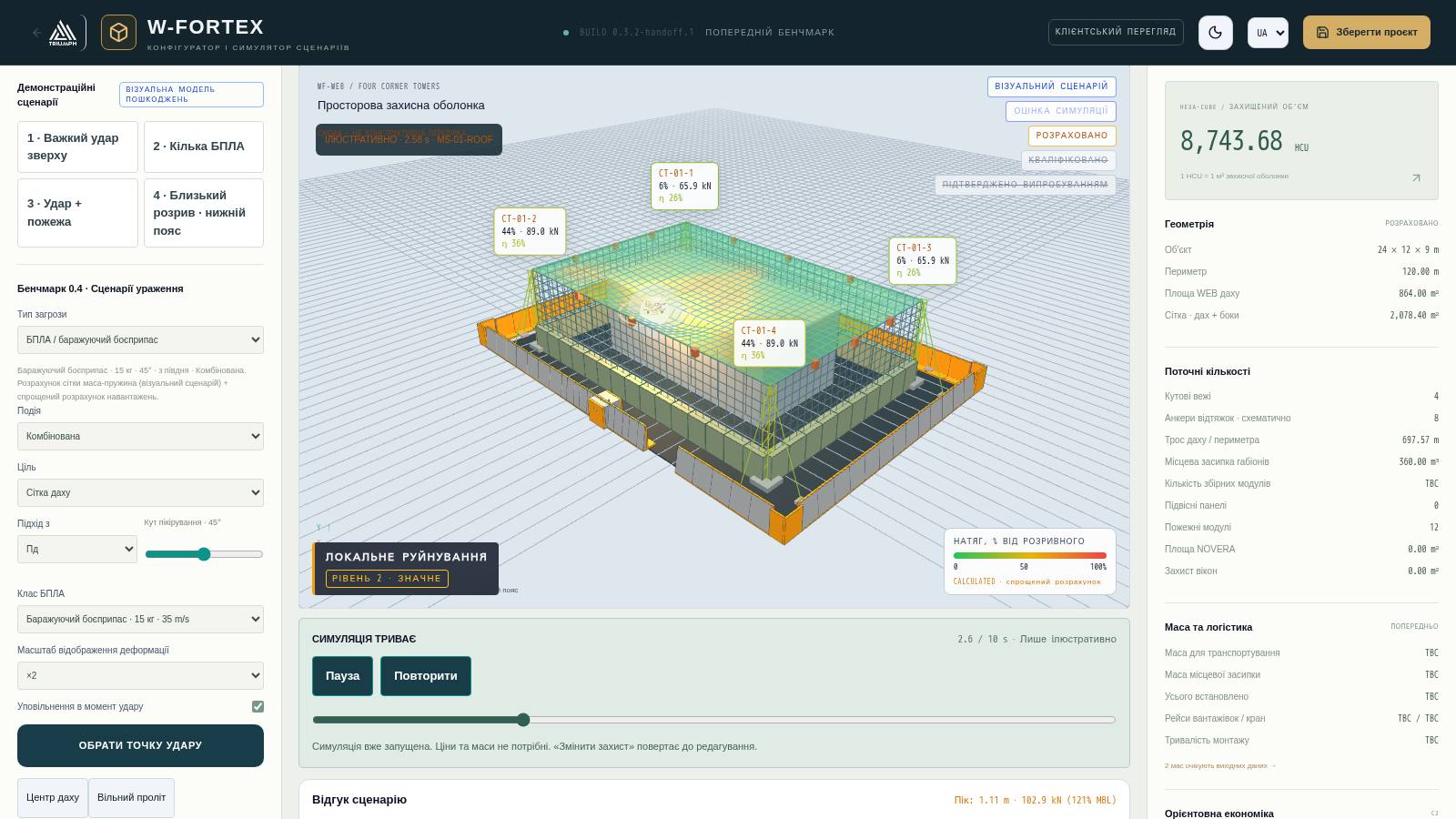
7.1 Showcase scenarios
| Scenario | What it shows |
|---|---|
| 1 · Heavy Top Impact | A large UAV hits the roof mesh: deformation, local failure, debris containment |
| 2 · Multiple UAV | Drone swarm with an interval, sequential strikes |
| 3 · Impact + Fire | Impact followed by ignition and operation of the fire system |
| 4 · Near-Miss Lower Belt | The missile detonates on the ground near the belt: pressure on the belt and the object |
7.2 Threat parameters
| Threat | Parameters |
|---|---|
| UAV / loitering munition | Class: FPV 3 kg · loitering 15 kg · Shahed-class 200 kg; event; target (roof mesh, side wall, mast); approach from 8 directions; dive angle; deformation scale; slow motion at the moment of impact; "Pick impact point" by clicking on the roof, "Roof centre preset", "Free span preset" |
| Drone swarm | Number of drones, interval, wall side |
| Ballistic missile | Warhead: tactical 150 kg TNT / ballistic 480 kg / heavy 900 kg; direct hit or near miss (distance from the belt, side); contact fuze (on the mesh) or delayed (penetrating) |
| Fire & seismic signal | Trigger: seismic signal or fire at the object (heat detection); fire location; link to the control room |
7.3 Timeline and player
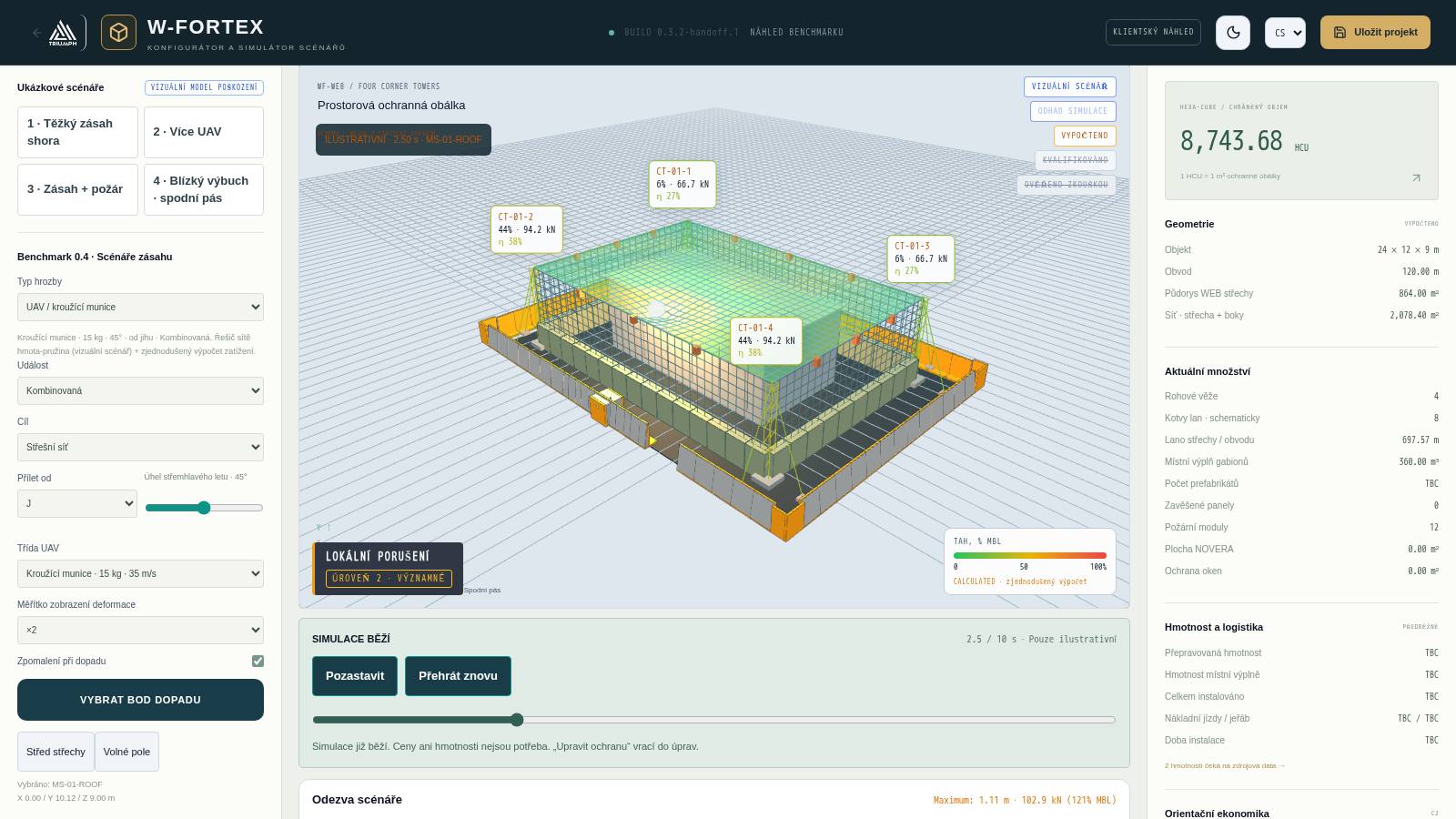
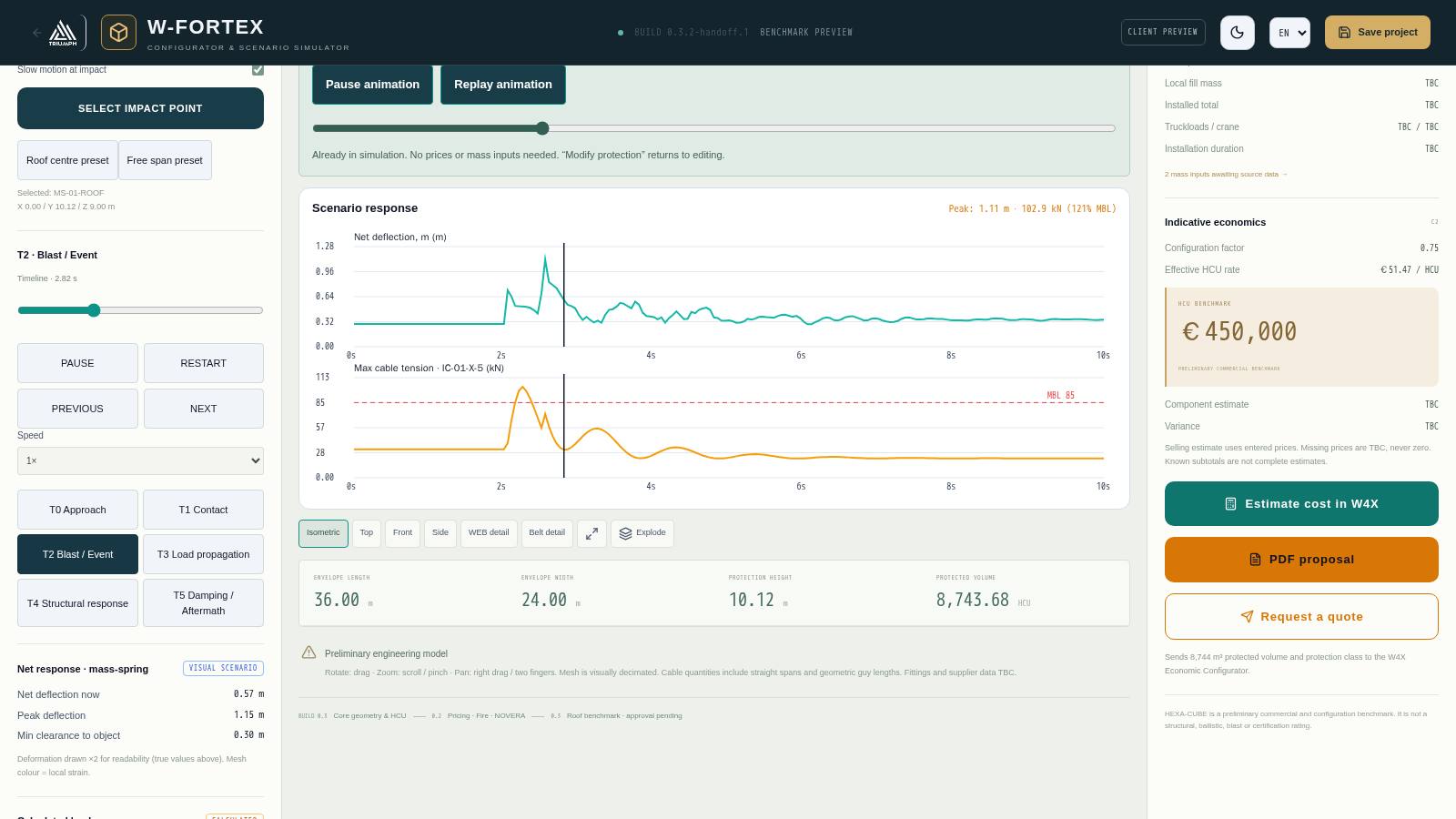
- Stages T0 Approach → T1 Contact → T2 Explosion/Event → T3 Load propagation → T4 Structural response → T5 Decay/Aftermath (10 s, time compressed).
- Buttons Play animation / Pause animation / Replay animation, BACK / NEXT by stages, time slider, speed 0.1×–2×.
- Quality preset: TECHNICAL / REALISTIC / CINEMATIC.
- Layers: cable colour by tension, load markers, damage zones, comparison of debris scatter "with W-FORTEX / without W-FORTEX".
7.4 What is calculated
| Block | Method | Status |
|---|---|---|
| WEB mesh | Real-time mass-spring, current/peak deflection, min. clearance to the object (CONTACT on touch) | VISUAL SCENARIO |
| Cables and towers | T = T0 + P·a·(L−a)/(L·f), braking load × DAF, % of breaking load (MBL), share per tower | CALCULATED (simplified) |
| Tower | Damped oscillator: top deflection, amplitude, natural frequency | VISUAL SCENARIO |
| Explosion | Kingery–Bulmash (Swisdak approximation), scaled distance Z, reflected pressure and impulse (Rankine–Hugoniot) | CALCULATED |
| Lower Belt | Utilisation η from the P–I diagram; OK / DAMAGED — REPLACE SEGMENT | PRELIMINARY ENGINEERING |
| Missile and mesh | Kinetic energy vs mesh energy capacity, penetration YES/NO, detonation point, fragment absorption | PRELIMINARY ENGINEERING |
| Object | Overpressure → state: no damage … destruction | CALCULATED (indicative) |
| Fire | t² growth, roof coverage by spraying, flow rate, status SUPPRESSED / CONTAINED / NOT SUPPRESSED | ILLUSTRATIVE |
7.5 Consequences and event log
- Post-event state — damage level (NO DAMAGE, LEVEL 1 LIMITED, LEVEL 2 SIGNIFICANT, LEVEL 3 SEVERE LOCAL), zones (impact core, primary, secondary debris, operational).
- Element states — mesh, cables/nodes, tower/guy lines, lower belt by side, facade and roof of the object, fire zones: NORMAL, LOADED, DEFORMED, DAMAGED, INSPECTION REQUIRED, REPLACEMENT REQUIRED, ISOLATED.
- Event log — a chronology with timestamps: approach, contact with the mesh, detonation, shock wave front, sensor activation, alarm to the control room, source geolocation, delivery of extinguishing agent, final fire state.
- Confidence badges above the scene: VISUAL SCENARIO, SIMULATION ESTIMATE, CALCULATED, QUALIFIED, TEST-VALIDATED (the last two are inactive until FEM/testing).
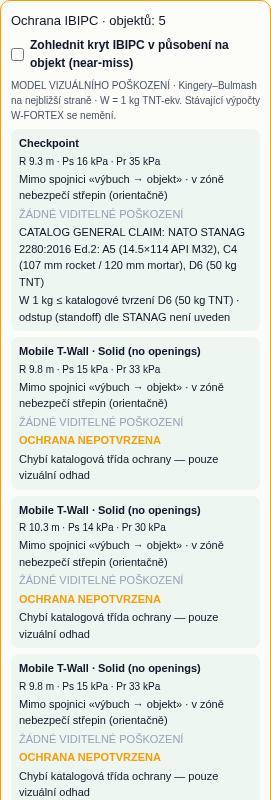
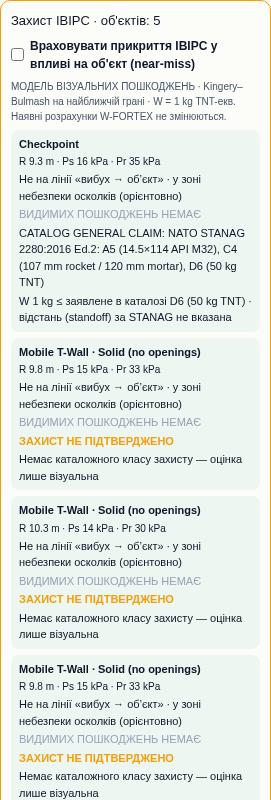
7.6 Shielding by IBIPC objects
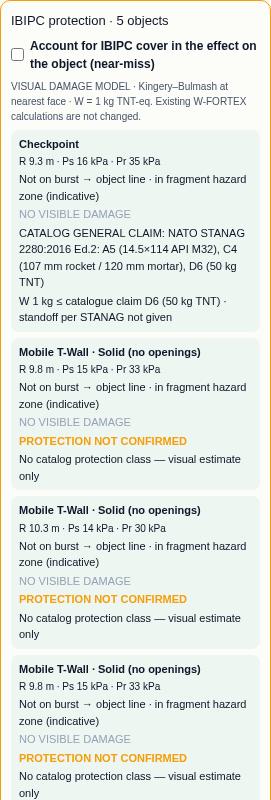
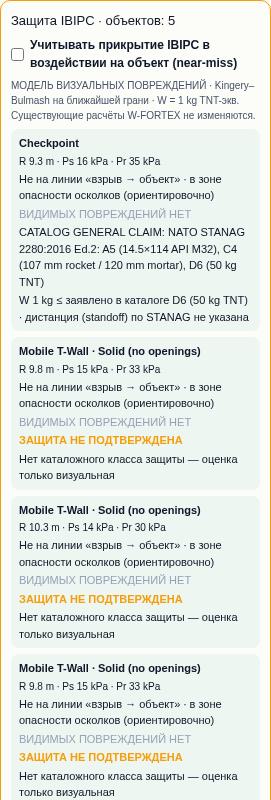
If the scene contains IBIPC objects, an "IBIPC protection" panel appears in simulation mode: for each object — distance to the blast R, pressure Ps/Pr, whether it blocks the "blast → object" line, fragment zone, visual state and comparison with the catalogue protection class (for example STANAG 2280 A5/C4/D6; "EXCEEDS CLAIM" or "PROTECTION NOT CONFIRMED"). The "Account for IBIPC shielding" toggle (off by default) reduces the pressure on the object in a near miss by a factor of 0.3–0.6 (ESTIMATED) if the IBIPC element blocks the line and is not destroyed.
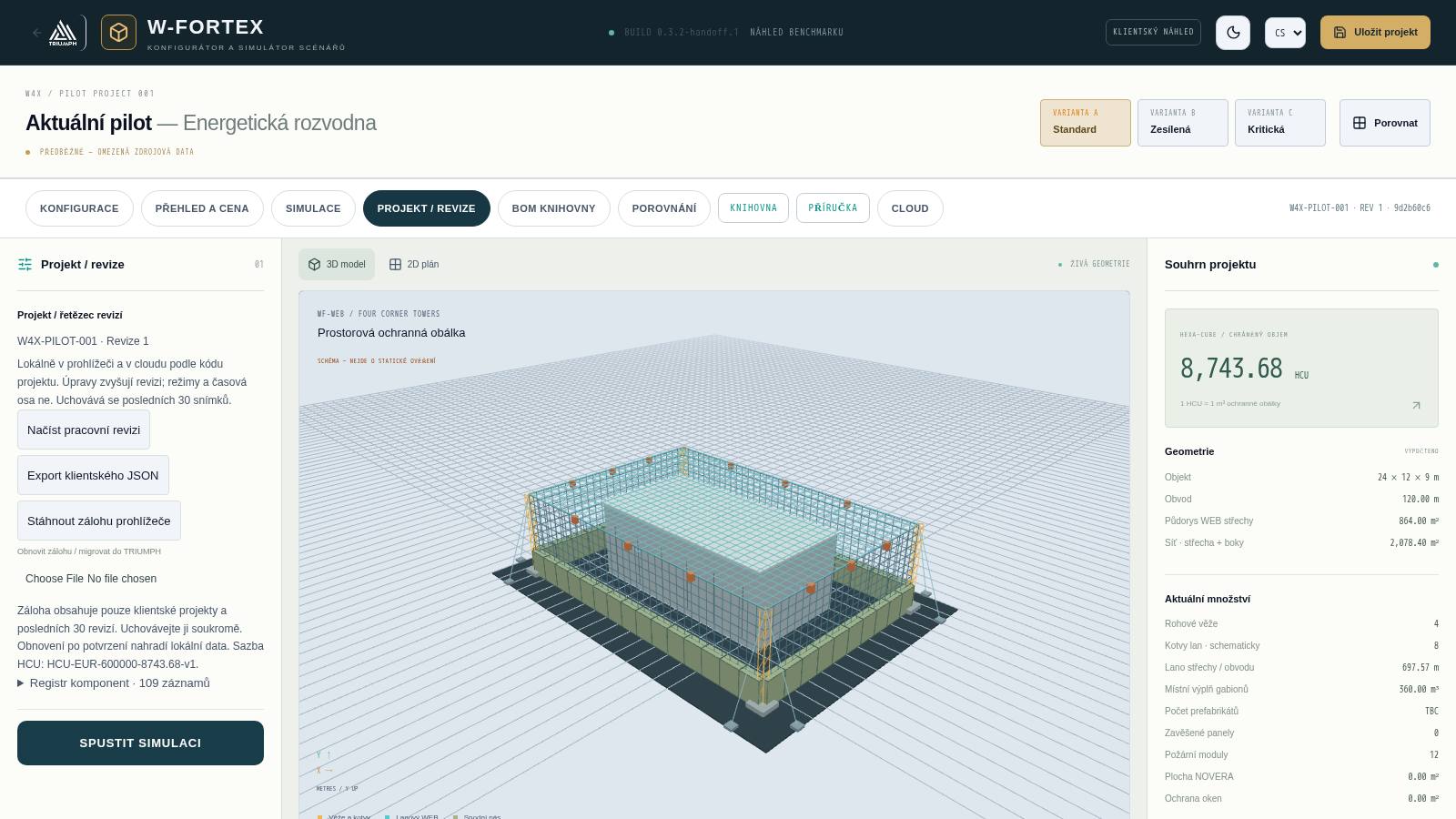
8. Project, revisions and backups
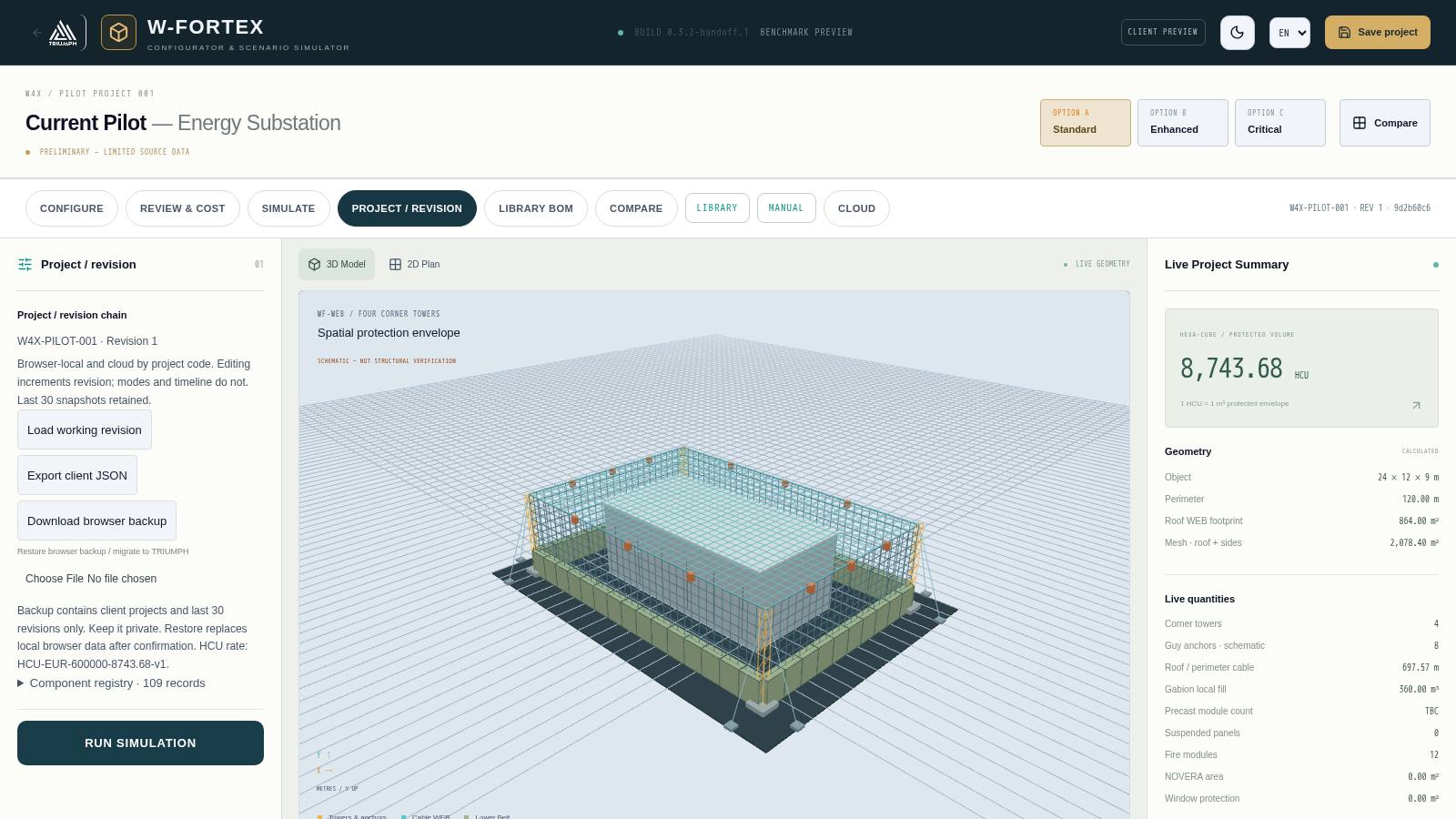
- Every configuration change increments the revision number (REV); switching modes and the timeline do not change the revision. The last 30 snapshots are kept; any of them can be restored as a new revision.
- "Save project" — saving in the browser; "Load saved", "Load working revision", "Starter pilot restored".
- "Export client JSON" — project file without internal data.
- "Download browser backup" / "Restore browser backup / migrate to TRIUMPH" — transfer of projects and history between browsers (restoring replaces local data after confirmation).
- Component register — 109 library entries referenced by the project.
9. Cloud, links and client view
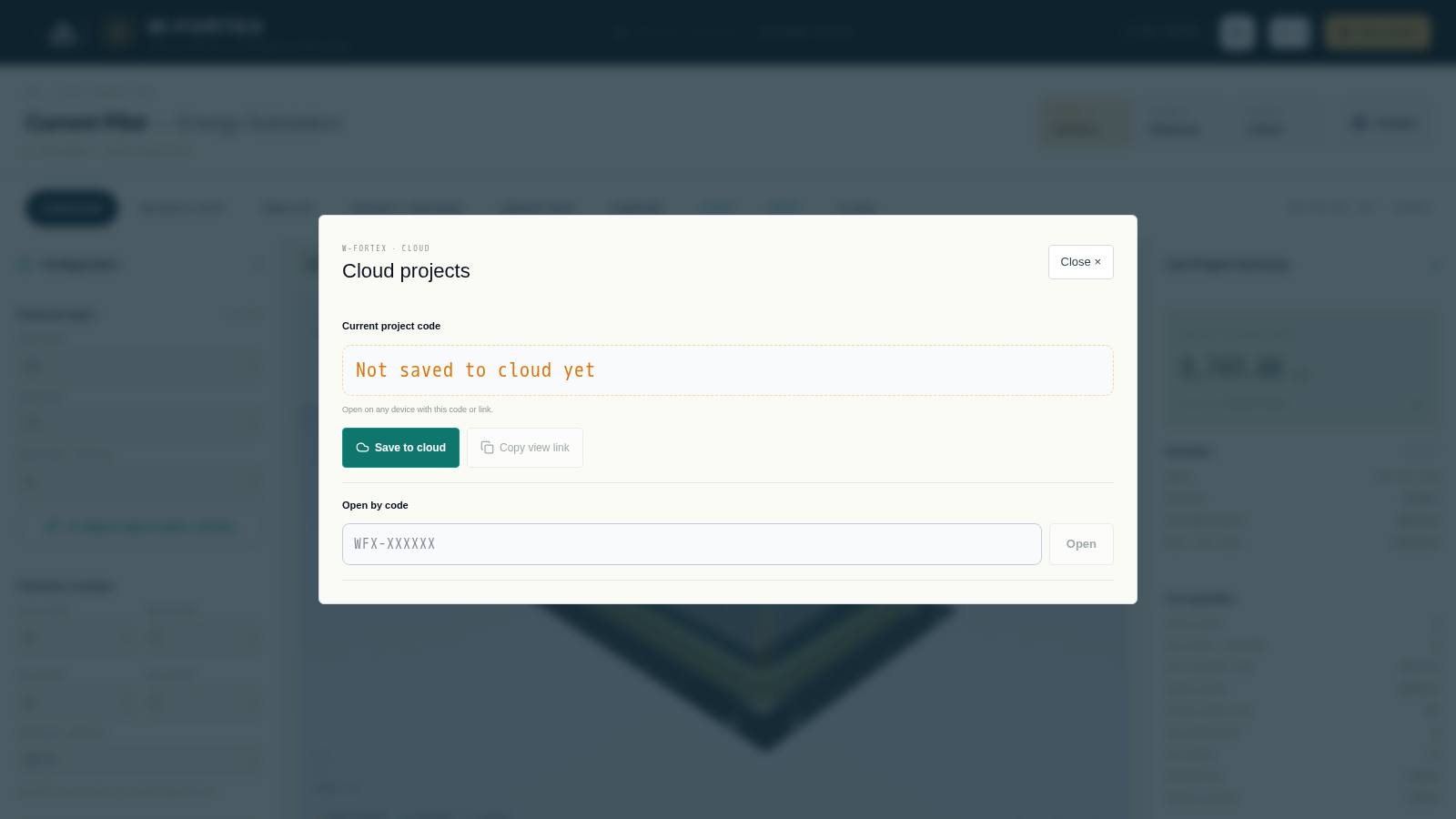
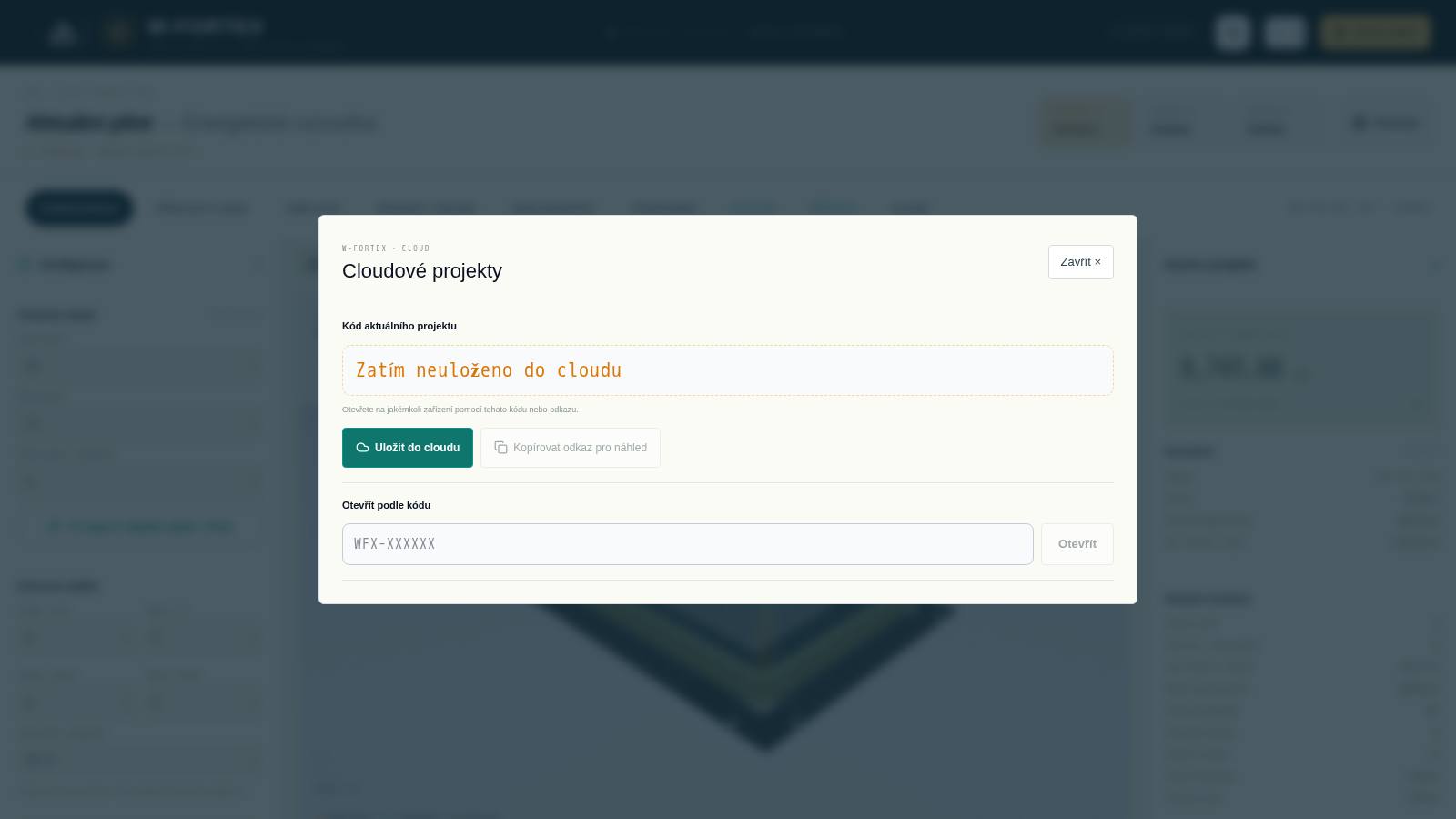
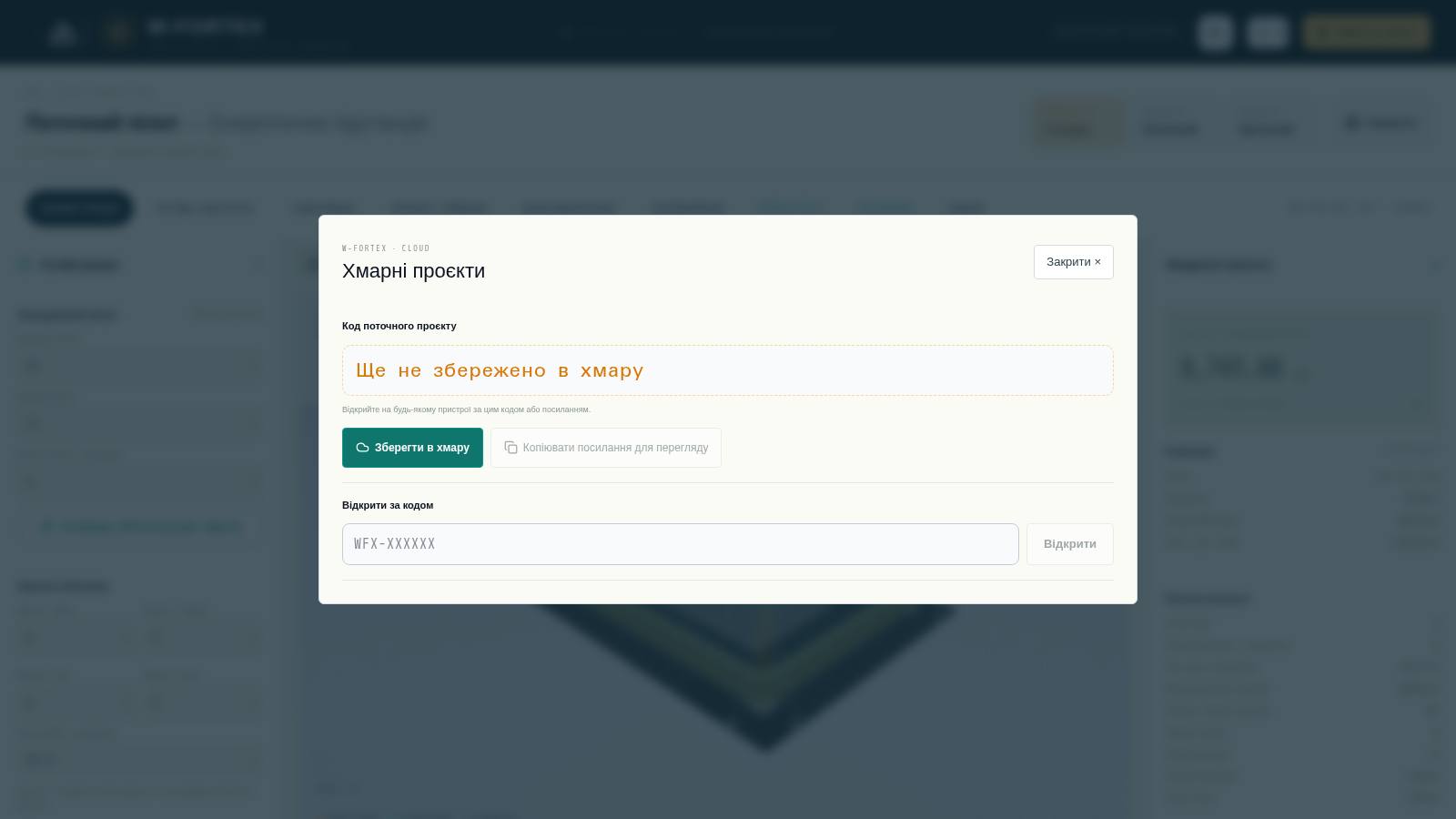
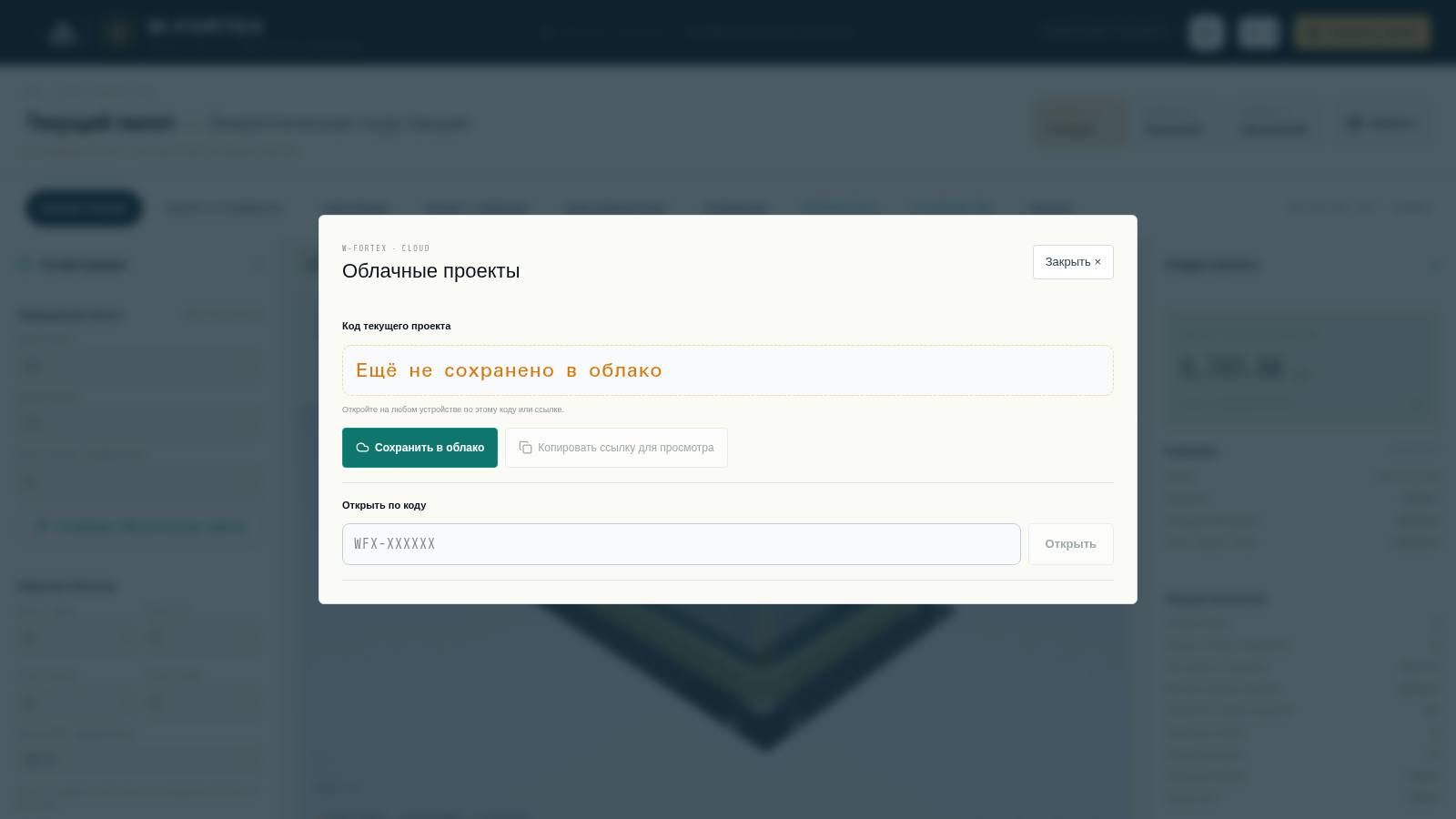
- "Save to cloud" — the project receives a code of the form WFX-XXXXXX; subsequent saves update the same code.
- "Open by code" — loading a project on any device; list of recent cloud projects.
- View link — opens the project read-only; saving from it creates your own copy with a new code ("Save as my copy").
- Editor link — allows editing from your other devices; it can be sent to your own e-mail. Do not share it with third parties.
- Client link — simplified "Client view": rotatable 3D model, key metrics, "Download PDF proposal" and "Contact TRIUMPH" buttons.
- "Linked W4X estimates" — list of economic estimates saved in W4X for this code.
PDF proposal, quote request and handover to W4X
- "PDF proposal" — generates a PDF with the configuration, volume, class and key metrics.
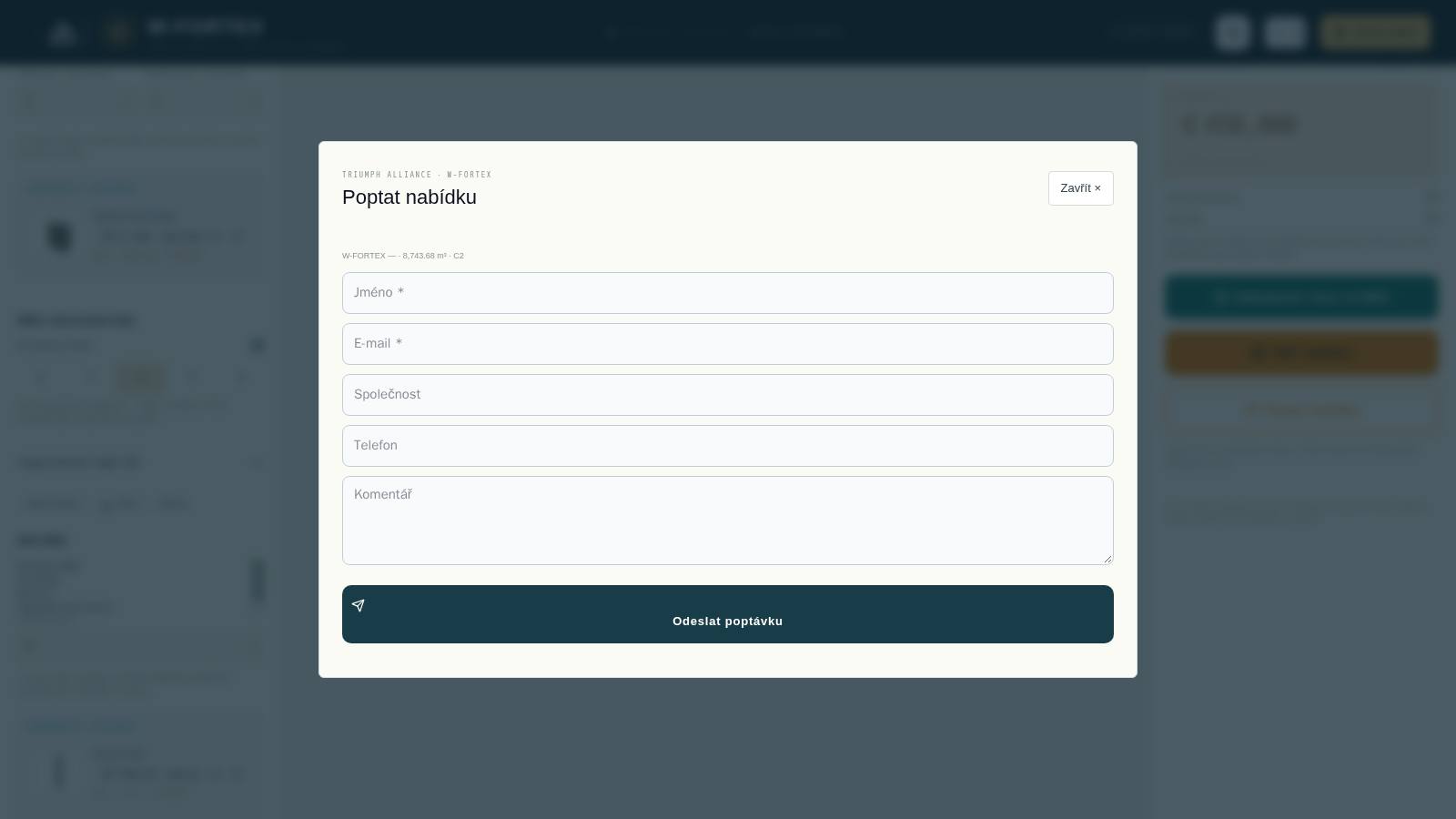
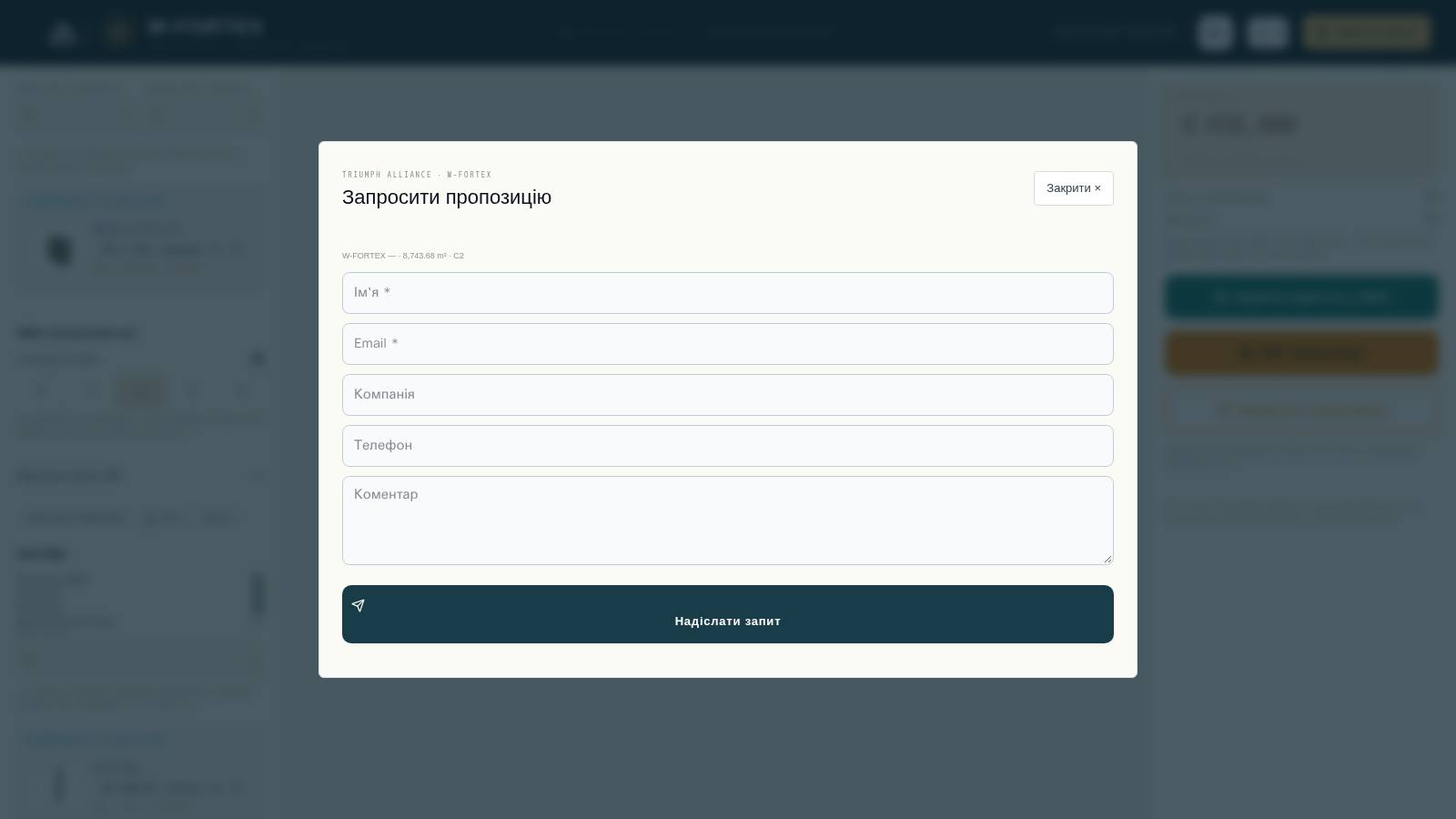
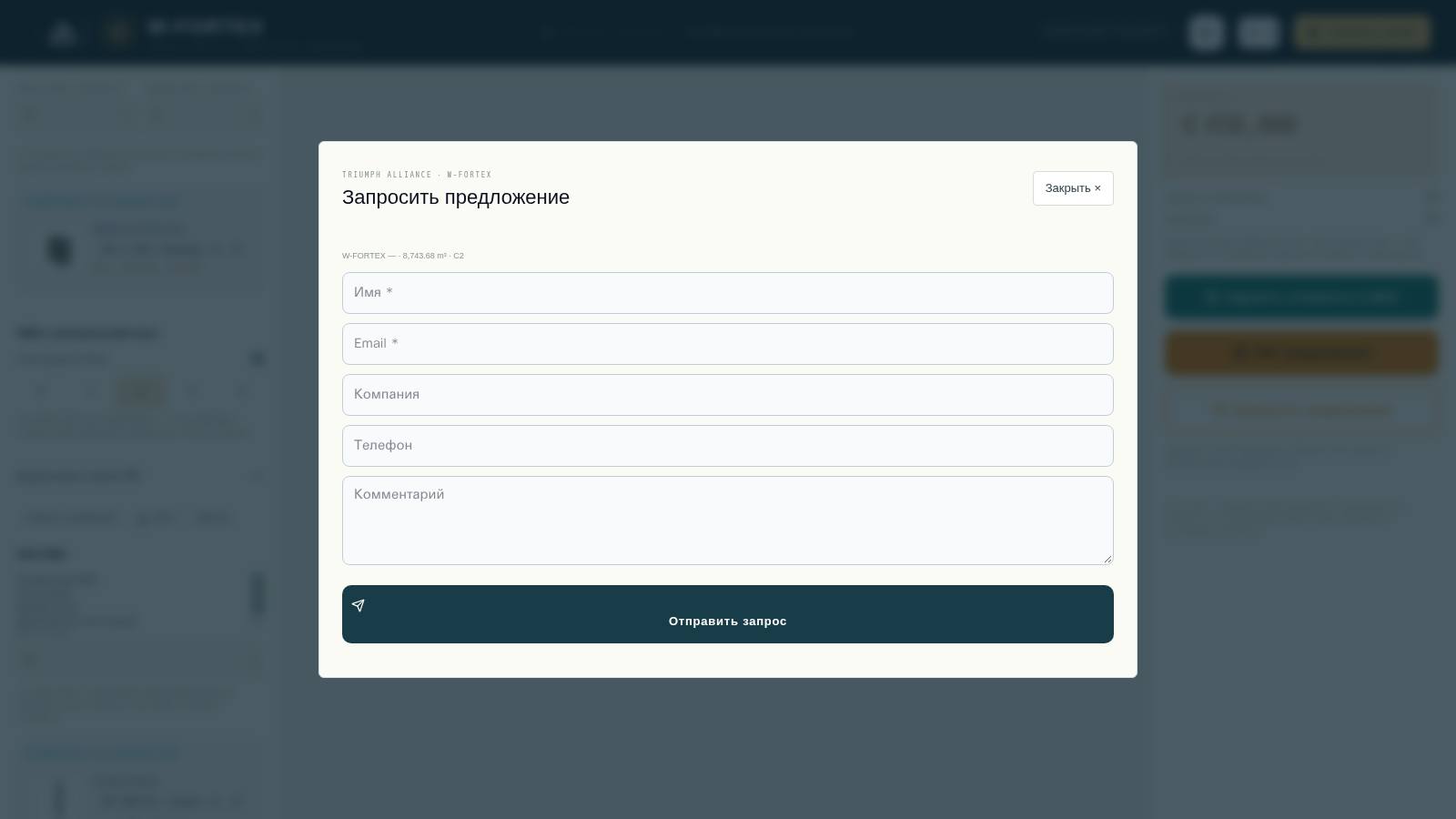
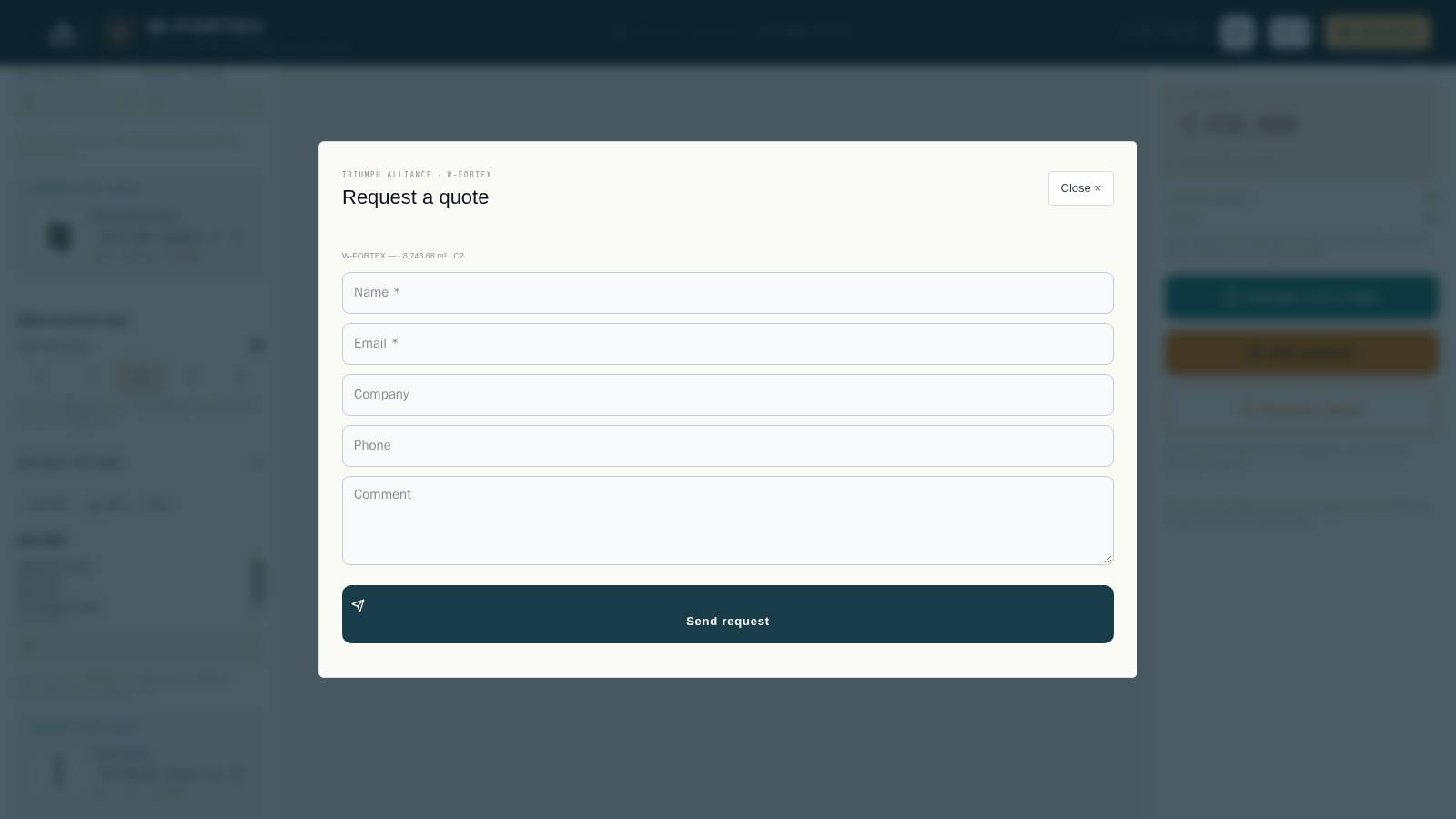
- "Request a quote" — name, e-mail, company, phone, comment; after submission a request number is issued and the TRIUMPH team contacts the client.
- "Estimate cost in W4X" — passes the protected volume (m³) and protection class to the W4X economic configurator.
10. W-FORTEX component library
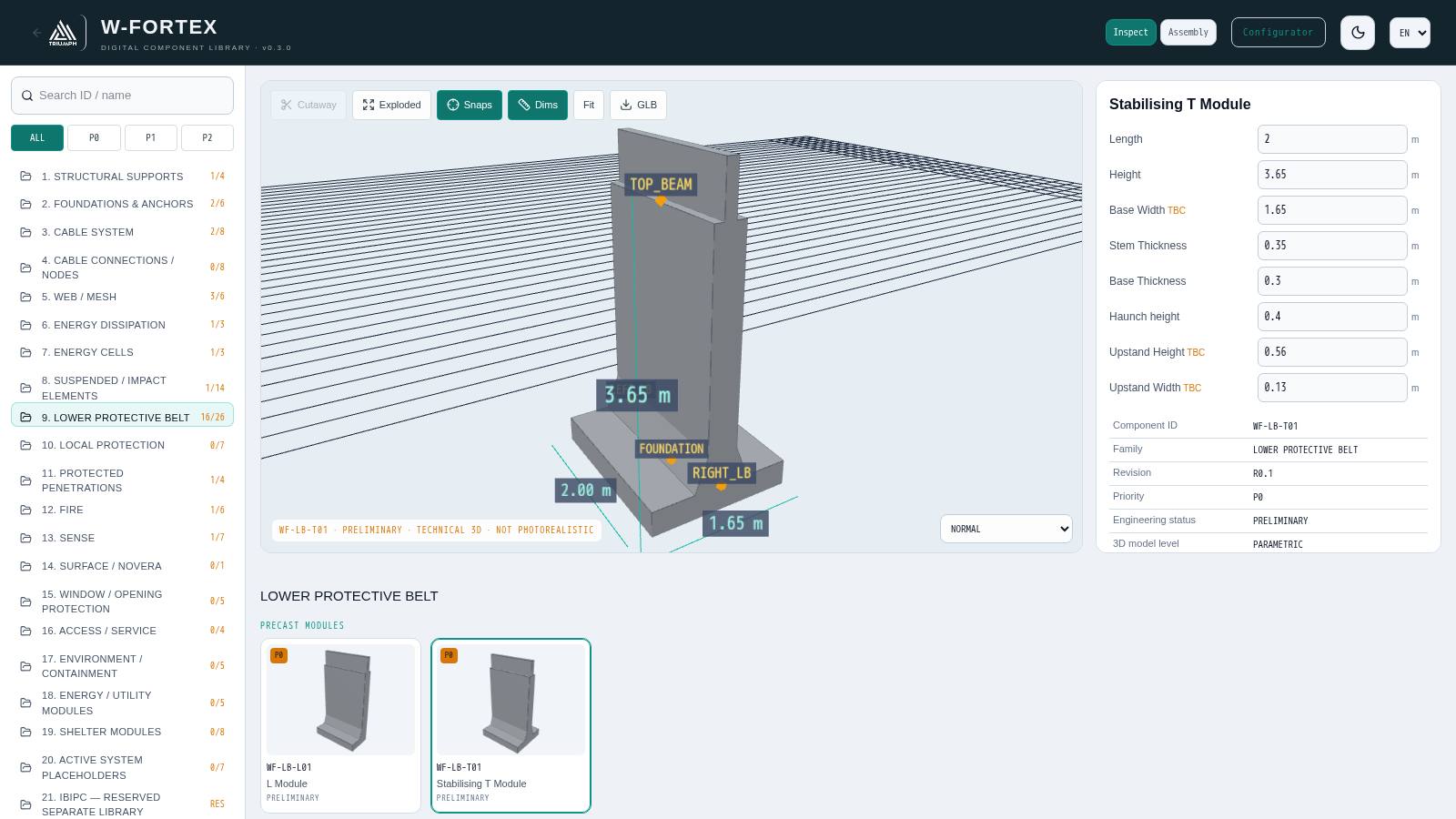
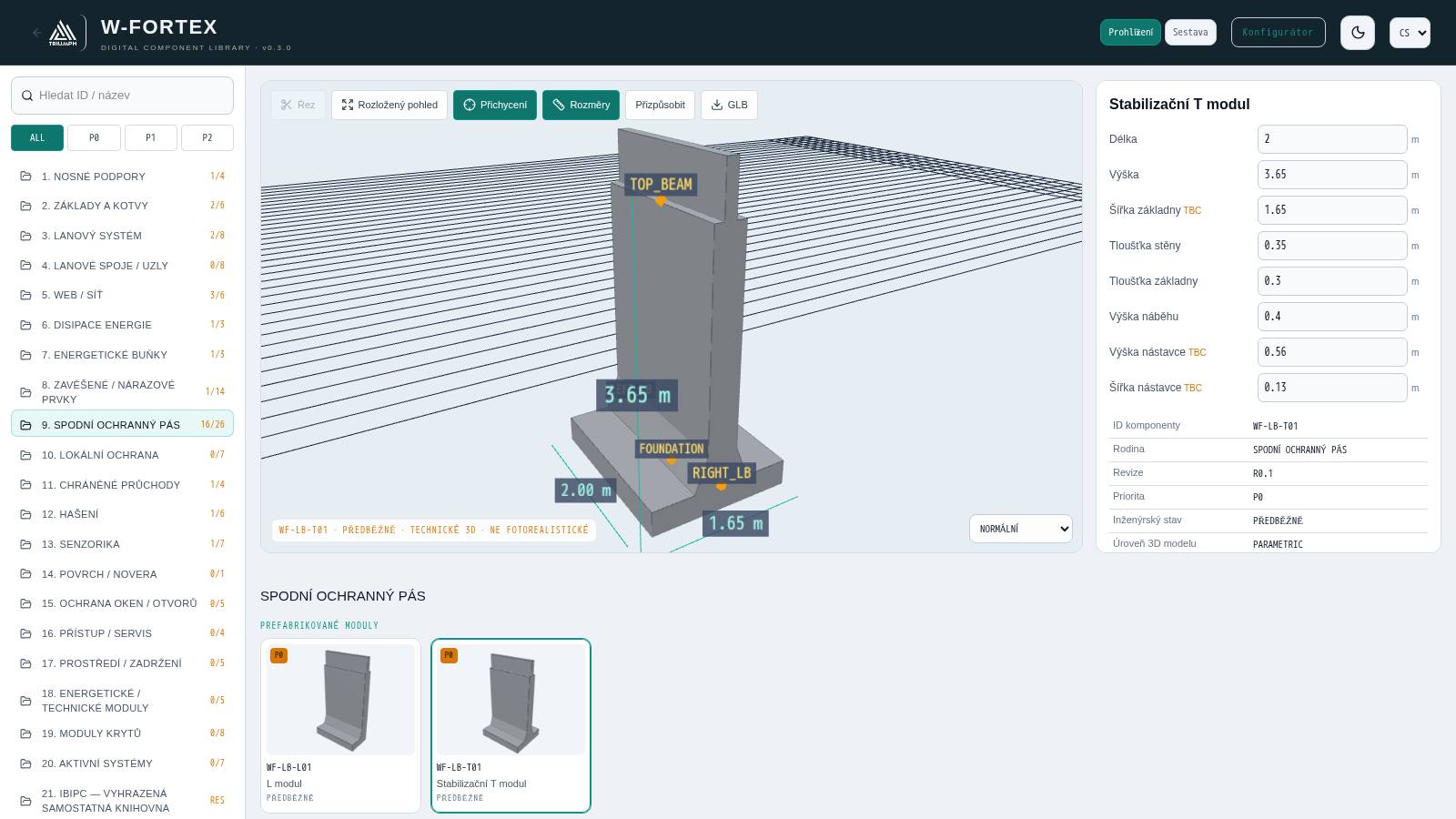
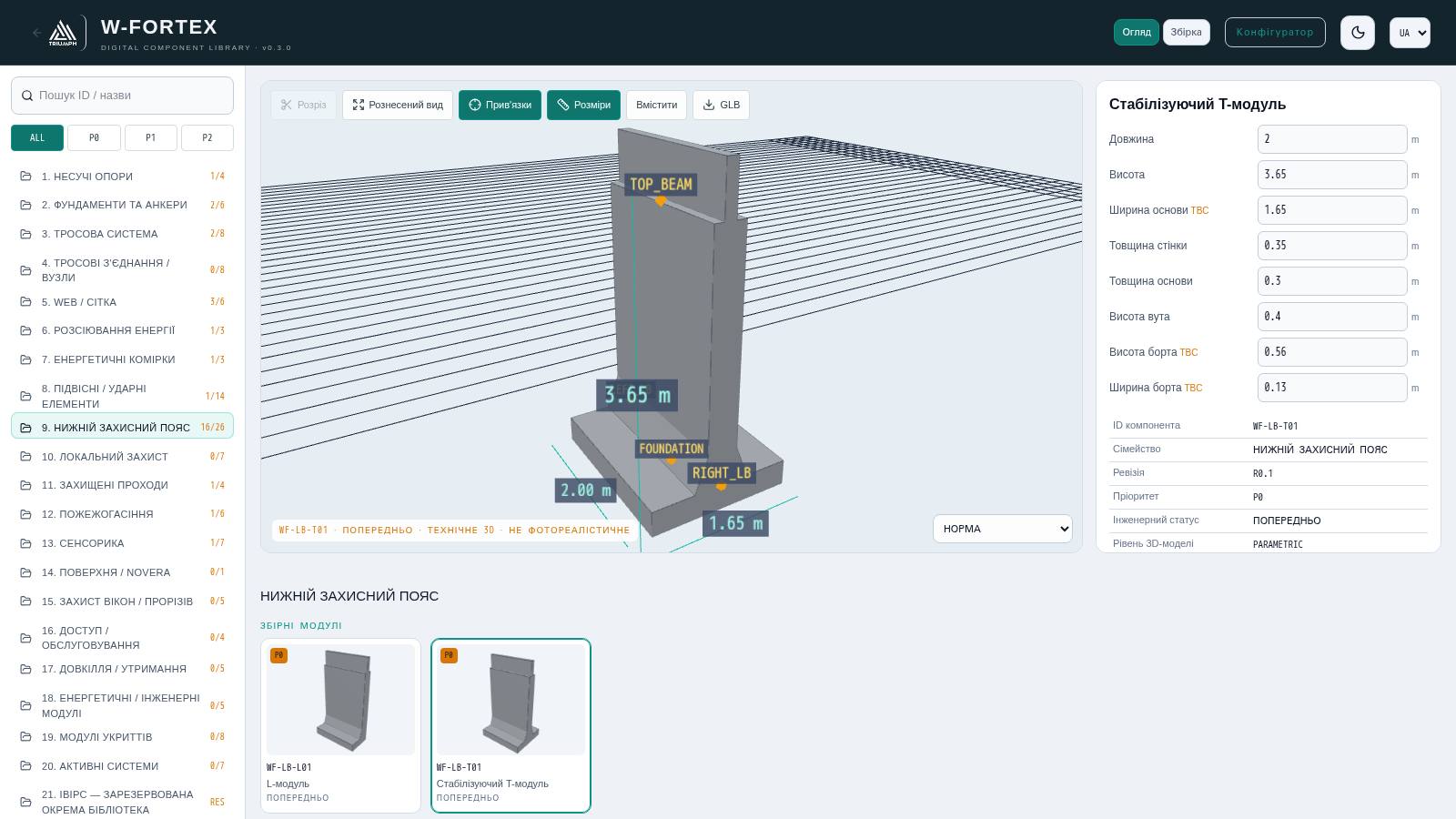
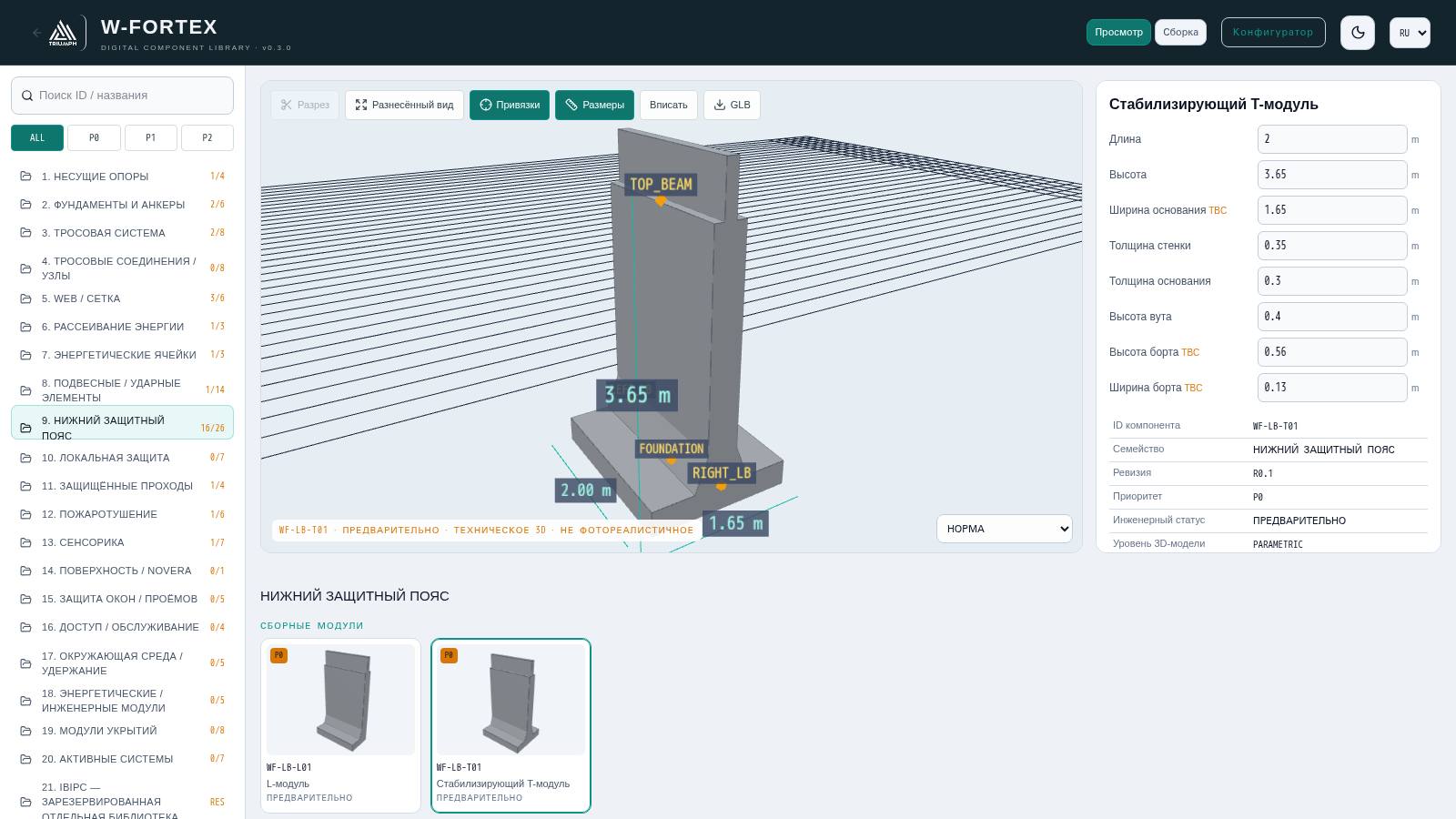
Each configurator element is a library component with a permanent ID (for example WF-LB-T01 Stabilising T-module). The library opens via the LIBRARY tab or at /w-fortex/confi/app/?view=library.
- 21 families: load-bearing supports, foundations and anchors, cable system, cable connections, WEB/mesh, energy dissipation, energy cells, suspended/impact elements, lower protective belt, local protection, protected passages, fire suppression, sensing, surface/NOVERA, window protection, access/maintenance, environment, engineering modules, shelter modules, active systems, 21 — IBIPC (reserved separate library).
- Priority filter ALL / P0 / P1 / P2 and search by ID or name.
- Inspect: Cutaway, Exploded, Snaps (interface points), Dims, Fit, GLB export, selection of the simulation state (NORMAL … REMOVED).
- Card: editable parameters (TBC — no source data), ID, family, revision, priority, engineering status, 3D model level, nominal L × W × H, material, masses (catalogue / transport / installed), BOM unit, interfaces, compatibility.
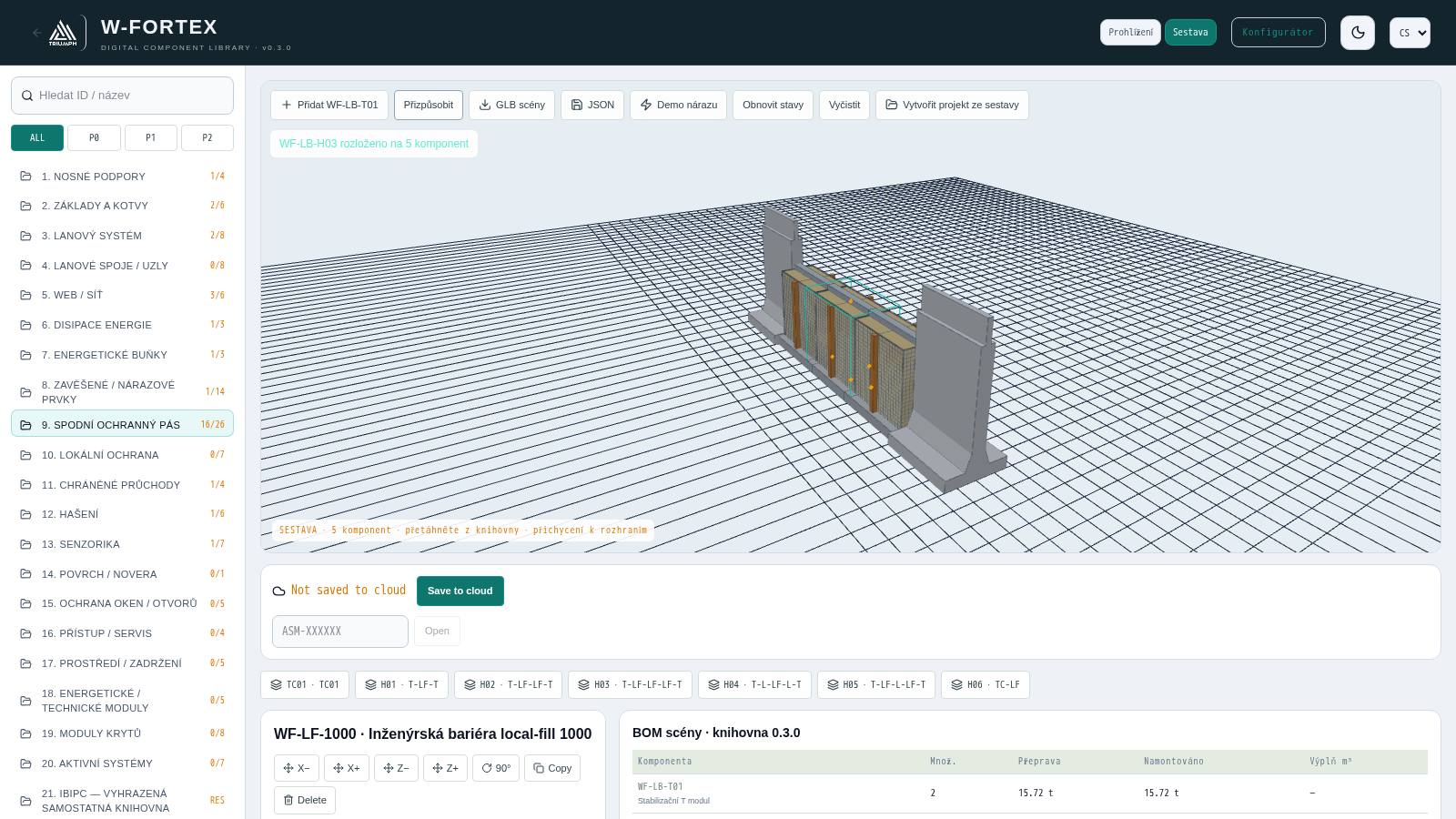
"Assembly" mode
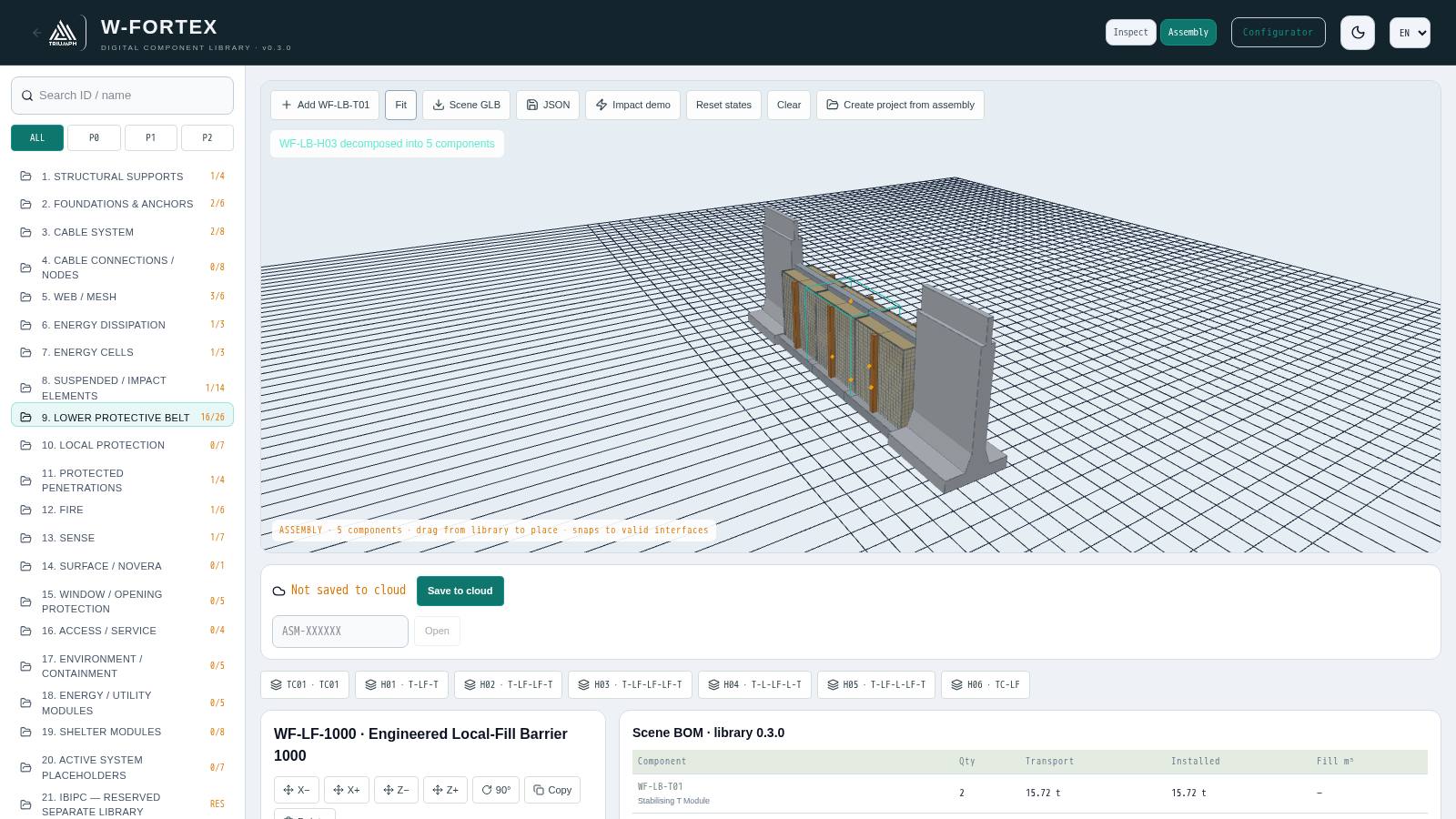
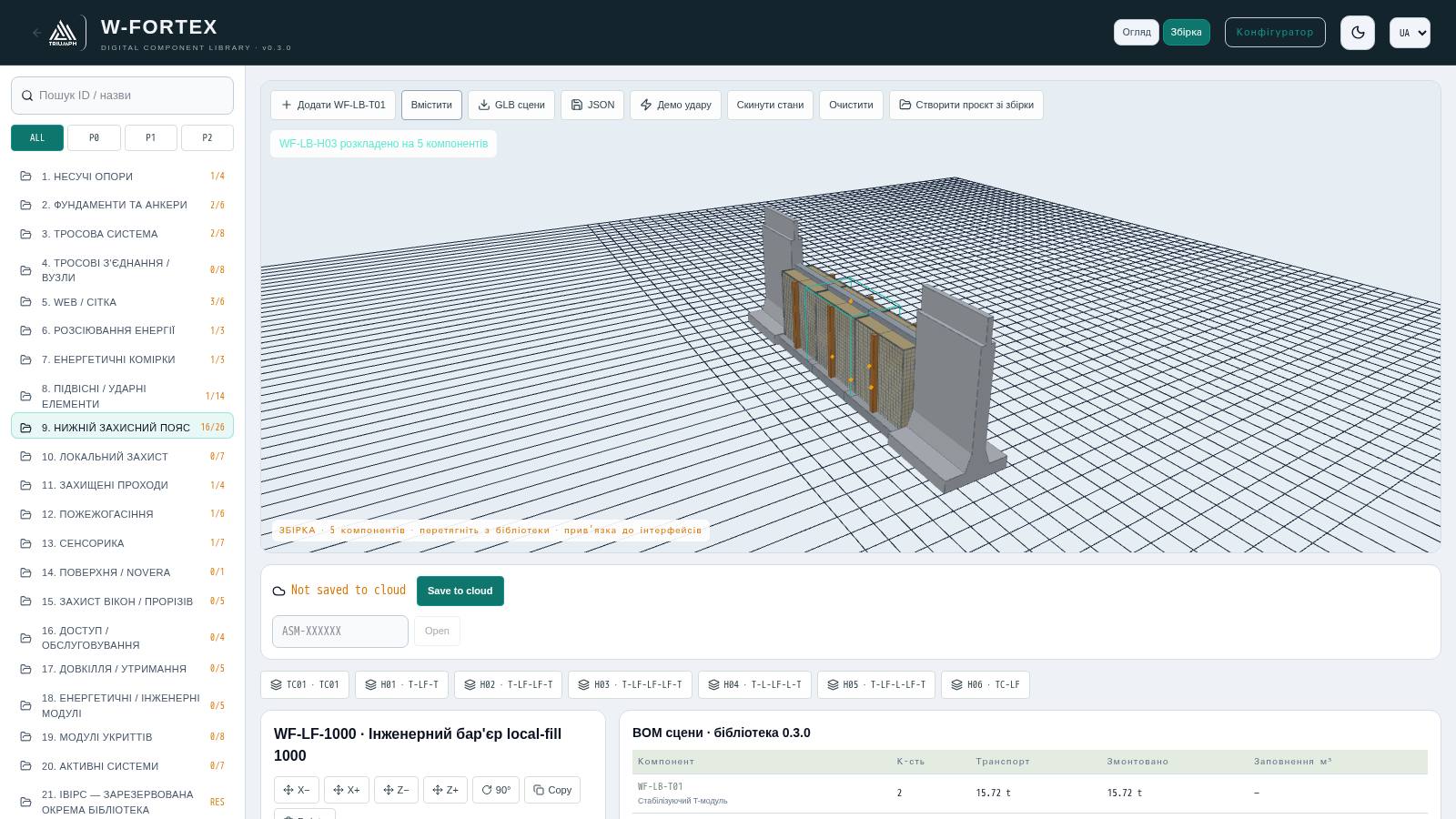
- Drag a component from the library into the scene — it snaps to compatible interfaces. Presets TC01, H01…H06 expand into editable components.
- Selected component: shift X±/Z±, 90° rotation, copy, replacement with a compatible one, deletion, parameter changes.
- "Impact demo" and "Reset states" — illustrative propagation of damage states through the assembly.
- Scene BOM — quantity, transport mass, installed mass, fill m³, TOTAL.
- Assembly cloud (code ASM-XXXXXX), export of Scene GLB and JSON, "Create project from assembly" — a new configurator project with additional components.
Library BOM in the configurator
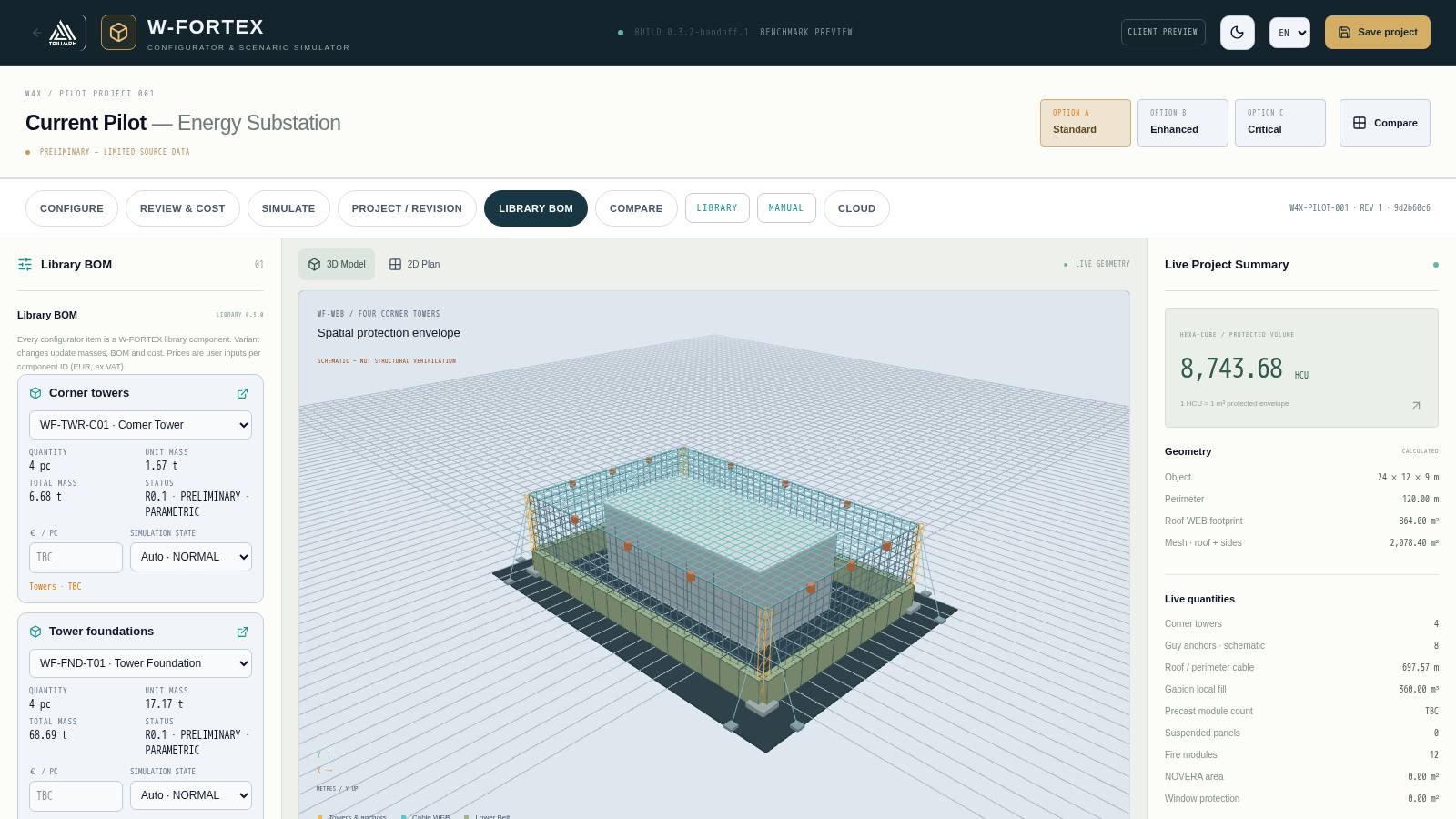
The LIBRARY BOM tab shows, for each project item, the selected component variant, quantity, unit and total mass, status, unit price (input) and simulation state (automatic by timeline or manual). Changing the variant immediately updates masses, BOM and cost; category prices in "Review & cost" are calculated as the sum over component IDs.
11. IBIPC product library
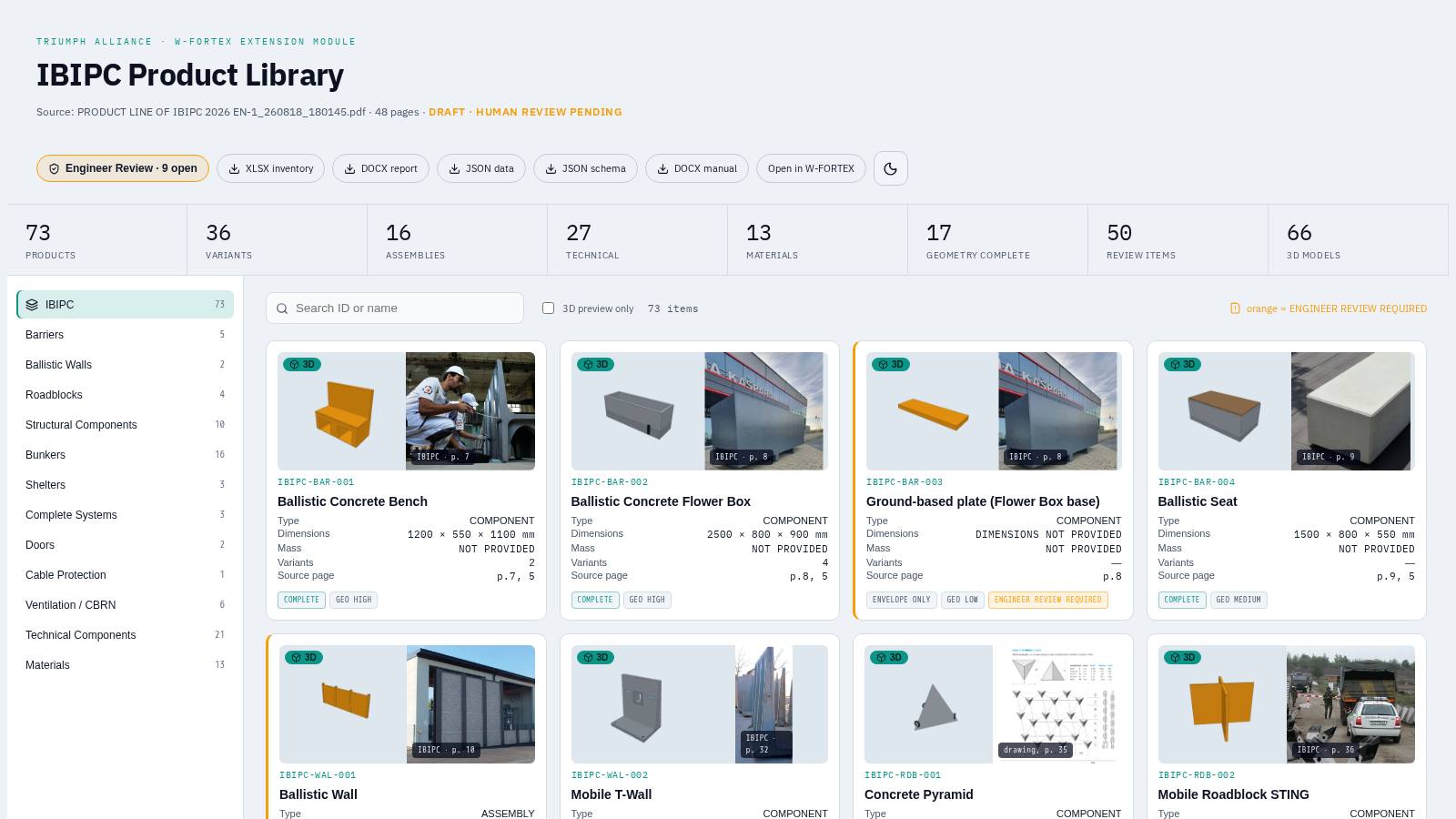
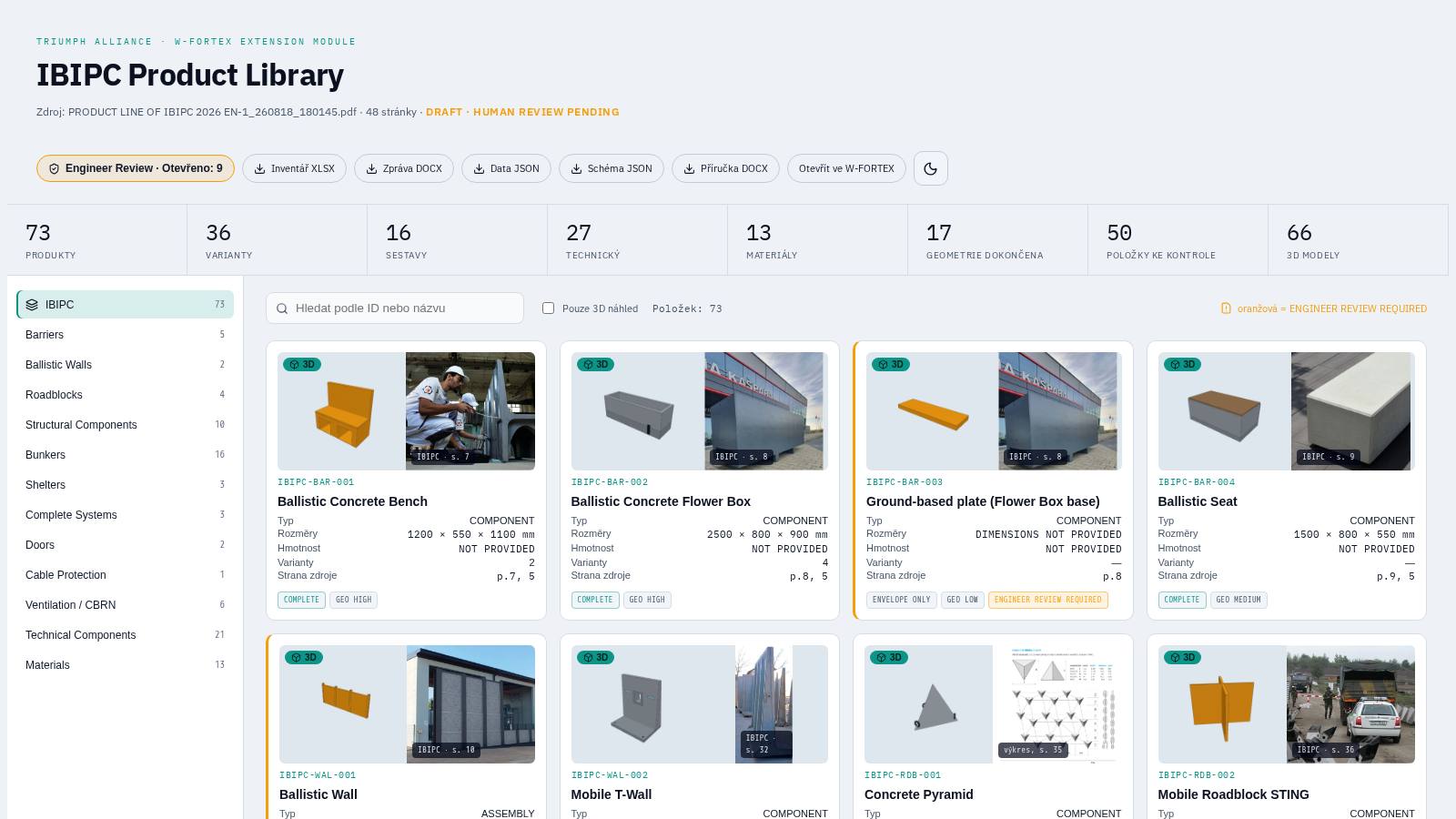
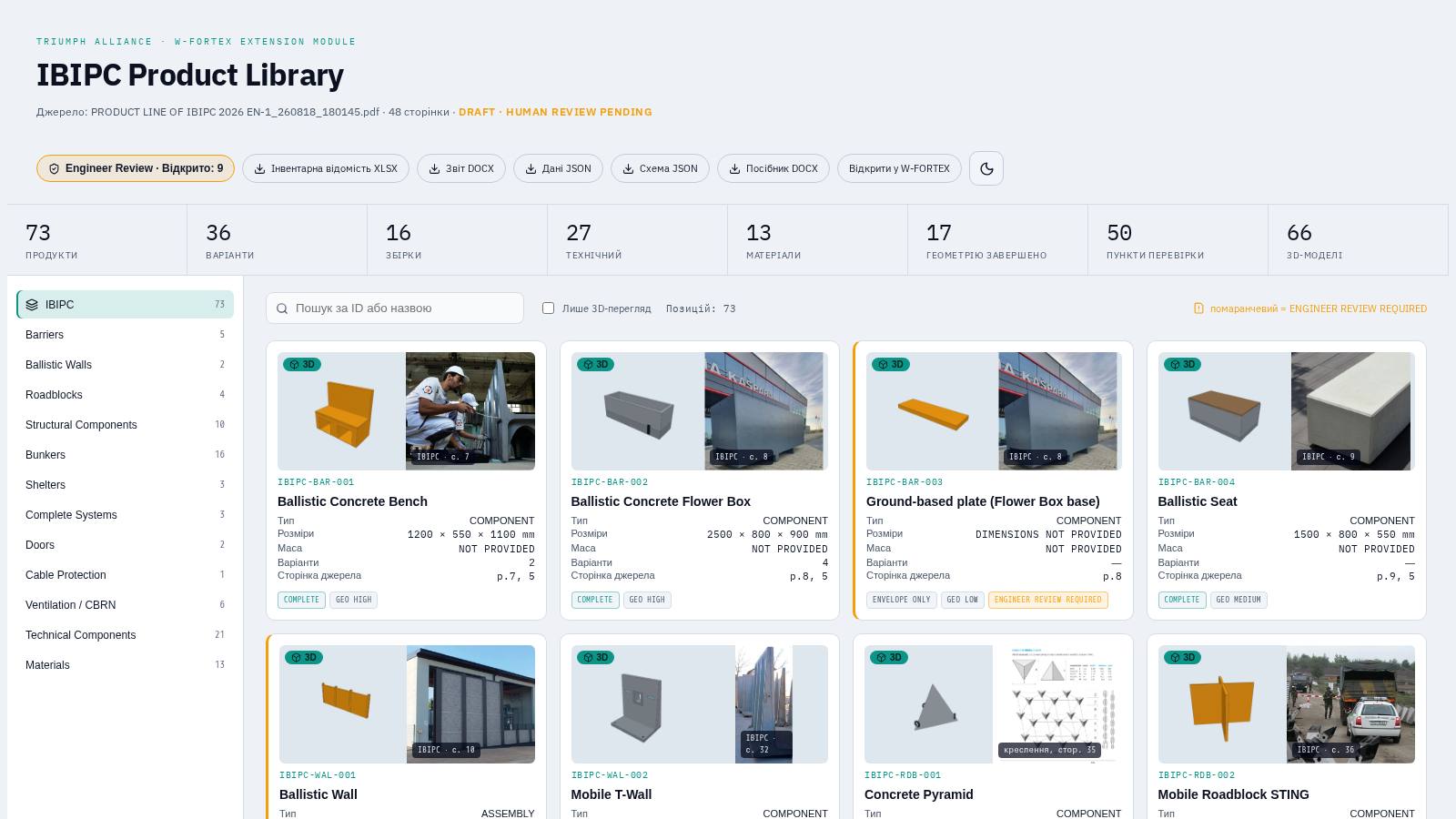
IBIPC Product Library is an isolated module with a digital catalogue of real IBIPC products (concrete protective barriers, ballistic walls, road barriers, bunkers, shelters, doors, filtration-ventilation, materials). The only source is the official catalogue "PRODUCT LINE OF IBIPC 2026 EN" (48 pp.), extracted into IBIPC_MASTER_SOURCE.json with a validation schema. Values are not invented: missing ones are stored as null with status NOT_AVAILABLE or ENGINEER_REVIEW_REQUIRED.
| Metric | Count |
|---|---|
| Products | 73 |
| Variants | 36 |
| Assemblies | 16 |
| Technical components | 27 |
| Materials | 13 |
| Full geometry | 17 |
| Items for review | 50 |
| 3D models | 66 |
11.1 Catalogue interface
- Header: status DRAFT · HUMAN REVIEW PENDING, Engineer Review button (number of open questions), downloads XLSX inventory, DOCX report, JSON data, JSON schema, DOCX manual, link to W-FORTEX, theme.
- Category tree: Barriers, Ballistic Walls, Roadblocks, Structural Components, Bunkers, Shelters, Complete Systems, Doors, Cable Protection, Ventilation/CBRN, Technical Components, Materials.
- Search, "3D preview only" filter; cards with a 3D preview and a real photo from the catalogue, ID, type, dimensions, mass, variants, page. An orange stripe means ENGINEER REVIEW REQUIRED.
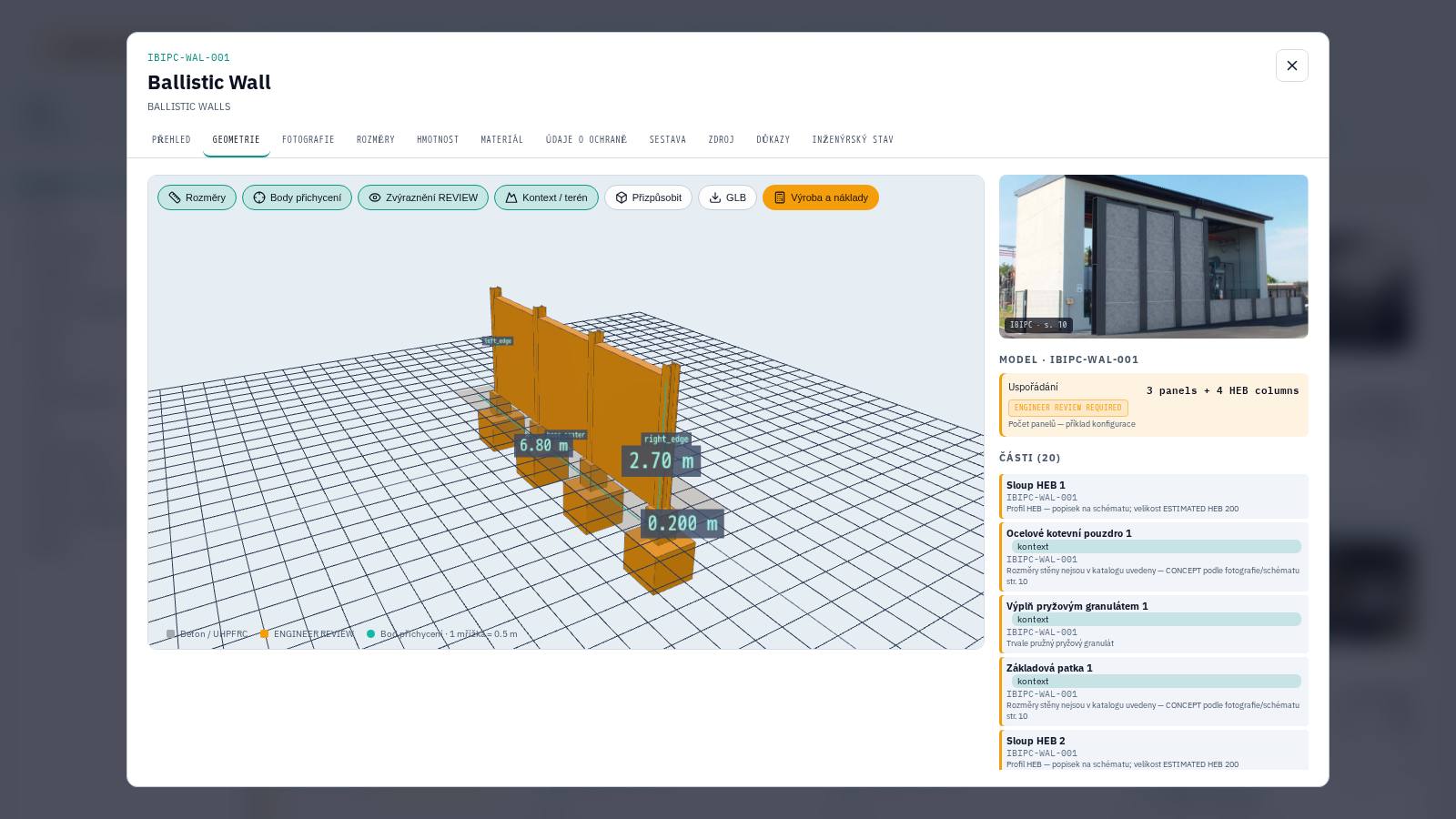
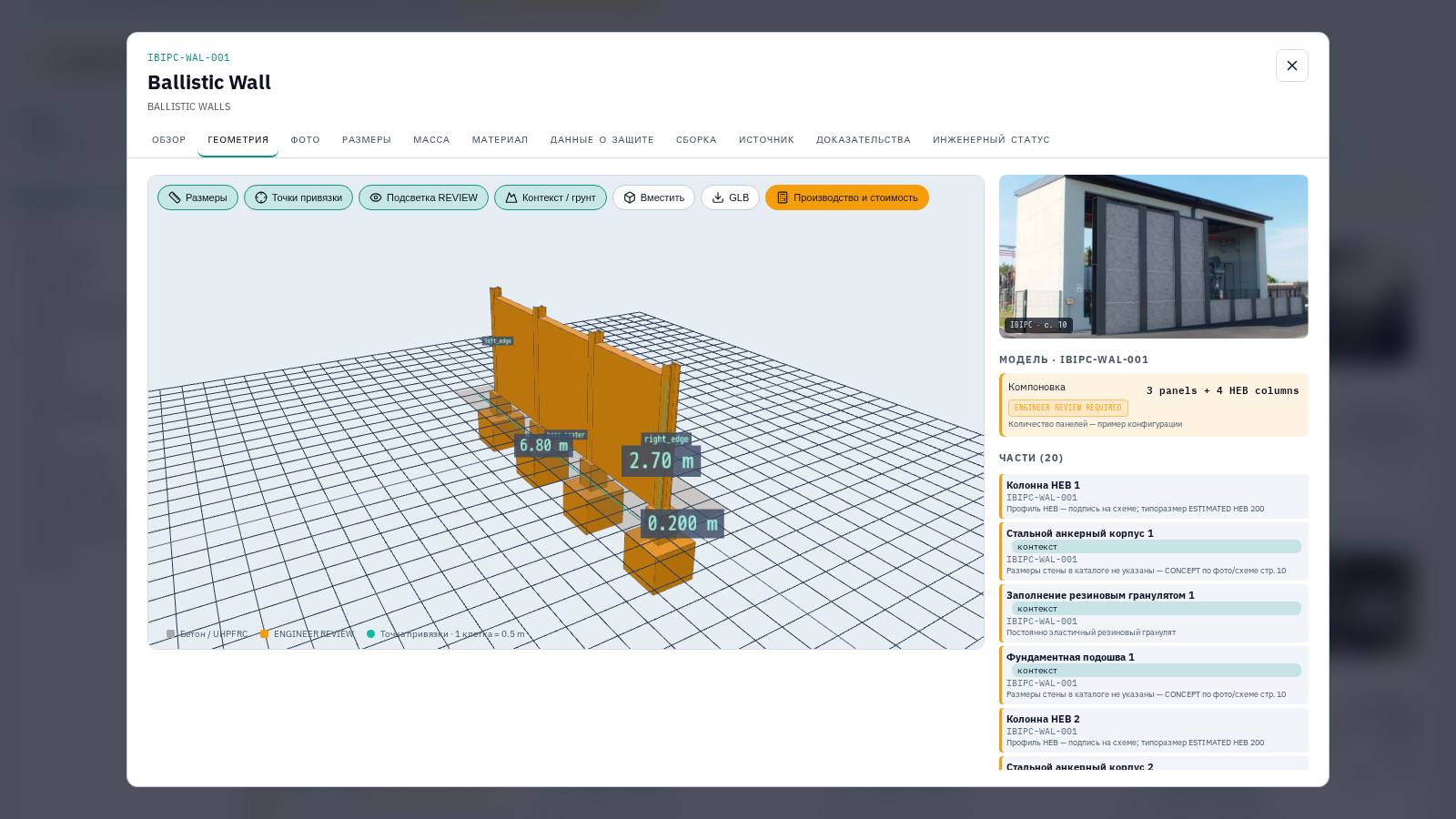
11.2 Product card and 3D
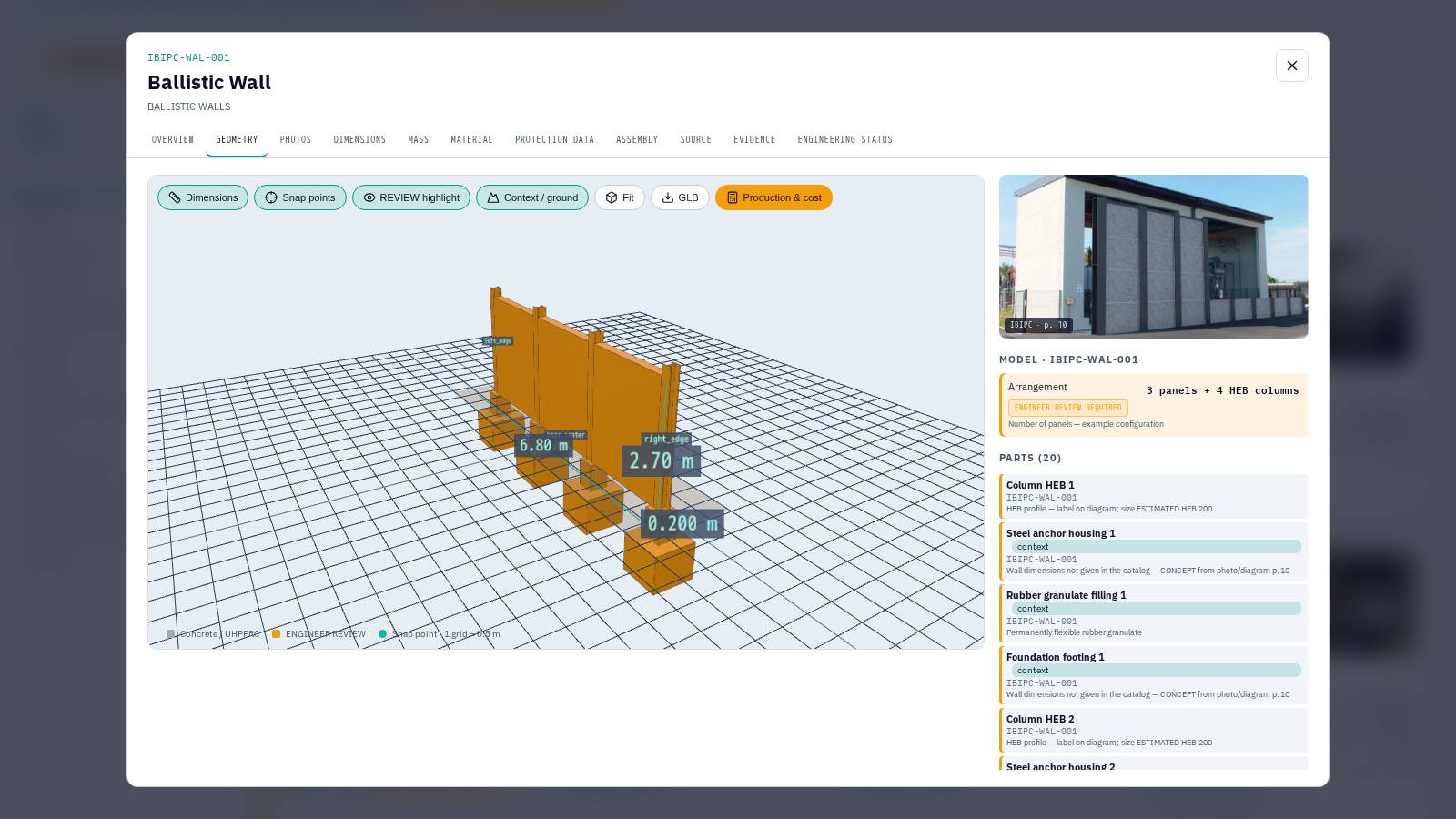
| Tab | Contents |
|---|---|
| OVERVIEW | Model type (A–E, X), geometry completeness, construction, installation, variants |
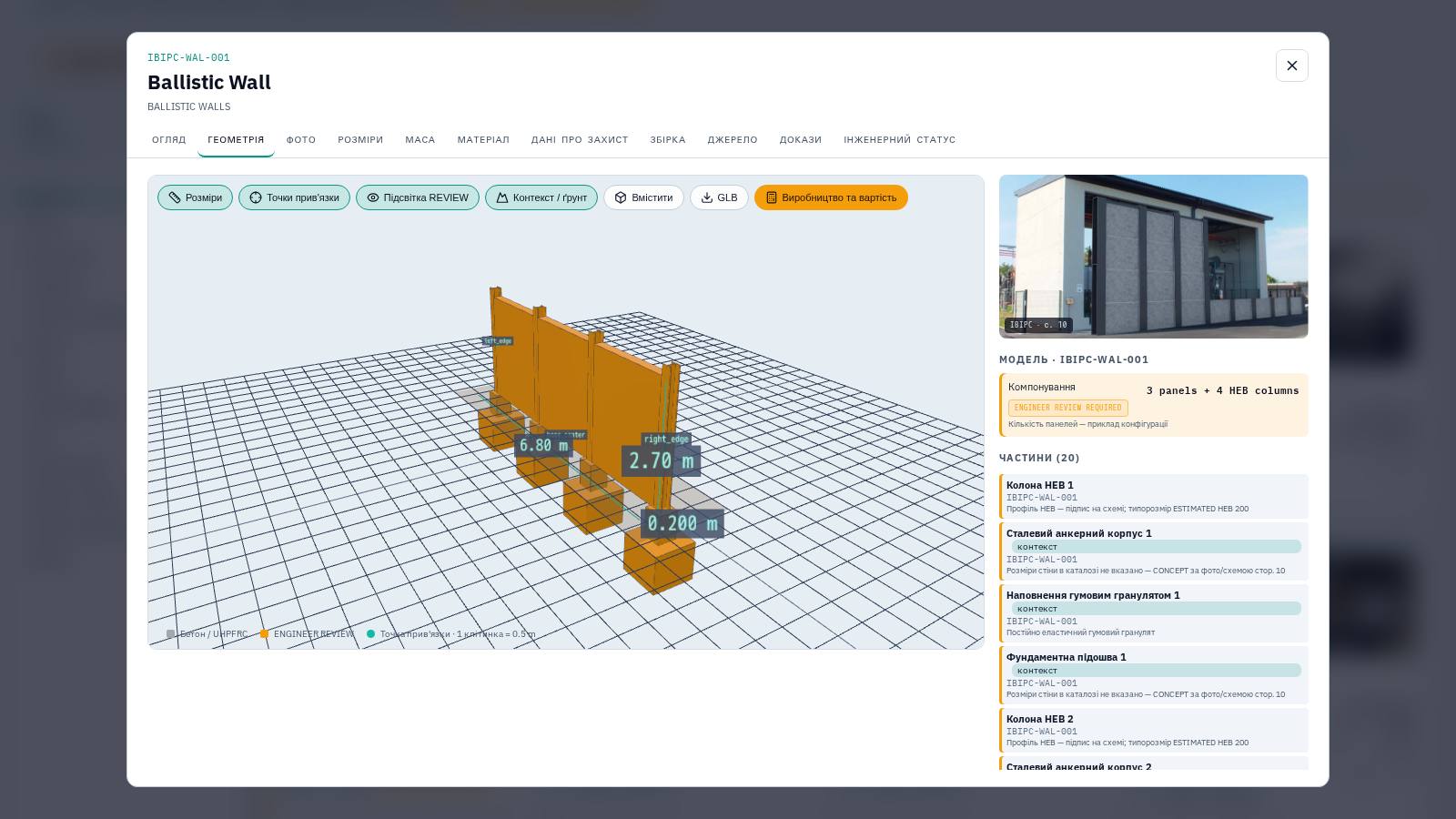
| GEOMETRY | 3D: Dimensions, Snap points, REVIEW highlight, Context/ground, Fit, GLB, Production & cost; variant switching; model parts; derived values |
| PHOTOS | Photos and drawings from the catalogue with page number, enlarge on click |
| DIMENSIONS / MASS / MATERIAL | Parameters with source status; engineer decision buttons |
| PROTECTION DATA | Protection claims: general, per product, per test, per certificate |
| ASSEMBLY | Assembly hierarchy: segments → covers → doors → seals → embrasures → equipment |
| SOURCE / EVIDENCE / ENGINEERING STATUS | Pages, discrepancies, certificates and reports, review status |
Models are parametric, at real scale (metres). Grey — catalogue data, orange — estimate/concept. Bunker assemblies are built from the Universal Construction Segment (UCS TYPE I/II/II-D) in the chain "cover → seal → segment … → cover". Production & cost gives concrete volume, masses, lifts, the heaviest element, BOM (CSV) and cost at the rates entered by the engineer.
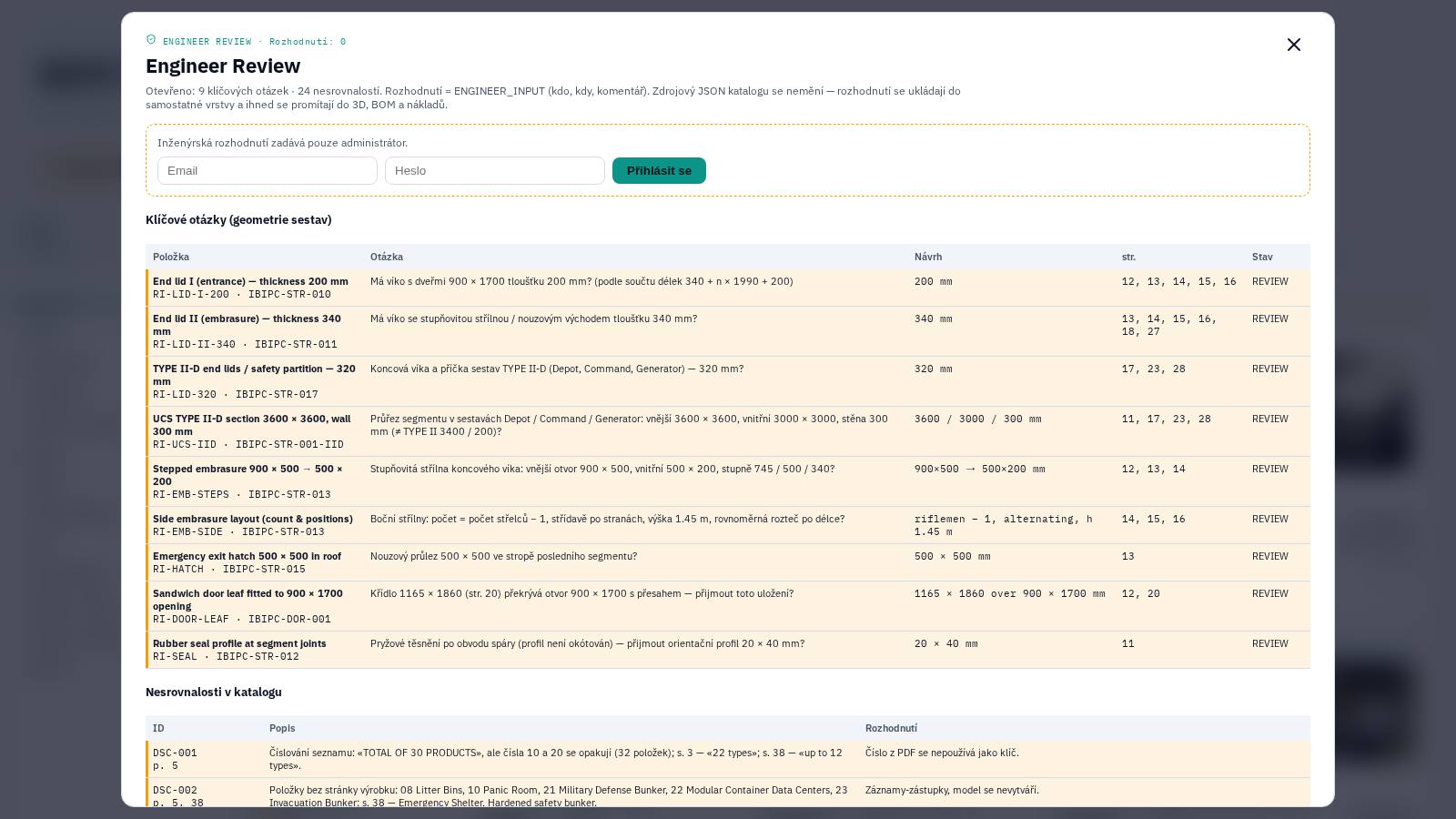
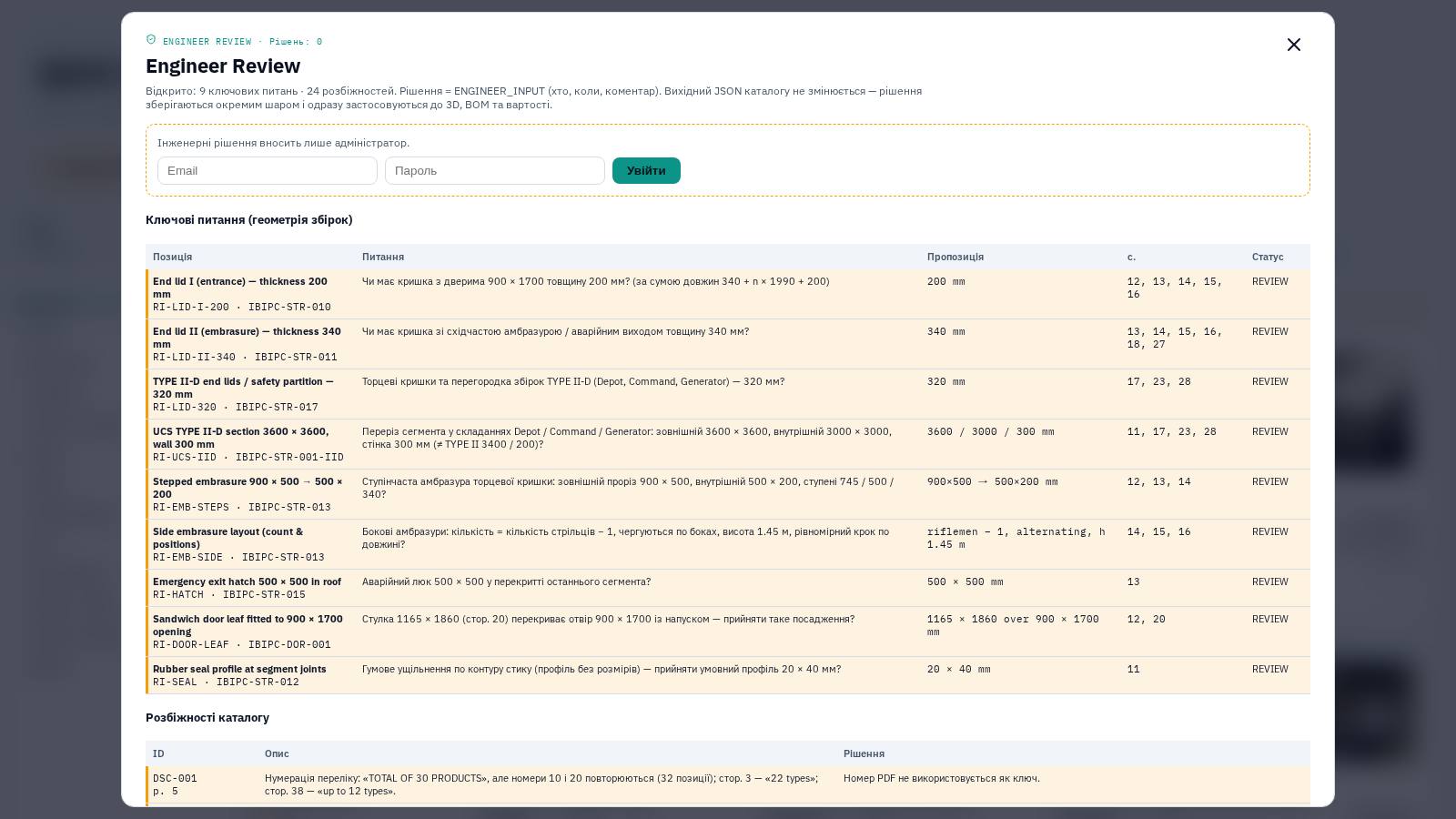
11.3 Engineer Review — engineering review
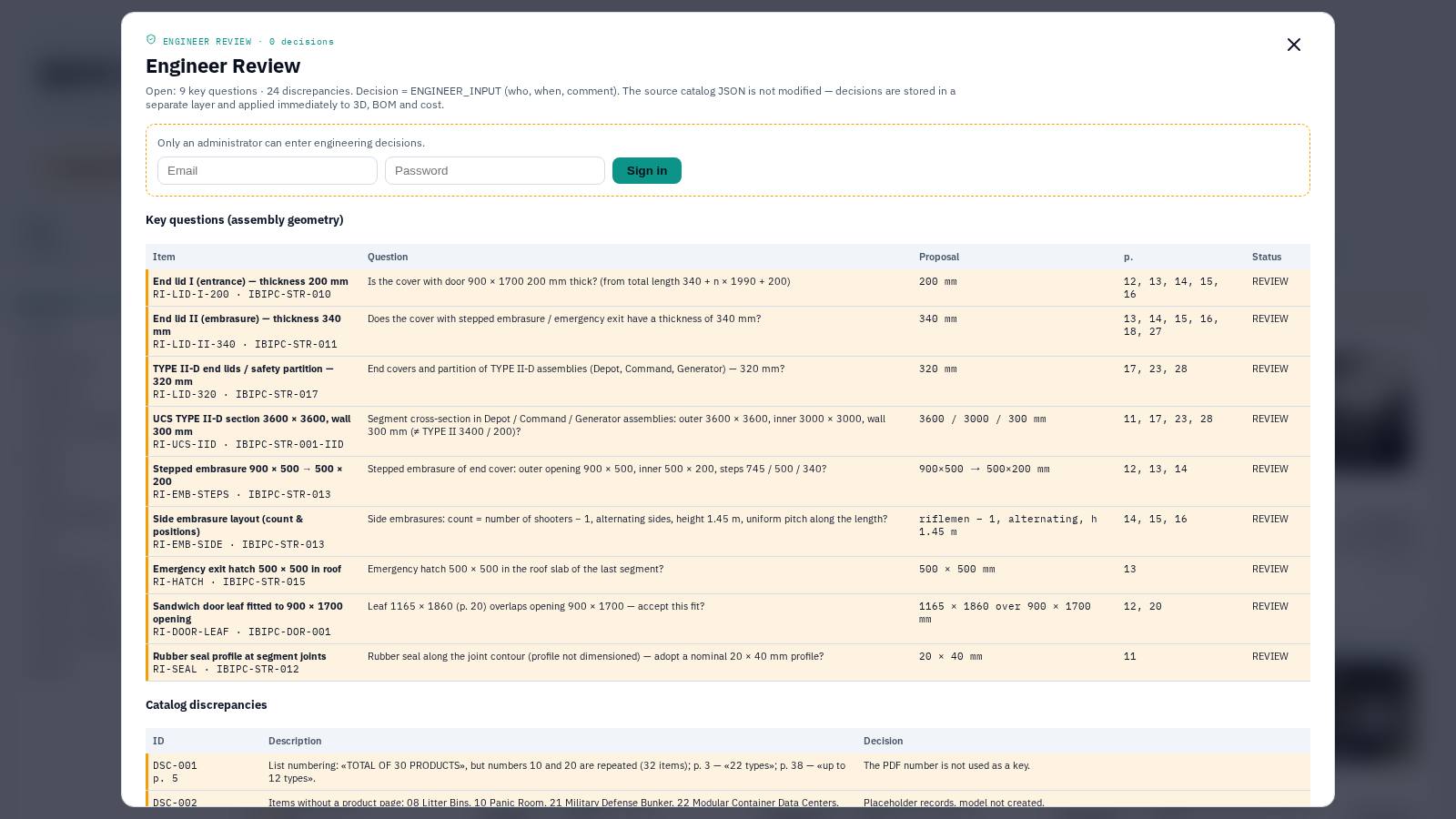
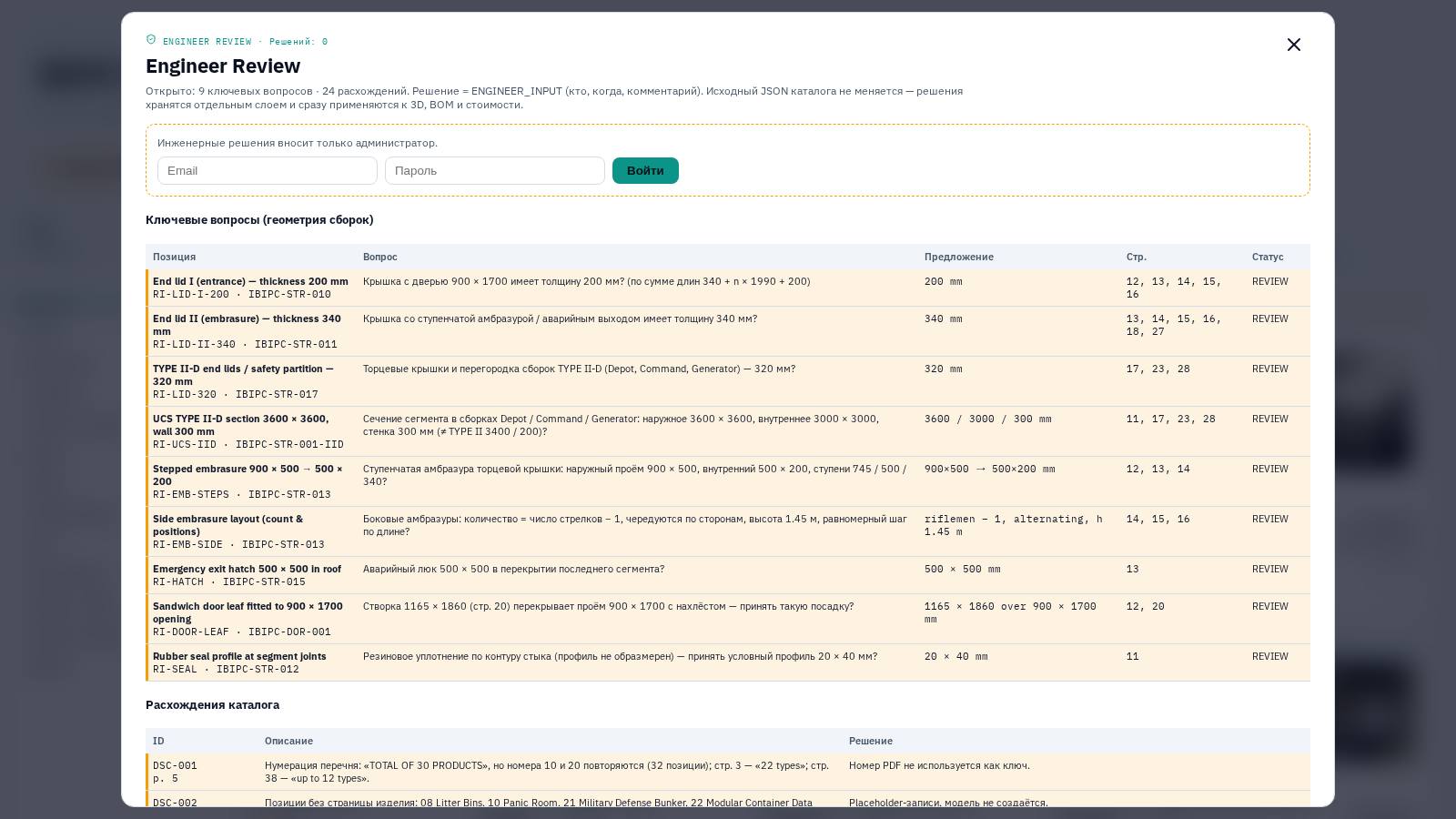
- Decisions are entered by an administrator (e-mail/password login) or an IBIPC engineer via a secure link.
- 9 key geometry questions on assemblies and 24 catalogue discrepancies; decisions on individual parameters and parts of the 3D model.
- Actions: "Confirm" or "Custom value" with a comment, revocation of a decision. Each decision is ENGINEER_INPUT (who, when); 3D, BOM and cost are recalculated immediately.
- Engineer link: name, e-mail, validity (14 days by default); the invitation is sent by e-mail; the administrator receives an e-mail about every decision made via the link; the link can be revoked.
- Report — PDF and XLSX export: title page, questions, discrepancies, decisions, history, signature block.
11.4 IBIPC in the configurator and simulator
- Placement: select product/variant → "Add to scene", dragging, rotation, docking by snap points (front_joint ↔ rear_joint, left_edge ↔ right_edge, segment_end ↔ segment_start).
- Ready-made layouts: "Checkpoint" (Checkpoint + T-Wall at the entrance), "T-Wall perimeter" (a ring with an opening and corner L inserts), "Shelter" (Mobile Bunker 3S + protective row of T-Wall). Entrance parameters — side, position, width.
- Project specification by IBIPC objects: number of objects, concrete, mass, steel, lifts, heaviest element, items for review; when a price per m³ is entered — an "IBIPC library objects" line in the estimate.
- Objects are saved together with the project (locally and in the cloud).
- In the simulator — the "IBIPC protection" panel, visual damage of elements, optional accounting for shielding (section 7.6).
12. Typical workflows
12.1 Quick preliminary assessment of an object
- Open /w-fortex/confi/app/, set the object dimensions or use AI import from a plan/photo.
- Set standoffs, WEB height, lower belt type by side and the subsystems.
- In the "Review & cost" tab enter the known prices and masses; check HCU and the benchmark.
- Compare options A / B / C.
- Save to the cloud and send the client link or the PDF proposal to the client.
12.2 Protection demonstration
- Go to "SIMULATE", choose showcase scenario 1–4 or configure the threat manually.
- Pick the impact point by clicking on the roof, choose the CINEMATIC quality, enable the debris comparison "without W-FORTEX".
- Play the timeline, comment on the event log and the final state.
12.3 Project with IBIPC products
- In "Configuration", in the IBIPC block, choose the entrance side and width and click "T-Wall perimeter", then "Checkpoint".
- Fine-tune the position of objects by dragging and docking.
- Run scenario 4 (near miss) and enable "Account for IBIPC shielding" — compare the pressure on the object.
- Send the Engineer Review link to the IBIPC engineer to confirm disputed dimensions; export the report.
13. Limitations of the current version
- Build 0.3.x is a functional benchmark, not MVP 1.0: an internal price service and loading/replay of engineering results (FEM/CAE) are absent.
- All prices are user input; internal cost and margin are not stored.
- Masses and logistics are preliminary; trips and crane are a lower bound, the lifting plan requires verification.
- The simulator uses illustrative physics and simplified formulas; it does not replace structural calculation.
- AI import produces a simplified volumetric model — dimensions must be checked by an engineer.
- IBIPC: some products are conceptual envelope models; masses via density are an estimate; 7 list items without a product page have no 3D.
Planned development
- Phase 4 — engineering data: results contract, FEM/CAE import (displacements, stresses) and their replay in the scene.
- Phase 5 — cinematic presentation: HDR lighting, bloom, particles.
14. Glossary
| Term | Explanation |
|---|---|
| HCU / HEXA-CUBE | 1 m³ of protected envelope volume; basis of the commercial benchmark |
| WEB | Spatial cable mesh (roof and sides) on corner towers |
| Lower Belt | Protective belt at the base of the envelope (gabion, T/L modules, IBIPC, RC) |
| DAF | Dynamic load factor |
| MBL | Minimum breaking load of a cable |
| TBC | To be confirmed — data are missing, clarification required |
| NOVERA | Protective surface coating |
| Kingery–Bulmash | Empirical model of blast wave parameters from an explosive charge |
| P–I | Pressure–impulse diagram for assessing damage to an element |
| UCS | Universal Construction Segment — the basic IBIPC modular segment |
| UHPFRC | Ultra-high-performance fibre-reinforced concrete |
| Snap point | Product docking point / component interface |
| BOM | Bill of Materials |
| ENGINEER_INPUT | Value confirmed or entered by an engineer |
| STANAG 2280 | NATO standard on protection classes of structures |